
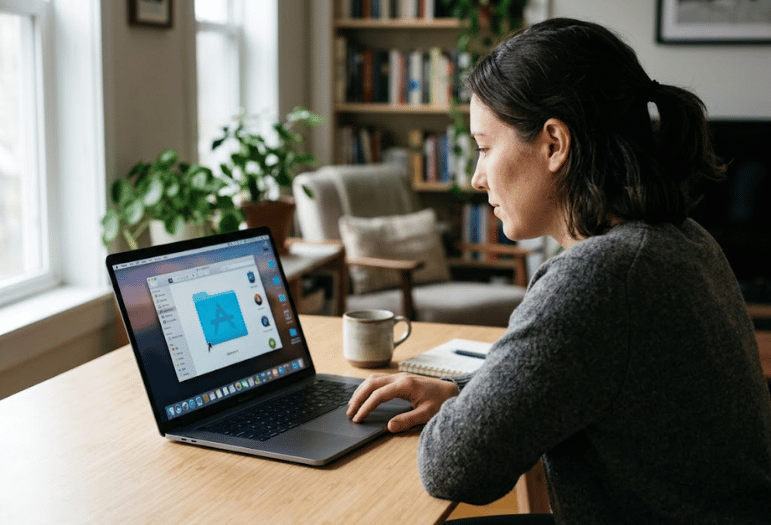
The Applications folder on a Mac is the main location for installed software. You can reach it through Finder, a keyboard shortcut, Spotlight, or the Go menu. Knowing where it is also makes installing, finding, and removing Mac apps much easier.
| Quick fact | What to know |
|---|---|
| Main location | /Applications |
| Fast keyboard shortcut | Shift + Command + A |
| Finder route | Finder → Applications |
| Menu route | Go → Applications |
| Direct path method | Shift + Command + G → /Applications |
| User-only location | ~/Applications may exist for one account |
| Best choice for beginners | Finder sidebar or keyboard shortcut |
Quick answer: On a Mac, open Finder and choose Applications from the sidebar. You can also press Shift + Command + A while Finder is active. Another option is Finder → Go → Applications. The main Applications folder is usually at /Applications on your startup disk.
What Is the Applications Folder on a Mac?

macOS uses this directory as the standard home for many installed apps. Programs downloaded from the Mac App Store normally appear there automatically. Many apps installed from downloaded packages also use this location.
Apple treats Applications as one of the standard folders included with macOS. It appears alongside other important system locations on the startup disk. Apple advises against renaming or moving folders that macOS creates for specific purposes.
This directory differs from Launchpad or the Dock. Those tools mainly give you convenient ways to launch software. The directory itself shows where application bundles are stored on the disk.
Where Is the Applications Folder Located?
The main applications folder normally uses the path /Applications. It sits near the top level of the Mac startup disk rather than inside your personal Documents folder. Apps stored there can generally be available to multiple user accounts.
You may also encounter ~/Applications, where the tilde represents your home directory. This second location can contain software available only within your user account. Not every Mac will have useful content there.
For most everyday tasks, start with /Applications. Finder normally opens there when you select Applications from its sidebar. You usually only need the user-specific directory when troubleshooting an unusual installation.
6 Fast Ways to Open It
You do not need to browse through several folders manually. macOS offers several shortcuts to reach the directory quickly. Choose whichever method best fits how you normally use your Mac.
- Use the Finder sidebar. Click Finder in the Dock, then select Applications on the left. This is usually the easiest method for new Mac users.
- Use the keyboard shortcut. Make sure Finder is active, then press Shift + Command + A. Finder opens the directory immediately.
- Use the Go menu. Click the desktop or open Finder first. Choose Go → Applications from the menu bar.
- Use Go to Folder. Press Shift + Command + G, enter /Applications, and press Return. This method is useful when the sidebar shortcut is missing.
- Use Spotlight. Press Command + Space, search for Applications, and choose the folder result. Spotlight is also convenient when you need a specific app.
For routine use, the keyboard shortcut is usually the fastest option. Finder’s sidebar is easier when you prefer visual navigation. The direct path method is especially helpful during troubleshooting.
Use Terminal. If you already work on the command line, type open /Applications and press Return to open the folder in a Finder window, or cd /Applications followed by ls to list its contents without leaving Terminal.
Applications Missing From the Finder Sidebar
A missing sidebar shortcut usually doesn’t mean your apps disappeared. Finder can hide individual sidebar locations while their actual folders remain untouched. Opening /Applications directly can confirm that the directory still exists.
If Applications is missing, open Finder and check its sidebar settings. Enable the Applications entry again, then return to a Finder window. The shortcut should reappear without moving any files.
You can still use Shift + Command + A while the shortcut is hidden. You can also use Go → Applications from Finder’s menu bar. These routes access the same main directory.
To bring the shortcut back, open Finder, choose Finder > Settings from the menu bar (called Preferences on macOS Monterey and earlier), click the Sidebar tab and tick Applications under Favorites. The entry reappears straight away; no restart is needed.
Built-In Apps Live in /System/Applications
Since macOS Catalina, Apple keeps its own apps, such as Safari, Mail, Photos and Calendar, on a separate read-only system volume at /System/Applications. Finder merges that location with your own /Applications folder, so you see one combined list, but it explains why you cannot delete or rename most Apple apps and why they do not reappear in a backup the way third-party apps do.
The same applies to the Utilities subfolder. Tools like Terminal, Activity Monitor and Disk Utility sit in /System/Applications/Utilities, yet they show up when you open Applications > Utilities in Finder or press Shift-Command-U.
/Applications vs. ~/Applications
The two paths look similar, but they represent different locations. The first is a system-wide directory on the startup disk. The second sits inside one user’s home directory.
| Location | Typical purpose | Who can use the apps? |
|---|---|---|
| /Applications | Standard location for installed Mac apps | Usually users of that Mac |
| ~/Applications | User-specific app storage | Primarily that user account |
You can open the second path with Shift + Command + G and enter ~/Applications. Don’t worry if that location is empty or doesn’t contain the software you expect. Most people will spend far more time in the main system-wide directory.
This distinction can explain an app that seems missing from one location. An installer may use a different destination depending on its design or permissions. Checking both paths can save time before reinstalling software.
What Can You Safely Do With Your Mac Apps?
Opening an app from this directory is straightforward. Double-click its icon, and macOS launches it like any other application. You can also drag an app icon to the Dock for quick access.
Be more careful when moving application files themselves. Some programs expect supporting files, permissions, or installed components to stay in the correct order. Follow the developer’s uninstall directions when an application uses its own removal tool.
Avoid moving or renaming the main system-created directories themselves. Apple specifically cautions against changing certain folders supplied with macOS. Changing the folder structure can cause applications or system features to behave unexpectedly.
What if an installed app isn’t there?
First, search for the application by name with Spotlight. The app may be stored somewhere unexpected or may still be inside a downloaded disk image. Spotlight can often locate it faster than manually checking directories.
Next, check your Downloads folder if you recently downloaded the program. Many Mac downloads arrive as .dmg files, .pkg files, or compressed archives rather than finished installations. Opening the download is not always the same as installing the application.
You can then check both /Applications and ~/Applications. If neither contains the program, review the developer’s installation instructions. Reinstall from the developer’s official source when the original installation appears incomplete.
On macOS Tahoe (macOS 26), Apple replaced Launchpad with a new Apps view built into Spotlight. Click the Apps icon in the Dock or press Command-Space and then Command-1 to browse every app in a searchable grid. It is still only a launcher, though: Finder is where you go to move, rename or delete the app files themselves.
Can You Add Applications to the Dock?
Yes, you can keep individual apps in the Dock for easy access. Open the directory, then drag the desired application icon onto the Dock. This gives you convenient access without moving the original application bundle.
You can also keep the entire directory available from the Dock. Adding a folder there provides another way to browse installed programs. Its Dock appearance may differ from its Finder icon depending on your display settings.
The Dock is a shortcut, not the primary storage location. Removing a Dock icon usually doesn’t uninstall the corresponding program. This distinction helps prevent accidental confusion when you clean up your desktop.
For one-click access to the whole folder, drag Applications from the Finder sidebar to the right-hand side of the Dock, next to the Trash. It becomes a stack. Right-click the stack to choose Grid, Fan or List view and to display it as a folder instead of a pile of icons.
Should You Organize Apps Into Subfolders?
For most users, extensive manual organization is unnecessary. Spotlight, Finder search, and the Dock already provide fast ways to reach frequently used software. Changing application locations can also complicate updates for certain programs.
A safer approach is to organize how you access apps rather than rearranging their installation paths. Keep frequent programs in the Dock and search for occasional tools with Spotlight. Finder list view can also help you browse a large collection.
If you are cleaning up your Mac, focus on software you no longer use. Check each developer’s removal instructions before deleting applications with extra components. Security software deserves particular care because it may install background services.
Techixia’s guide to free antivirus software explains what to check before installing security applications. The site also covers Recovery Mode for more serious device troubleshooting. These tools solve different problems, so use them only when your situation calls for them.
Useful Mac Shortcuts to Remember
A few Finder shortcuts make file navigation much quicker. Remembering only two or three can eliminate repeated menu browsing. They are especially useful when following troubleshooting instructions.
- Shift + Command + A: Open Applications in Finder.
- Shift + Command + G: Open the Go to Folder box.
- Command + Space: Open Spotlight.
- Command + N: Open a new Finder window when Finder is active.
- Command + Delete: Move a selected Finder item to Trash.
Keyboard shortcuts also appear throughout many everyday Mac workflows. For example, Techixia’s guide to printing double-sided covers in macOS printing alongside Windows and common document apps. Its two-monitor setup guide also explains display configuration on Mac and Windows systems.
Common Mistakes to Avoid
Do not assume Launchpad and Finder show files in exactly the same way. Launchpad is designed to launch apps, while Finder shows actual file locations. An icon appearing in one interface does not always explain where its files are stored.
Don’t delete an application just because you don’t recognize its name. Some software supports another program or provides a system-related function. Research an unfamiliar item before removing it.
Finally, avoid downloading replacement apps from random software portals. When possible, use the Mac App Store or the software developer’s official website. This reduces the risk of installing modified or unwanted software.
Applications Folder FAQ
Where is the Applications folder on a Mac?
The main directory is normally located at /Applications on your startup disk. Open Finder and select Applications in the sidebar. You can also press Shift + Command + A while Finder is active.
Why can’t I see Applications in Finder?
The sidebar entry may be hidden even though the directory still exists. Check Finder’s sidebar settings and re-enable Applications. You can use Go → Applications in the meantime.
What is the shortcut for Applications on Mac?
Press Shift + Command + A while Finder is active. The shortcut opens the main directory immediately. If it selects files instead, confirm that you pressed Shift along with Command and A.
Is there more than one Applications directory?
There can be a system-wide /Applications location and a user-specific ~/Applications location. Most installed software appears in the first one. The second may be empty or used only by certain installations.
Why is an app missing after I downloaded it?
The download may still be a disk image, installer package, or compressed archive. Check Downloads and follow the developer’s installation steps. You can also search for the program with Spotlight.
Can I delete apps from this folder?
Some applications can be removed by moving their application bundle to Trash. Others install extra components and provide specific uninstall instructions. Check the developer’s directions before removing software that includes background services or system extensions.
How do I open the Applications folder from Terminal?
Type open /Applications and press Return. Use cd /Applications if you want to move into the folder and work with it from the command line instead.
Where did Launchpad go in macOS Tahoe?
macOS Tahoe replaced Launchpad with the Apps view in Spotlight. Open it from the Apps icon in the Dock or with Command-Space followed by Command-1.
Keep Your Mac Apps Easy to Find
The Applications folder is simple once you know the main path and shortcuts. Start with Finder or Shift + Command + A, then use /Applications when you need the exact location. Check ~/Applications only when troubleshooting a program that appears to be missing.
Keep the directory itself in its expected location and organize access through Finder, Spotlight, or the Dock. This approach is easier to maintain and less likely to interfere with how software behaves. For more practical computer guides, browse Techixia’s latest technology and software coverage.