

If you’re trying to learn how to print double-sided, start in your document’s Print window. Look for Two-Sided, Print on Both Sides, or Duplex. The wording varies among printers and apps, and automatic two-sided printing only appears when the printer and its driver support the feature.
Quick answer: Open File > Print, select your printer, and enable its two-sided (duplex) option. Choose long-edge binding for standard book-style pages. Choose short-edge binding when pages should flip from the top. If automatic duplexing isn’t available, print the odd-numbered pages first, reload them, and then print the even-numbered pages.
| Where you’re printing | Setting to look for | Usually choose |
|---|---|---|
| Windows 11 | Print on Both Sides / Duplex | Flip on long edge |
| macOS | Double-Sided / Two-Sided | Long-edge binding |
| Microsoft Word | Print One Sided menu | Print on Both Sides |
| Google Docs | Browser/system print settings | Two-sided, if available |
| Printer without auto duplex | Manual odd/even pages | Reinsert paper carefully |
Key takeaway: Most documents should use long-edge binding. If the back of every sheet appears upside down, you probably selected the wrong binding edge. Printers without an automatic duplex unit can still produce two-sided documents by feeding the paper through a second time.
What You’ll Need Before You Start
You need a multi-page document, a connected printer, and enough paper for a small test. Checking the printer model is also useful because manufacturers may place duplex settings in different menus.
If you’re choosing new hardware, Techixia’s best laser printer guide includes models with automatic duplex features and can help you compare printing options before buying.
Don’t send a 50-page job immediately. A two-page test can confirm the paper direction and binding choice before you waste a stack of paper.
How to Print Double-Sided in 6 Steps
- Open the Print window. In most desktop apps, choose File > Print. You can also use the application’s standard print shortcut.
- Select the correct printer. Check the printer name before changing settings. Duplex controls may disappear when a different printer, virtual PDF printer, or unsupported device is selected.
- Find the two-sided setting. Look for Two-Sided, Print on Both Sides, or Duplex Printing. Windows may place the option under Printer Properties, Preferences, or More Settings. On a Mac, supported printers may show a Double-Sided control in the print dialog.
- Choose the binding edge. Select long edge for a document that turns like a book. Select short edge when pages should flip upward, as they would in a calendar or top-bound notepad.
- Print two pages as a test. Check that page two is upright when you turn the first sheet. If it’s upside down, switch from long-edge to short-edge binding, or vice versa.
- Print the full document. Once the test sheet looks right, return to the print dialog and send the complete job.
This test-sheet method is especially useful when you’re using an unfamiliar office printer. It also removes the guesswork from manual duplex printing.
Print on Both Sides in Windows 11
Open your document and choose File > Print. Select the intended printer, then look for Printer Properties, Preferences, or More Settings.
Enable Print on Both Sides (Duplex), then select the required flip edge. The exact menu name depends on the printer driver. Windows printer settings may also show a duplex unit as installed when the hardware supports duplex printing.
If you print often at home, organizing the printer, paper, power connection, and network access in one place can save time. Techixia’s guide to setting up a home office covers the broader workspace setup.
Print Double-Sided on a Mac
On macOS, open the document and choose File > Print. When the selected printer supports duplex printing, you can turn on Double-Sided in the print options.
For standard portrait documents, use the long-edge option. Choose Short Edge for top-bound pages. Available print controls may differ by printer and application.
If the setting doesn’t appear, check that you’ve selected the correct printer and installed the manufacturer’s current driver or printing software.
Microsoft Word and Google Docs
Microsoft Word
In Word on Windows, choose File > Print, then open the setting that normally says “Print One-Sided”. If your printer supports automatic duplexing, select the two-sided option.
Microsoft Word also provides a Manually Print on Both Sides option for compatible printing workflows. Word pauses so you can turn or reload the sheets before printing on the reverse sides.
In Word for Mac, the two-sided control may appear under the print dialog’s Layout options. Long-edge and short-edge binding choices are available when the printer supports them.
Google Docs
Choose File > Print in Google Docs. The document then uses your browser’s or operating system’s print controls.
Look under the additional print settings for a Two-sided option. Whether it appears depends largely on the selected printer and the printing features it supports.
If you’re printing from phones, tablets, or connected accessories, Techixia’s explanation of USB OTG is also useful for understanding how mobile devices communicate with peripherals.
What If Your Printer Doesn’t Support Automatic Duplexing?
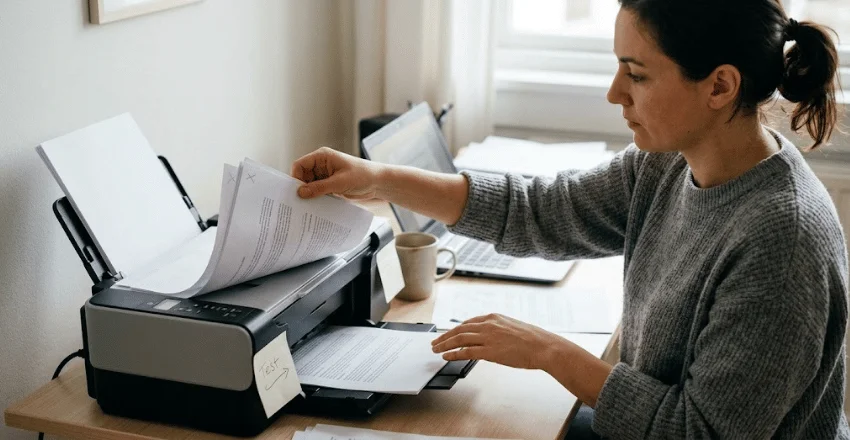
You can still print on both sides manually. Print one set of pages, turn or reload the paper, and then print the remaining pages. Word can also separate odd- and even-numbered pages for this purpose.
Paper-feed directions aren’t identical across printer models. Before attempting a large job, take one sheet and make a small pencil mark near its top edge. Print one page and note where the mark ends up.
Reload that same sheet and print the second page. You’ll then know which side should face up and which edge should enter the tray first. Once you’ve confirmed the orientation, repeat the process with the full stack.
This small test is safer than relying on a generic diagram because rear feeds, front trays, and output paths can handle paper differently.
Long Edge vs. Short Edge: Which One Should You Choose?
| Binding setting | How the sheet turns | Good for |
|---|---|---|
| Long edge | Side to side, like a book | Reports, essays, letters, manuals |
| Short edge | Top to bottom | Calendars, top-bound documents |
| Wrong edge | Reverse page may appear upside down | Switch to the other option |
For most portrait documents, long edge is the right starting point. Short edge is useful when the document’s binding or orientation requires the sheet to turn from the top.
If every reverse page is upside down, you usually don’t need to redesign the document. Change the binding edge and test two pages again.
Why Is the Two-Sided Printing Option Missing?
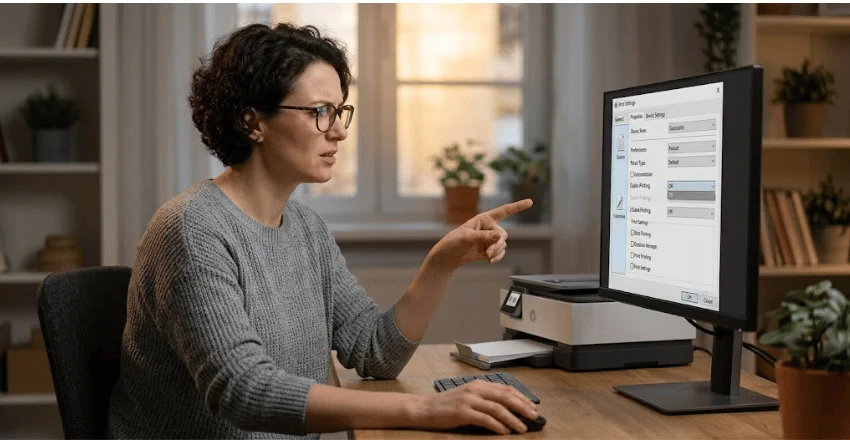
First, confirm that your printer supports automatic duplexing. Some printers support only manual duplexing.
Next, make sure the correct printer is selected. On Windows, check the printer’s Properties or Device Settings and confirm that an installed duplex unit is enabled if the model has one.
The printer driver can also affect which controls appear. Duplex options may vary depending on the model, driver, paper type, and selected print settings.
If duplex printing suddenly disappears, check these areas in this order: the selected printer, paper size and type, printer properties, duplex hardware settings, and the manufacturer’s driver. That sequence often narrows down the problem faster than repeatedly reopening the document.
Get the First Sheet Right Before Printing the Stack
For most jobs, the process comes down to three choices: enable duplex printing, pick the correct binding edge, and test two pages.
If the option is missing, check the printer’s duplex capability and driver before assuming anything is wrong with the document. If your current printer makes manual two-sided jobs a routine hassle, compare models with automatic duplex support in Techixia’s printer coverage.
Frequently Asked Questions
Not every printer can automatically turn the sheet. A printer needs automatic duplex capability to do that. Printers without it can often achieve the same result manually by printing one side, reinserting the sheets, and printing the reverse pages.
It means the finished pages turn sideways, like pages in a book. This is normally the correct choice for portrait reports, letters, and school documents.
The most likely cause is the binding-edge setting. Switch between long-edge and short-edge binding, then print a two-page test before restarting the full job.
Open the document, choose File > Print, and check the browser or system print settings for a two-sided option. If it isn’t available, your printer may require manual duplexing or different driver settings.
Yes. Use odd- and even-page controls where your application provides them, then reload the printed stack for the second pass. Test one sheet first, because the correct paper orientation varies by printer model.