

Your phone freezes on the logo and will not move. Somewhere behind that screen sits a small rescue system, separate from the operating system, waiting to be told what to do. Reaching it is usually a matter of holding the right two buttons. We cover this in more depth in Setting Up Two Monitors.
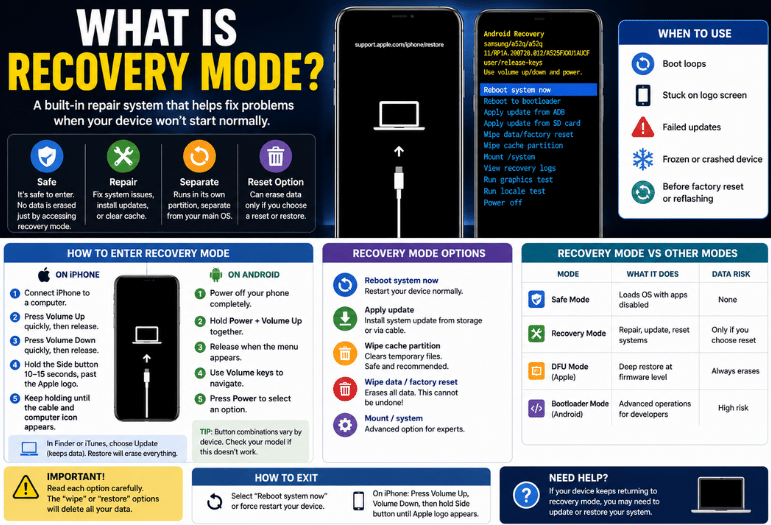
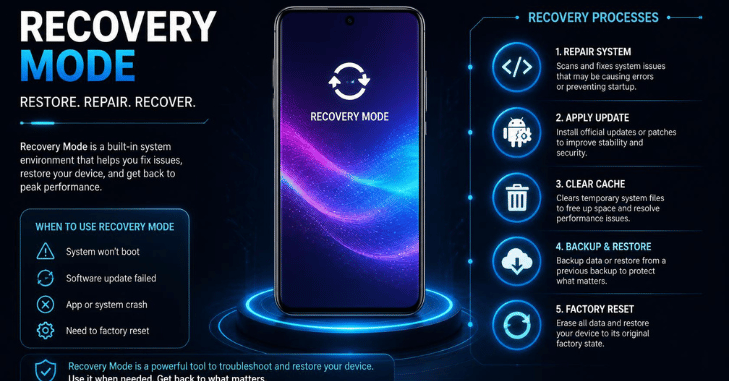
So what is recovery mode? It is a minimal environment that loads instead of your normal operating system, so you can repair, update, or reset a device that will not start properly. It lives in separate storage, which is why it still works when everything else fails. Used carefully, it fixes the problem without touching your photos.
The Essentials At a Glance
| Question | Answer |
| What it is | A small repair system stored outside the main OS |
| When to use it | Boot loops, failed updates, a frozen logo screen |
| Does it erase data? | Only if you choose a reset or restore option |
| Enter on iPhone. | Volume Up, Volume Down, and hold Side until the cable icon |
| Enter on Android. | Power off, then hold Power and Volume Up together. |
| Exit | Force restart, or choose Reboot from the menu. |
| Needs a computer | iPhone yes, Android no |
Key Takeaways
Entering this mode is entirely safe on its own. The danger sits in one menu item, usually labelled “wipe” or “restore,” which cannot be undone. Read every option twice before selecting it.
What is Recovery Mode Actually Doing?

Think of it as a second, tiny operating system with one job: fixing the first one. Because it sits in its own partition, corruption in the main system does not reach it. That separation is what makes it a genuine last line of defense rather than a menu.
What Is Recovery Mode? From there, the device can accept a fresh copy of its operating system, clear caches that block a boot, or return itself to factory condition. On Apple hardware,,, the loader talks to a computer running Finder or iTunes. On Android, the menu runs entirely on the phone.
How to Enter It on an iPhone
- Connect the phone to a computer with a cable
- Press Volume Up quickly, then release it
- Press Volume Down quickly, then release it
- Hold the Side button for 10 to 15 seconds, past the Apple logo
- Keep holding until a cable and computer icon appear on the screen
- Choose Update in Finder or iTunes, not Restore
Update reinstalls the system while keeping your data. Restore erases the phone. Those two buttons sit next to each other in the same dialogue, which is the single most expensive mistake people make here.
How To Enter It On Android
- Power the phone off completely and wait ten seconds
- Hold Power and Volume Up together until a menu appears
- Use the volume keys to move up and down the list
- Press Power to select the highlighted item
- Choose Reboot system now to leave without changing anything
Button combinations vary between manufacturers. Samsung devices with no physical Bixby key generally use Power and Volume Up, while some models require the phone to be connected to a charger first. Search your exact model if the standard method does nothing.
What the Menu Options Mean
- Reboot system now: harmless, restarts the phone normally
- Apply update: installs an operating system file from storage or a cable
- Wipe cache partition: clears temporary system files, keeps your data, and often fixes update failures
- Wipe data or factory reset: erases everything, with no undo
- Mount system: a diagnostic option most people should leave alone
Clearing the cache partition is the option worth trying first. It resolves a surprising share of failed-update loops and costs you nothing but a slower first boot afterwards.
How It Differs from Safe Mode and DFU Mode
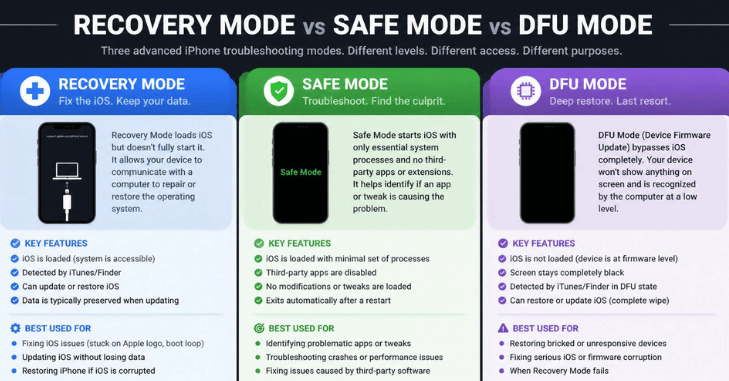
| Mode | What loads | Use it for | Data risk |
| Safe mode | The full OS and third-party apps are disabled. | Diagnosing a misbehaving app | None |
| Recovery mode | A separate repair system | Boot failures and failed updates | Only if you pick a wipe option |
| DFU mode, Apple only | Nothing above the hardware loader | Device recovery mode cannot fix | Always erases everything |
| Bootloader, Android | The pre-boot loader | Developer and flashing tasks | High, for advanced users |
Work down that list in order. Safe mode first if the phone still boots, then the repair environment, and only then the deepest option. Each step costs more and recovers less.
Getting Out Again
On an iPhone, force restart the device: press Volume Up, press Volume Down, then hold the Side button until the Apple logo returns. On Android, highlight Reboot system now and press Power. If the menu is unresponsive, hold Power for around twenty seconds.
A phone that keeps returning to the same screen has a deeper fault. That loop usually means the system files are damaged,, and a reinstall is needed, which is the point at which backups stop being theoretical.
Your Next Step
Before you need this, check that your phone is backing up automatically and note down the button sequence for your exact model. Both take two minutes now and save an afternoon later. What Is Recovery Mode? For related reading, see our guides to free antivirus software worth installing and home routers that hold a stable connection during large system downloads.
Apart from that, if you want to know about the article “Best Free Antivirus Software,” check our Cybersecurity category.
Frequently Asked Questions
Nothing, unless you choose a wipe or restore option. Entering the environment, browsing the menu, and rebooting are all completely non-destructive.
Try clearing the cache partition first. If it returns, the operating system needs reinstalling from a computer, which on an iPhone means the Update option rather than Restore.
On Android, sometimes, using developer tools over a cable. On an iPhone,, the button sequence is required, so a broken volume key usually means a service center visit.
Windows and macOS both have equivalent repair environments, reached differently. Our guide to a computer that will not turn on covers the desktop version of this process.
Yes, provided you read each option before selecting it. The environment itself cannot damage anything, and every destructive action is clearly labelled.