

A SATA hard drive is a mechanical storage device that connects to a computer through the Serial ATA interface. SATA describes the connection standard, while HDD describes how the drive stores data. That distinction matters because SATA can also connect solid-state drives and optical drives. Also worth reading: What Is Airplane Mode.
| Key fact | What it means |
| SATA | Serial ATA storage interface |
| HDD | Mechanical storage using magnetic platters |
| Common connection | SATA data plus SATA power |
| SATA 6Gb/s ceiling | 6 gigabits per second at the interface |
| Common uses | Bulk files, backups, media libraries, secondary storage |
| Main tradeoff | More economical capacity, but slower than SSD storage |
Quick Takeaways
- SATA and HDD don’t mean the same thing.
- SATA is an interface that can serve HDDs and SSDs.
- Mechanical disks operate well below SATA 6Gb/s interface bandwidth.
- HDD storage remains useful when capacity matters more than responsiveness.
- SSDs are usually the stronger choice for an operating system and frequently used applications.
- Your PC needs compatible ports, power, cabling, and physical space before you add an internal disk.
How a SATA Hard Drive Works
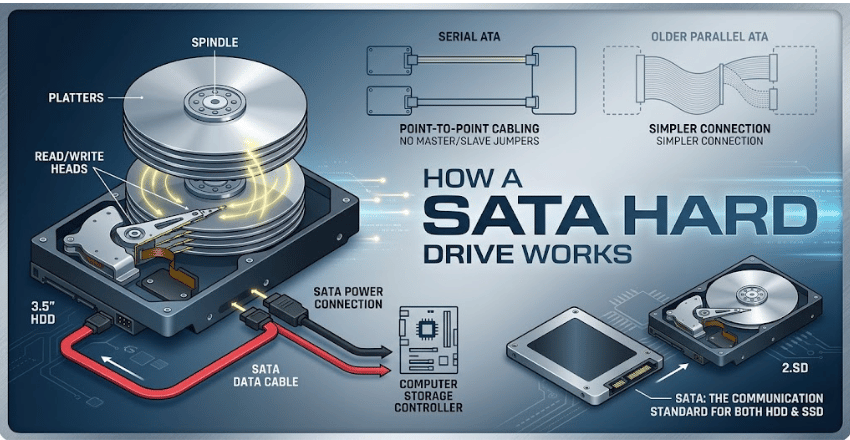
A mechanical HDD stores information magnetically on rotating platters. A moving read/write head accesses data from those platter surfaces.
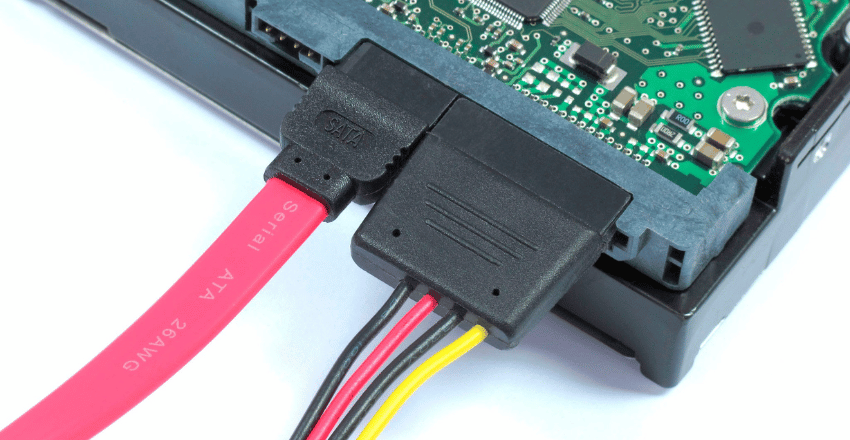
The Serial ATA connection carries data between the disk and the computer’s storage controller. The power supply provides a separate SATA power connection.
SATA itself isn’t the technology that holds your files. It’s the communication standard connecting the storage device to the system. That is why both mechanical HDDs and many 2.5-inch SSDs can use SATA.
SATA replaced the older Parallel ATA standard. One advantage is simpler point-to-point cabling. Seagate notes that each Serial ATA disk uses its own data cable, so the master-and-slave configuration associated with PATA isn’t required.
What Does SATA 6Gb/s Actually Mean?
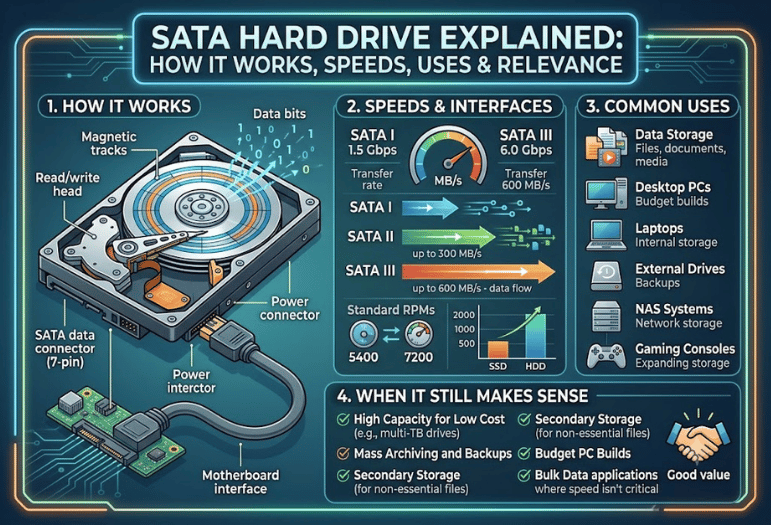
Modern SATA hardware is commonly labeled SATA 6Gb/s. SATA-IO states that Revision 3.0 increased the interface’s maximum transfer rate from 3Gb/s to 6Gb/s. That figure describes the connection, not the guaranteed speed of your disk.
A spinning HDD is limited by platter rotation, data density, head movement, workload, and other physical factors. It therefore operates far below the interface ceiling during normal use.
Samsung’s storage overview gives a useful example. It places SATA III interface bandwidth at 600MB/s, while describing around 100MB/s as a typical throughput example for a 7,200 RPM disk. Exact performance changes by model and workload.
This explains why switching a mechanical disk from SATA II to SATA III won’t suddenly make it perform like an SSD.
SATA HDD vs SATA SSD vs NVMe SSD
Storage terminology becomes easier once you separate interface, storage technology, and form factor.
| Storage type | Storage technology | Connection | Relative performance | Good fit |
| SATA HDD | Magnetic platters | SATA | Lowest of the three | Bulk storage and backups |
| SATA SSD | Flash memory | SATA | Much faster than HDD | Older PC upgrades and everyday use |
| NVMe SSD | Flash memory | PCIe/NVMe | Highest potential | OS, apps, gaming, large active files |
A SATA SSD removes the mechanical delays of a rotating disk, yet the SATA connection still constrains its transfer rate.
An NVMe SSD uses PCI Express instead. Modern NVMe drives can use far more bandwidth than SATA storage, which makes the technology better suited to demanding transfers and workloads.
Don’t assume that every M.2 drive is NVMe. M.2 describes a form factor, and some M.2 devices use SATA rather than PCIe/NVMe. Check the drive and motherboard specifications before buying.
Where Mechanical SATA Storage Still Makes Sense
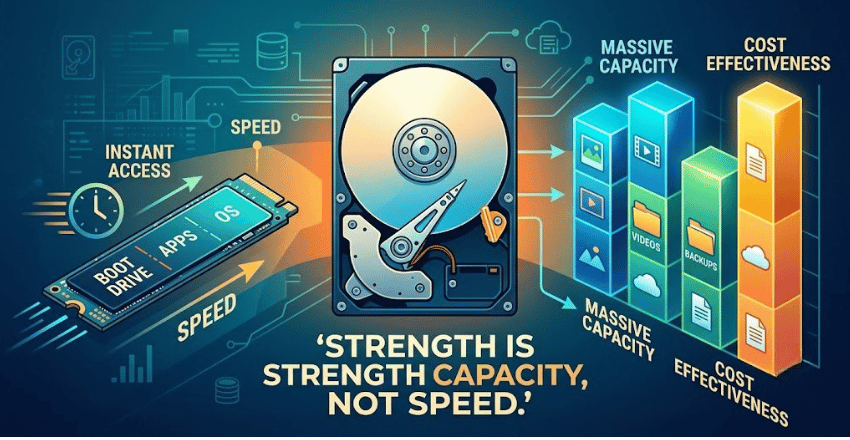
An HDD doesn’t need to be your fastest drive to be useful.
Its strongest role is storage where capacity matters more than access speed. That can include:
- Photos and video collections
- Completed projects
- Download libraries
- Local backup destinations
- Archived documents
- Media-server files
- Large collections that don’t need SSD-level responsiveness
A practical desktop setup can pair a smaller SSD with a larger mechanical disk. The SSD handles Windows, applications, and active projects. The HDD handles data that needs space rather than instant access.
For bulk storage, this approach lets you spend performance-focused storage capacity where you notice it most.
A mechanical disk is less attractive for workloads dominated by frequent random access. Operating systems, large applications, active editing projects, virtual machines, and some games benefit more from solid-state storage.
What You Need to Install an Internal SATA HDD
Before buying, check four areas.
1. A SATA data port
Your motherboard or storage controller needs an available SATA port. Look at the motherboard manual if you aren’t sure which connectors are available.
2. A SATA data cable
Each internal disk connects to a SATA port with its own data cable. Seagate’s installation guidance confirms the one-drive-per-data-cable arrangement.
3. SATA power
The power supply must have a compatible SATA power connector. Data and power use separate connections on a standard internal disk.
4. A suitable drive bay
Desktop HDDs are commonly built for 3.5-inch bays. Smaller systems may not have room for one, even if the motherboard has a free SATA connection.
Check the computer case, motherboard, and power supply before ordering storage. That takes less time than solving an avoidable compatibility problem later.
Is SATA the Same as HDD?
No. SATA is a storage interface. HDD is a storage technology. A mechanical disk may use SATA, but SATA can also connect an SSD or optical drive.
This is why comparisons such as “SATA versus SSD” can be misleading. A more useful comparison is SATA HDD versus SATA SSD, or SATA SSD versus PCIe/NVMe SSD.
Should You Still Use One in 2026?
Yes, if its strengths fit the job. Choose an HDD when you need a large amount of secondary storage and speed isn’t the main concern. It can also make sense as one layer of a backup plan.
Choose a SATA SSD when you want solid-state responsiveness on a system that lacks a suitable NVMe slot. Choose NVMe when your hardware supports it and performance matters for your workload.
For a new performance-focused PC, using a mechanical disk as the only system drive is difficult to recommend. Solid-state storage provides much quicker access and avoids the physical seek delays of spinning media. That doesn’t make HDD technology obsolete. It gives it a different role.
What to Check Before Buying
Start with compatibility rather than capacity.
Check:
- Whether the computer has a free SATA port
- Whether the power supply has a SATA power lead
- Whether the case has a suitable bay
- The capacity you need
- The drive’s intended workload
- Rotation speed and performance specifications
- Warranty terms
- Noise and power requirements
- Whether you already have a separate backup
Don’t treat a single disk as a backup simply because it has plenty of free space. Important data should exist in another independent location if losing it would matter.
The Practical Choice
Storage works best when each device has a clear job. Use solid-state storage for data you access constantly and mechanical storage where affordable capacity matters more.
If you’re adding storage to an existing PC, check the ports, power, physical bay, and workload first. Then choose the drive technology that matches how you’ll use the space, especially if you’re comparing recommendations from PCMag Competitor to evaluate different hardware options.
Conclusion
A SATA hard drive remains a practical storage option in 2026, even though SSDs and NVMe drives dominate when speed is the priority. Its biggest advantage is providing large amounts of storage at a lower cost, making it well suited for backups, media libraries, archives, and secondary storage.
Before buying, make sure your computer has the required SATA port, power connector, and available drive bay. If you want the fastest boot times and application performance, choose an SSD or NVMe drive for your operating system and frequently used files. If your goal is affordable, high-capacity storage, a SATA HDD still offers excellent value. For many users, combining an SSD for performance with a SATA hard drive for bulk storage remains the most balanced and cost-effective setup.
If you want to know about Latest Technology News 2026 then visit our Technology category.
Frequently Asked Questions
It can be. Mechanical SATA storage remains useful for backups, archives, media, and other capacity-heavy tasks. For an operating system or frequently used software, an SSD usually provides a better experience.
That question mixes an interface with a storage technology. A SATA SSD uses the SATA interface but is much quicker than a mechanical HDD because flash memory has no moving read/write mechanism.
The SATA interface provides much less potential bandwidth than modern PCIe/NVMe connections. SATA-IO specifies SATA 6Gb/s for third-generation SATA, while NVMe storage can use faster PCIe links.
Yes. A desktop can use an SSD for the operating system and active applications while another disk handles larger files. This can provide a useful balance between responsiveness and storage capacity.
A standard internal disk normally needs a SATA data connection to the motherboard or controller and a separate power connection from the power supply.
SATA generations were designed with compatibility in mind, but the connection operates according to the capabilities of the devices involved. A mechanical HDD may not be fast enough for an older interface limit to matter in many workloads.