

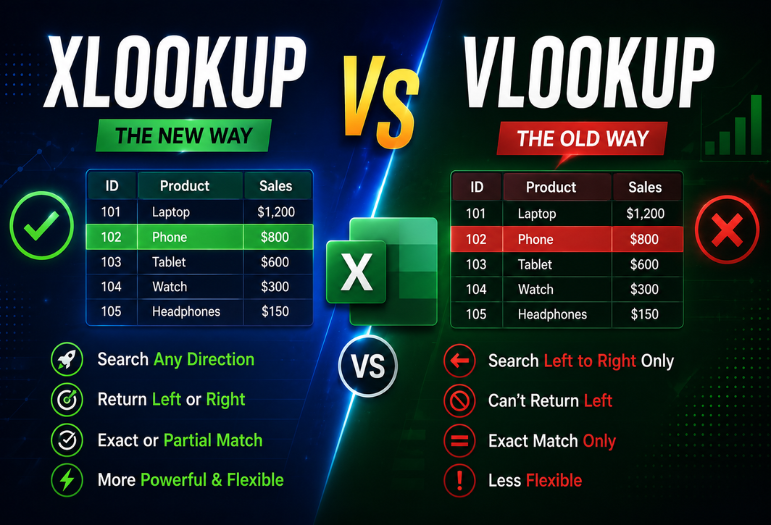
If a spreadsheet has ever broken because someone inserted a column, you already understand the argument. The newer function fixes that specific failure, along with several others that have irritated Excel users for two decades. It is not a clean win in every case, though.
The short answer on XLOOKUP vs VLOOKUP: use the newer function whenever your file will only be opened in Excel 2021, Microsoft 365, or Excel for the web. It defaults to exact matches, searches in any direction, survives column changes, and handles missing values on its own. Stick with the older one for files shared with people on Excel 2019 or earlier.
Quick comparison
| Feature | VLOOKUP | XLOOKUP |
| Default match type | Approximate | Exact |
| Look to the left | No | Yes |
| Survives inserted columns | No | Yes |
| Custom “not found” message | Needs IFERROR | Built in |
| Search from the bottom up | No | Yes |
| Lookup value length limit | 255 characters | None |
| Return several columns at once | No | Yes |
| Works in Excel 2019 and older | Yes | No |
Key takeaways: the newer function is safer by default and shorter to write. The older one wins on compatibility, and that single factor decides most real workplace choices. Neither is worth a mass rewrite of formulas that already work.
Want to boost your productivity? Explore our AI Tools category for expert guides, comparisons, and tutorials on the latest artificial intelligence software and automation solutions.
The syntax, side by side

The older function takes four arguments. It finds the column by counting:
- VLOOKUP(lookup_value, table_array, col_index_num, [range_lookup])
The newer one takes up to six and names the columns directly:
- XLOOKUP(lookup_value, lookup_array, return_array, [if_not_found], [match_mode], [search_mode])
That difference in the third argument causes most of the practical gap. Pointing at a range is stable. Counting to the fourth column is a promise the spreadsheet cannot keep once someone edits it.
1. Exact matching by default
The old function assumes an approximate match unless you remember to type FALSE at the end. Forget it, and you get a wrong answer rather than an error, which is the worst kind of bug. The replacement defaults to exact, so the safe behaviour is the one you get for free.
2. Looking left
The older function can only return values to the right of the column it searches. Anyone who has rearranged a table just to make a formula work knows the cost. The newer function takes the search range and the return range separately, so direction stops mattering.
3. Columns can move
Because the older syntax hard-codes a column number, inserting a column shifts your answer silently. The reference still points at position four, but position four is now a different field. This is the most common cause of a spreadsheet that was right last month and wrong today.
Watch for these four moments in particular:
- A colleague inserts a column in the middle of your source table
- Someone deletes an unused field to tidy the sheet
- A data export changes field order between months
- You copy the formula into a workbook with a different layout
4. Handling nothing found
A missing value returns #N/A. Making that readable used to mean wrapping the whole formula in IFERROR, which doubles its length and hides genuine errors. The fourth argument of the newer function does the same job in a few characters, and only catches the “not found” case.
5. Searching from the bottom
Need the most recent entry rather than the first? The older function has no answer, and the usual workaround involves sorting or a helper column. Setting the search mode to minus one reverses the direction instead.
6. Returning several columns at once
One formula can return a whole row of fields, spilling across the cells to its right. Building a lookup panel that pulls a name, a price, and a stock level once took three formulas. It now takes one.
7. Compatibility, the one the old function wins
XLOOKUP arrived with Excel 2021 and Microsoft 365, and it also runs in Excel for the web. Open that file in Excel 2019, Excel 2016, or an older build, and every one of those formulas returns an error. The older function runs everywhere, which is why finance teams and anyone sending files to clients still write it.
Discover more smart living tips in our Smart Home category, featuring expert guides, device reviews, and setup tutorials for creating a connected home.v
XLOOKUP vs VLOOKUP: which should you use?

| Your situation | Use this |
| Personal or internal file, modern Excel | The newer function |
| Sending workbooks to outside clients | The older function |
| Shared template on mixed Excel versions | The older function |
| Return range sits left of the search column | The newer function |
| Very large dataset, sorted, needing speed | Either, with binary search enabled |
| Existing workbook that already works | Leave it alone |
Our recommendation is a rule rather than a preference. Write new formulas with the modern function, and only rewrite an old one when you are already editing that sheet for another reason.
Where INDEX MATCH fits

The INDEX and MATCH pairing solved the left-lookup problem years before the newer function existed. It still works, still runs on every Excel version, and remains the correct choice when you need old-version compatibility and a left lookup at the same time. It is harder to read, which is its only real drawback.
Your next step
Open your most important spreadsheet and search it for the text “VLOOKUP”. Count how many use approximate matching by accident, since those are the formulas quietly returning wrong numbers. Fix those first, whichever function you rewrite them with.
Long days in spreadsheets are hard on your hands, so it is worth reading our guide to work mice. If your Microsoft setup is changing, we also cover the Outlook Lite retirement and the current free software worth installing.
Explore our SaaS category for more software reviews, comparisons, and expert guides.
Frequently asked questions
On features, no. The newer function does everything the older one does and several things it cannot. On availability, it is much closer, because millions of machines still run versions that do not support it.
No. Microsoft has kept the older function fully supported and has given no indication of removing it. Files written twenty years ago still calculate correctly.
Excel 2021, Excel 2024, Microsoft 365, and Excel for the web. Excel 2019 and earlier do not have it.
Yes, Sheets added its own version, though the older function has been available there far longer and remains more widely used in shared templates.
On typical office-sized data, the difference is invisible. On very large sorted tables, enabling binary search makes either function dramatically quicker than a default linear scan.