
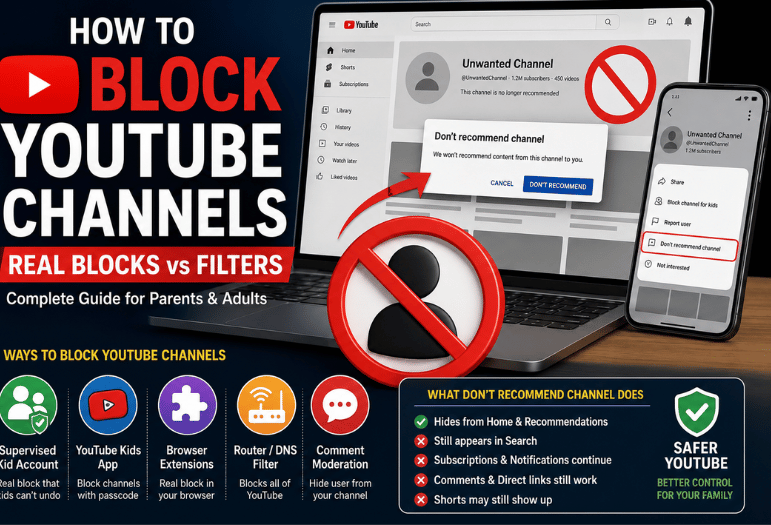
The button parents remember is gone. YouTube retired the viewer-facing block option from its main app, and the menu item that replaced it does something much softer. So anyone working out how to block YouTube channels today runs into the same trap: Don’t recommend a channel that reads like a lock and behaves like a preference.
Real blocking still exists. It lives in three places, and none of them is the ordinary adult account. This guide gives you the steps for each one. It also marks which method a determined 11-year-old can undo in ten seconds and flags the two options that block nothing.
Every method, side by side
| How to block YouTube channels | Where it works | Real block? | Who can undo it |
| Don’t recommend the channel. | Web, Android, iOS, TV | No, feed filter only. | Anyone signed in |
| Not interested | Web, Android, iOS, TV | No, one video | Anyone signed in |
| Block channel for kids | Parent account, supervised child | Yes, for that child | The parent |
| Block the entire channel. nnel | YouTube Kids app | Yes, inside the app | Anyone with the passcode |
| Browser extension | Desktop Chrome, Edge, Firefox | Yes, in that browser | Anyone who opens the extensions page |
| Hide the user from my channel. | Your own channel’s comments | No, comments only. | The channel owner |
| Router or DNS filter | Every device on the network | All of YouTube, never one channel | Whoever holds the router login |
Key Takeaways
- Don’t recommend a channel that hides a creator from recommendations. Searches, subscriptions, comments, and direct links still reach them.
- The strongest household control is a supervised account, because the child cannot reverse it.
- YouTube Kids blocks per video or per channel, but the passcode is the whole security model.
- Extensions are the practical answer for adults, and they cover only the browser in which you installed them.
- A router filter is all or nothing. One channel cannot be separated from the rest.
What the don’t-recommend channel really does
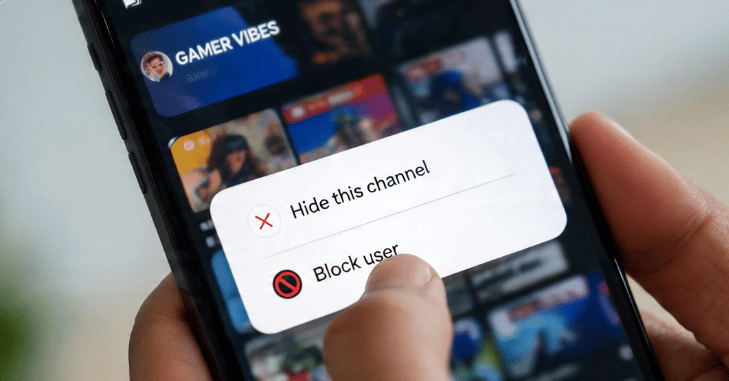
is described as feedback. You are asking the system to stop surfacing that creator on Home and on the Watch Next rail. That is the full extent of it.
Here is what survives the click:
- The channel keeps appearing in search results.
- Subscriptions and notifications carry on.
- Comments from that creator stay visible.
- Shared links open normally.
- Shorts sometimes surface anyway, since the Shorts feed pulls from a different pool.
Not interested is weaker still. It removes one thumbnail. The creator stays in rotation.
To apply either one on a desktop, hover a video on Home, click the three-dot More menu, then pick your option. In the phone app, tap More beside the video title. Once the feed is clean, refill it deliberately, and our roundup of the best YouTube Channels is a fair starting point.
How to block YouTube channels on a child’s account
This is the only true block YouTube gives a parent, and most guides skip it. It requires a supervised account, which means a child signed in through Family Link rather than an ordinary Google Account. About half say it happens daily.
From a computer, sign in to your own account:
- Open the channel page for the creator you want gone.
- Click the About tab.
- Select the Report user flag icon.
- Choose the Block channel for kids.
- Confirm with Continue on the warning that appears.
- Press Block beside your child’s name.
- Finish with Done.
On the mobile app, open the channel page and use the More menu instead of the About tab. The result is identical.
Two limits matter. Google states plainly that blocking a channel “only blocks content uploaded to that specific channel,” so reuploads on other accounts sail through. The upside is coverage: if your child uses the same Google Account for both apps, the block applies inside YouTube Kids as well. Planning to publish videos too? Read our How to Start a YouTube Channel for Kids first. The account type you pick changes what the child can do later.
Blocking inside the YouTube Kids app
YouTube Kids keeps the feature under a passcode, which makes it the fastest option for younger children.
- Play the video from the channel you want removed.
- Tap More at the top of the player.
- Choose to Block the entire channel rather than Block this video.
- Tap BLOCK.
- Solve the math problem, or enter the custom passcode you set.
Set a custom passcode. The default math problem is multiplication, which most eight-year-olds can do. Google warns here too that similar videos may still appear on other channels, so treat each block as one creator removed, not a topic removed. On Android, pair it with our walkthrough of How to Geek Google Play Store, so a blocked app cannot be reinstalled.
Where Family Link fits
Family Link does not hold a channel blocklist. The block itself happens on the channel page, as described above. What Family Link gives you is everything around it, reached through Controls, then Content restrictions, then YouTube.
- Content setting: Explore for roughly 9 and up, Explore more for 13 and up, or Most of YouTube.
- Autoplay is off, which the child cannot switch back on.
- Watch history and search history are paused, so one bad video doesn’t stop shaping the feed.
- A daily cap on the Shorts feed.
- Restricted Mode is locked, so it cannot be turned off on any device the child signs into.
That last one trips people up. Restricted Mode is not account-wide by default. Google’s documentation is blunt: it “works on the browser or device level, so you must turn it on for each browser you use.” Switching it on at the family laptop does nothing for the tablet.
Smart TVs: the honest answer
There is no block on a television. Press and hold the select button on your remote while a video is highlighted, and you get “Not interested,” with a reason picker. That is the entire toolkit.
If a channel has to disappear from the living room, you have three workable routes. Sign the TV into a supervised child account so the blocks you set elsewhere apply. Install the YouTube Kids app on the TV instead. Or move the problem to the network, which is the next section.
Extensions: the adult solution
Browser extensions do what YouTube will not, and they only work on desktop. Every figure below was checked on July 29, 2026, because an abandoned extension is worse than none.
| Extension | Browser | Users | Rating | Last updated |
| BlockTube | Chrome, Edge | 100,000+ | 3.8 from 791 ratings | February 9, 2026 |
| Channel Blocker | Chrome, Edge | 100,000 | 3.4 from 814 ratings | August 5, 2024 |
| Video Blocker | Firefox | 2,273 | 2.2 from 417 reviews | April 25, 2024 |
All three cost $0, so price is not the deciding factor. BlockTube is the one to install: it stays maintained, and it filters by channel, video title, comment author, duration, and regular expression. It can also strip the Shorts shelf entirely.
Watch out for a name collision that trips people up constantly. The Firefox add-on called Video Blocker blocks channels, wildcards, and title keywords. A Chrome extension with the same name, by a different developer, is an autoplay blocker and will not touch a creator. Check the developer before you install.
The catch is portability. An extension protects one browser profile on one machine. It does nothing in the phone app, nothing on the TV, and nothing in a different browser.
Network filtering and why it is blunt
People often ask their router to solve this. It cannot, and the reason is technical rather than a missing feature: every video, channel page, and thumbnail arrives over the same encrypted connection to youtube.com. Your router sees one domain, not a creator.
So a DNS filter or router rule gives you two settings: YouTube on or YouTube off. That still helps at bedtime, and most modern hardware schedules per device, including the systems in our comparison of the Best Mesh Router. Treat it as a curfew tool, not a channel tool.
If you run a channel and want someone gone
Creators have separate control, and it is widely misread. Hide user from my channel removes a person’s comments from your videos and stops them from making clips. They are not notified.
What it does not do is stop them from watching. They can still open every video, count your views, and keep a subscription. Apply it from the More menu beside a comment, or paste their channel URL into Studio, Settings, Community, and Hidden users.
Changed your mind?

Recommendation feedback is reversible, and almost nobody knows where it lives. Go to myactivity.google.com, open Other Google activity: find YouTube. “Not interested” feedback, and delete it. Every channel you have suppressed returns to your feed.
What to do next
Pick who the account belongs to. Adults should install BlockTube and spend five minutes adding the worst offenders. For a child under 13, set up a supervised account first, then block from the channel page so the setting sticks across devices. With a preschooler, YouTube Kids and a custom passcode beat everything else combined.
Conclusion
Learning how to block YouTube channels is easier once you understand the difference between real blocking and simple content filtering. For most adult accounts, YouTube only offers recommendation controls like “Don’t recommend channel,” which reduce unwanted suggestions but do not stop access to a creator’s videos.
If you need genuine restrictions, supervised child accounts, YouTube Kids, and trusted browser extensions provide far more effective solutions. The best method depends on who uses the account, the devices involved, and the level of control you need. By choosing the right approach, you can create a safer, more personalized YouTube experience while avoiding the common misunderstanding that every “block” option actually prevents access to a channel.
Frequently Asked Questions
No. YouTube removed that option for ordinary viewers, and the closest replacement is the Don’t recommend channel, which only affects recommendations.
No. Recommendation feedback is private, and Google confirms that a hidden commenter gets no notification either.
It appears on Home and Watch Next. You will not find it in search results, on the channel page, or under a video you opened from a link.
The feed controls do. The one method that answers how to block YouTube channels properly, blocking from the channel page for a supervised child, also works in the app through the More menu.
No. Google states that only content uploaded to that specific channel is blocked, so a mirror account carrying the same clips remains visible.
Not directly. Supervised accounts come closest, because the setting follows the child rather than the device.