
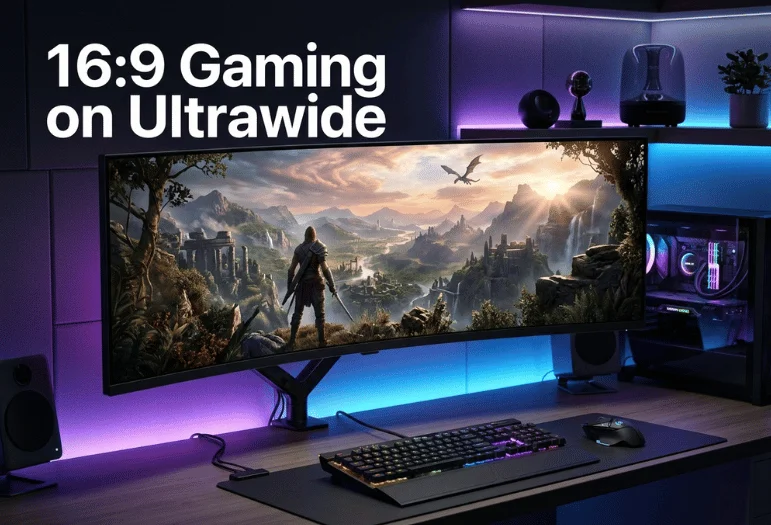
16:9 gaming on ultrawide displays works well when the image keeps its original proportions. You will usually see black bars on both sides. That result is preferable to stretching the picture across a wider panel.
The main choice is simple. Preserve 16:9 for accurate geometry, or use native wide-screen support when the game offers it. Avoid forced stretching unless you deliberately prefer the distorted appearance.
Quick answer: A 16:9 game can run correctly on a 21:9 or 32:9 screen. Use aspect-ratio scaling or centered output to prevent stretching. Side bars are normal because the game image is narrower than the physical display.
| Situation | Recommended setting | What you should expect |
|---|---|---|
| PC game locked to 16:9 | Preserve aspect ratio | Black bars on both sides |
| Game supports 21:9 | Use native display resolution | Full-width gameplay |
| PS5 or Xbox | 16:9 output with aspect scaling | Side bars on most wide displays |
| Competitive gaming | 16:9 or supported native mode | Consistent field of view |
| Lower resolution for more FPS | Aspect-ratio GPU scaling | Smaller or pillarboxed image |
| Forced full-screen scaling | Usually avoid | Horizontally stretched picture |
Why 16:9 Looks Different on a Wide Gaming Monitor
Most traditional gaming displays use a 16:9 aspect ratio. Common resolutions include 1920×1080 and 2560×1440. A 21:9 screen adds considerably more horizontal display area.
A common 34-inch model uses 3440×1440. Running 2560×1440 keeps the same vertical pixel count but removes 880 horizontal pixels. The unused width appears as black space when proportions remain correct.
Those side areas are commonly called pillarboxing. They do not mean something is wrong with the monitor. They show that the display is preserving the source image instead of widening it artificially.
For more context on QHD resolutions and gaming performance, Techixia’s 1440p monitor guide explains the practical differences between 1080p, QHD, and 4K.
Best Setup for 16:9 Gaming on Ultrawide
Start with the display’s native desktop resolution in Windows. Then choose the game’s preferred resolution inside its graphics settings. This approach prevents Windows scaling from introducing another variable.
If the title only supports standard widescreen output, select 1920×1080 or 2560×1440 when available. Next, tell the GPU or monitor to preserve the aspect ratio. The game should appear centered without horizontal distortion.
You can usually find suitable scaling controls inside NVIDIA, AMD, or Intel graphics settings. Monitor menus may also offer options like Aspect, Original, Auto, or 1:1. Exact labels vary by manufacturer and model.
Avoid modes named Stretch, Full, or Wide when they distort a standard image. Those settings expand the picture horizontally until it reaches both edges. Circles may become oval, while characters and HUD elements appear wider.
A Simple PC Setup Checklist
- Set Windows to the monitor’s native resolution.
- Confirm the correct refresh rate in Windows.
- Open the game’s video or display settings.
- Select the desired 16:9 resolution.
- Enable aspect-ratio scaling in the GPU control panel.
- Disable forced full-screen stretching.
- Recheck adaptive sync after changing scaling.
- Confirm the game still runs at your intended refresh rate.
High refresh rates still matter at a narrower resolution. Scaling does not automatically reduce a 165Hz panel to 60Hz. Still, changing cables, color depth, HDR, or resolution can sometimes affect available refresh modes.
If you are planning a broader PC upgrade, Techixia’s budget gaming PC guide can help balance display resolution against graphics hardware.
Black Bars Are Usually the Correct Result
Black bars often frustrate new wide-screen owners because unused pixels feel wasteful. Yet those bars preserve the image’s original shape. Removing them requires stretching, cropping, or true game-engine support.
Stretching changes horizontal proportions without adding new visual information. A wider character model does not provide a wider field of view. The same scene is enlarged sideways.
Cropping takes a different approach. It enlarges the picture until it fills the screen, then removes part of the image. That method can hide HUD elements or important gameplay information.
True 21:9 support is different from both methods. A compatible game renders additional horizontal scenery or adjusts its camera appropriately. That is the ideal full-screen option when developers implement it correctly.
Should You Stretch 16:9 to Fill the Screen?
For most games, keeping the correct proportions produces a cleaner experience. Text, crosshairs, menus, characters, and environments retain their intended shapes. You also avoid changing visual distances through non-uniform scaling.
Some competitive players intentionally use stretched resolutions. That preference is usually connected with familiar aiming behavior or perceived target size. It remains a personal configuration choice, not a technical requirement.
If you want to test stretching, compare it against aspect-preserved output. Focus on crosshair feel, HUD placement, character proportions, and mouse consistency. Keep whichever setup feels clearer without assuming full-screen coverage is automatically better.
What About Games With Native 21:9 Support?
Games with proper wide-screen support should normally run at the display’s native resolution. A 3440×1440 model should therefore use 3440×1440 when performance permits. That gives you the extra horizontal viewing area you paid for.
Some titles support wider gameplay but keep menus or cinematics at 16:9. In that case, sidebars may appear only during cutscenes. This behavior can be intentional because pre-rendered video was created for a fixed format.
Other games remain completely locked to traditional widescreen output. Older engines, fixed cameras, interface design, and competitive restrictions can all contribute. PCPCGamingWiki’scaling documentation also describes how games can handle changing display ratios differently.
Before applying unofficial patches, check whether the title officially supports your resolution. Mods can break after updates or conflict with multiplayer protections. Native support is safer when the game offers it.
Does 16:9 Improve Performance on a 3440×1440 Screen?
Reducing the rendered resolution can lower GPU workload. A 2560×1440 image contains fewer pixels than 3440×1440. That difference can help when the graphics card struggles at the panel’s native setting.
Performance gains depend on the game and its bottleneck. GPU-limited titles usually benefit more than CPU-limited games. Lowering resolution will not solve every frame-rate problem.
For competitive games, this can create a practical compromise. You keep the larger physical display while rendering a smaller standard image. Aspect scaling then prevents that lower resolution from becoming stretched.
The tradeoff is unused screen space. You should decide whether higher frame rates matter more than filling the entire panel. That choice depends on the game, not the monitor alone.
Using PS5 or Xbox With a Wide Display
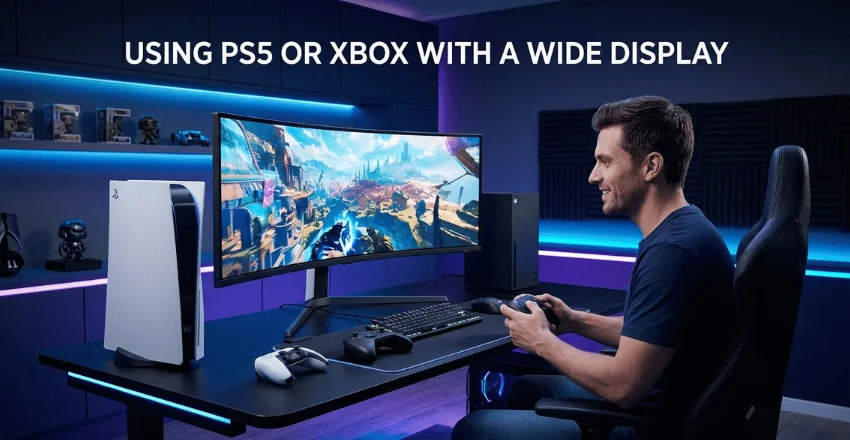
Consoles generally target standard television formats. That means 16:9 output remains the expected result on most current systems. A wider monitor therefore cannot automatically create additional horizontal game information.
With correct scaling, the console image should remain centered. Black side areas will fill the unused portion of the screen. If the picture looks unusually wide, check the monitor’s aspect setting first.
This setup can still work well for someone who shares one display between PC and console gaming. PC titles can use native wide resolutions when supported. Console sessions can switch back to accurate standard output.
If managing several screens becomes inconvenient, Techixia’s dual-monitor setup guide covers screen arrangement, connections, and Windows display configuration.
Is 16:9 Better for Competitive Gaming?
A standard ratio remains attractive for competitive games because it is predictable and widely supported. Many esports players also prefer a compact central viewing area. Important HUD information stays closer to the center of vision.
A large curved display can place interface elements farther toward your peripheral vision. That may require more eye movement during fast matches. Whether that matters depends on your distance from the screen.
You do not need a second monitor solely for competitive games. Running an aspect-preserved standard resolution creates a similar viewing shape inside the larger panel. You can switch back to the full display for supported single-player titles.
Desk depth also influences comfort with a large screen. Techixia’s home-office setup guide includes practical guidance on screen placement and viewing distance.
OLED Owners Should Consider Uneven Usage
OLED panels deserve extra consideration because their pixels age with use. Repeatedly displaying the same central area while leaving the sides dark creates uneven operating patterns. That does not mean occasional pillarboxed gaming will immediately damage a panel.
Long-term risk depends on brightness, accumulated hours, panel technology, and built-in protection systems. Owners who spend most gaming time in pillarboxed modes may prefer more varied screen usage. Manufacturer pixel-care features should remain enabled.
LCD panels do not have the same per-pixel aging behavior. Therefore, persistent side bars are less concerning on IPS, VA, or similar backlit displays. The choice becomes primarily about appearance rather than panel wear.
16:9, Native Wide Mode, or Stretched: Which Should You Use?
| Display mode | Image proportions | Uses full panel | Good for |
|---|---|---|---|
| 16:9 with side bars | Correct | No | Locked games, consoles, esports |
| Native 21:9 | Correct when supported | Yes | Immersive PC gaming |
| Stretched 16:9 | Distorted | Yes | Personal preference only |
| Cropped image | Correct proportions | Yes | Rare use cases |
| Windowed 16:9 | Correct | No | Multitasking and troubleshooting |
Use native wide output when the game officially supports it. Use preserved 16:9 when compatibility or competitive preferences matter more. Forced stretching is best treated as an optional preference.
This approach also makes troubleshooting easier. You know whether the game, driver, or monitor controls each scaling step. Changing several scaling options together makes problems harder to isolate.
Common Problems and Fixes
The Game Is Stretched Sideways
Check GPU scaling and the monitor’s on-screen menu. Select aspect preservation instead of full-screen scaling. Restart the game after changing the setting.
The Game Has Black Bars
Side bars are expected when standard content appears on a wider screen. They preserve the correct picture shape. Use a supported native wide resolution if you want true full-width output.
Native Resolution Is Missing
Update the graphics driver and verify the connection type. Check whether your HDMI or DisplayPort path supports the required resolution and refresh rate. Laptop docks can also limit available display modes.
The Refresh Rate Dropped After Changing Resolution
Open Windows advanced display settings first. Confirm the intended refresh rate there, then check the game. Also verify HDR, color depth, and connection bandwidth.
Frequently Asked Questions
Can you do 16:9 gaming on ultrawide without stretching?
Yes, and aspect-ratio scaling is the easiest method. It keeps the original game proportions and centers the picture. Expect black bars on the left and right.
Is 2560×1440 good on a 3440×1440 monitor?
Yes, especially when you want lower GPU demand or a standard competitive layout. Both resolutions use 1,440 vertical pixels. Aspect-preserved output leaves unused horizontal space instead of stretching the image.
Do black bars mean the monitor is configured incorrectly?
No, not when the source uses a narrower aspect ratio. Side bars usually mean the image proportions are being preserved. A stretched picture can indicate a less accurate configuration.
Can PS5 fill a 21:9 gaming monitor?
Usually not with a true additional 21:9 game view. The console output remains designed around standard widescreen formats. Monitor scaling may fill the panel, but stretching does not add extra scenery.
Should competitive players use 16:9 on a wide monitor?
It can be a sensible option when you prefer a compact viewing area. HUD information also remains closer to the center. Native wide mode remains valid when the game supports it properly.
Final Takeaway
16:9 gaming on ultrawide screens is straightforward once you separate scaling from native game support. Keep standard content proportional, and accept side bars when the game cannot render wider. Use the full native resolution when proper 21:9 support exists.
For most players, aspect-preserved scaling is the safest default. It avoids distortion while keeping standard games and consoles completely usable. You can then choose native wide output title by title.