

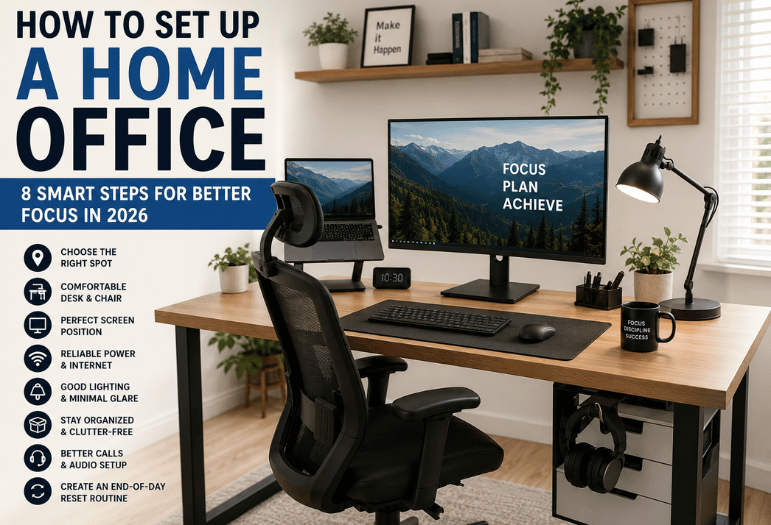
To learn how to set up a home office, start with a quiet spot that has reliable power and Wi-Fi. Add a stable desk, a supportive chair, a comfortable screen position, and controllable lighting. Keep your daily tools close, then add monitors, storage, audio gear, or automation only when each upgrade solves a real work problem.
You don’t need a dedicated room or an expensive collection of gadgets. A small, well-planned workspace can work well when the layout matches your job, available space, and daily routine.
| How to Set Up a Home Office | What to Aim For | Priority |
| Location | A consistent spot with manageable noise and distractions | High |
| Desk and chair | A stable work surface with comfortable body support | High |
| Screen | Easy viewing without leaning forward or looking sharply downward | High |
| Power and internet | A reliable connection with accessible outlets | High |
| Lighting | Useful task lighting with minimal screen glare | High |
| Calls | Clear audio, a useful camera angle, and a tidy background | Medium |
| Storage | Daily items within reach and less-used items out of the way | Medium |
What You’ll Need Before You Start
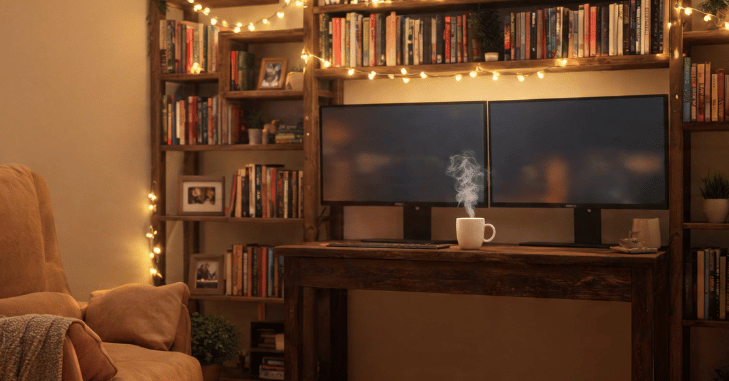
Start by thinking about the work you do every day. Someone who spends hours in video meetings needs a different setup from a designer who uses two large displays.
Most people can begin with:
- A computer or a laptop
- A stable work surface
- A supportive chair
- Reliable internet access
- Nearby power outlets
- Suitable lighting
Laptop users may also benefit from an external keyboard and mouse. These accessories allow you to raise the laptop screen without forcing your hands into an awkward position. Before buying anything, write down the tasks that take up most of your workday. This simple list helps separate useful equipment from accessories that may go unused.
How to Set Up a Home Office in 8 Steps
1. Choose a Consistent Work Location
Pick a place you can use regularly without having to rebuild your workstation each morning. A spare room is useful, but it isn’t required. A bedroom corner, dining area niche, wide hallway, or unused wall can work. Look for manageable noise levels, enough room to sit comfortably, and a background you won’t mind showing during calls. If possible, avoid placing the desk where household traffic constantly passes behind you.
2. Check Power and Internet Before Moving Furniture
Test the Wi-Fi connection where you plan to work. A strong connection elsewhere in the house doesn’t guarantee good performance at your desk. Check the location of electrical outlets as well.
You’ll want enough access for your computer, monitor, charger, lamp, and other equipment without running cables across walkways. If your work depends on large uploads or frequent video meetings, consider whether a wired Ethernet connection is practical.
3. Fit the Desk to Your Work
Choose a desk based on what needs to stay on it. A laptop, notebook, and phone require far less space than two displays, speakers, and specialist equipment. Your keyboard and mouse should sit close enough so that you don’t need to keep reaching forward.
Leave some clear space as well. A crowded desktop can make routine tasks harder than necessary. In a small room, a narrow desk or wall-mounted surface may be more useful than a large executive-style desk.
4. Adjust the Chair Before Adding Accessories
Set the chair so your feet have firm support, and your shoulders can remain relaxed. Your lower back should feel supported rather than rounded forward. If your feet don’t reach the floor comfortably, use a footrest or another stable support. Avoid trying to compensate for poor sitting posture by adjusting the screen angle alone. A premium chair is necessary. Proper adjustment matters more than extra features.
5. Position the Screen and Input Devices
Place your main screen directly in front of you instead of working with your head turned to one side. OSHA’s workstation guidance recommends keeping the monitor at least 20 inches away and placing the top of the screen at or below eye level.
If you use a laptop for long sessions, raise the screen when needed and connect a separate keyboard and mouse. Keep both input devices close enough that your elbows can remain near your body. If you use two displays, decide which one you use most often. Place that screen directly in front of you rather than centering the space between both monitors.
6. Control Lighting and Screen Glare
Use daylight when it helps, but don’t position a bright window directly behind your monitor or where it can create reflections on the screen. Turning your desk sideways to a window often gives you more control over natural light.
Add a task lamp if the room becomes dim later in the day. Position it so it illuminates papers or your desk without shining directly into your eyes. Your goal is comfortable visibility, not maximum brightness.
7. Set Up Calls, Cables, and Daily Storage
Keep the tools you use every day within easy reach. Headphones, chargers, notebooks, and other frequently used items can stay nearby, while occasional-use equipment can go into a drawer or onto a shelf.
Route cables toward the nearest power outlet instead of letting them cross beneath your feet. Simple ties or clips can help keep charging and display cables organized. If video calls are important to your work, check out the camera before finalizing the layout. Review the framing, background, lighting, and microphone quality from your normal seated position.
8. Create an End-of-Day Reset
A workspace is easier to live with when your workday has a clear stopping point. Close unnecessary tabs, put loose items away, connect devices that need charging, and write down your first task for the next day.
This habit matters even more when your desk shares space with a bedroom or living area. A brief reset helps the space return to its non-work purpose after you finish. It also means your next workday begins with a clean, usable desk instead of yesterday’s clutter.
Upgrade Your Setup in Priority Order

You don’t have to build your ideal workspace in a single shopping trip. Start with problems that affect your comfort or ability to work, then move on to convenience.
| Stage | Focus On | Consider Later |
| Start | Stable desk, supportive seating, power, internet, and screen position | Decoration and specialty accessories |
| Improve | External keyboard, mouse, monitor, task light, and headset | Extra displays and premium audio |
| Refine | Cable management, storage, and webcam placement | Monitor arms and sit-stand equipment. |
| Personalize | Workflow shortcuts and useful smart devices | Items that add style but little function |
Make A Small Or Shared Workspace Work Better
Limited space makes planning more important, but it doesn’t make a good setup impossible. Start by giving the workstation a clear physical boundary, even if that boundary is only the width of a desk.
A few approaches work well in tight spaces:
- Use vertical shelving instead of wider furniture.
- Choose accessories that can be moved or folded away after work.
- Keep work equipment together instead of spreading it across the room.
- Use headphones when household noise can’t be controlled.
- Create separate user profiles if a computer is shared.
Avoid buying equipment before measuring the available space. Check the desk width, chair clearance, screen depth, and whether doors or drawers can still open properly.
Common Setup Mistakes to Avoid
One common mistake is buying accessories before solving the basics. An expensive microphone won’t fix a chair that leaves you uncomfortable after an hour.
Another mistake is treating laptop portability as a reason to work from the sofa every day. Flexible work locations can be useful, but long work sessions benefit from a stable surface and a more controlled viewing position.
Don’t overlook connectivity either. Testing Wi-Fi after moving a heavy desk can turn a simple setup decision into unnecessary extra work. Finally, leave some room for change. Your needs may shift as your role, equipment, or meeting schedule changes.
Build Around Your Work, Not the Desk Photo
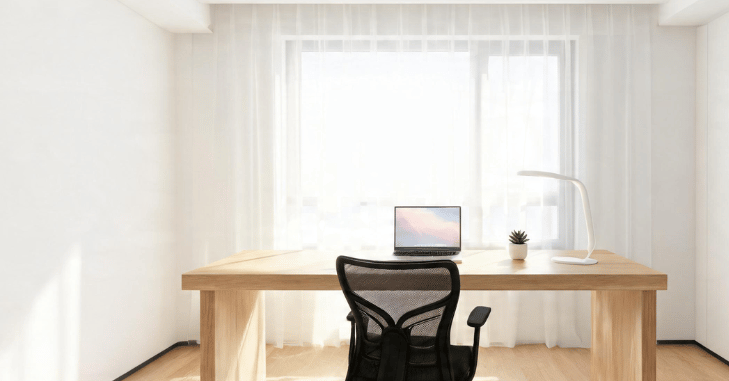
A useful workspace doesn’t need to look like a showroom. It needs to support the tasks you perform repeatedly, fit your available space, and remain comfortable throughout a normal workday.
Start with location, connectivity, furniture, screen position, and lighting. Use the setup for a week, note what slows you down, and make your next upgrade based on what your daily routine shows you actually need. For a closer look at this, see Wifi adapter for pc.
Conclusion
Knowing how to Set Up a Home Office is about creating a workspace that helps you stay productive, comfortable, and focused every day. Start with the essentials: a quiet location, reliable internet, a supportive chair, proper lighting, and a well-positioned screen.
Once the basics are in place, improve your setup gradually based on how you work rather than chasing expensive gadgets. By following these practical steps, How to Set Up a Home Office becomes a long-term investment in better performance, improved comfort, and a healthier work routine in 2026 and beyond. For a closer look at this, see How to Mount a TV On The Wall.
Apart from that, if you want to know about the article “2024 Mustang GT 0-60 Performance,“ then visit our Technology category.
Frequently Asked Questions
Start with the equipment you already own and fix the biggest problems first. Prioritize a stable work surface, supportive seating, a sensible screen position, reliable internet, and useful lighting before buying decorative or specialized equipment.
For many jobs, the basic setup includes a computer, an internet connection, a desk or work surface, a chair, power access, and adequate lighting. Your role may also require a monitor, headset, webcam, printer, drawing tablet, or other specialist equipment.
A window can provide useful daylight, but direct glare can make screen work uncomfortable. Positioning a desk sideways to a window often makes natural light easier to manage. Check the room at several times of day before choosing the final position.
Not necessarily. A laptop can handle many jobs on its own, especially when work sessions are short or you move frequently. For longer desk-based sessions, a larger or raised display may make comfortable screen positioning easier. Pair a raised laptop with separate input devices so your hands can remain at a comfortable working height.
Fix the problem that affects you most often. That could mean improving your sitting position, getting more reliable internet, using a larger screen, improving call audio, or adding better lighting. Once the basics work well, accessories become easier to evaluate because you’ll know which inconveniences still need to be solved.