
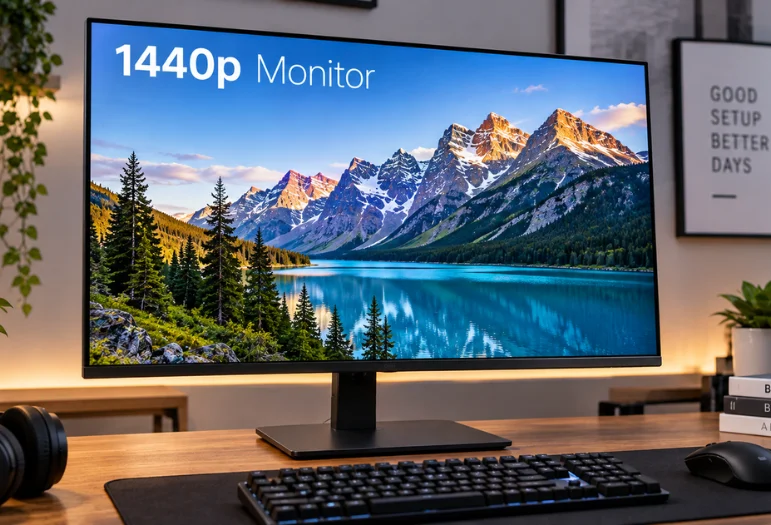
A 1440p monitor gives you a useful middle ground between inexpensive 1080p screens and more demanding 4K displays. The 2560 × 1440 resolution looks especially sharp at 27 inches while requiring less graphics power than 4K. That combination makes QHD attractive for gaming, office work, browsing, editing, and mixed-use desktop setups.
A 27-inch QHD display is the safest choice for most US buyers because it combines sharp detail with manageable GPU demands. Choose 144–180Hz IPS for mixed work and gaming, stronger local dimming for HDR, or OLED for fast motion and deep blacks. Spend more only when the extra refresh rate, HDR performance, or connectivity solves a real need.
| 1440p Monitor Buying Factor | Good starting point | Who should consider more? |
|---|---|---|
| Size | 27 inches | 32-inch buyers who prefer a larger image |
| Resolution | 2560 × 1440 QHD | 4K for maximum desktop detail |
| Refresh rate | 144–180Hz | Competitive players can target 240 Hz+. |
| Panel | IPS for balanced use | OLED for contrast and motion; VA for stronger native contrast |
| Adaptive sync | FreeSync or G-SYNC compatibility | Useful for gaming with changing frame rates |
| Ergonomics | Height and tilt adjustment | Pivot, swivel, or VESA mounting for complex desks |
| Connectivity | HDMI + DisplayPort | USB-C, USB hub, or KVM for laptop-heavy workflows |
Why QHD Still Makes Sense in 2026
QHD remains popular because it adds detail without the hardware demands of 4K gaming. RTINGS describes the resolution as a middle ground between the lower clarity of 1080p and the higher processing demands of 4K. It also notes that 27 inches remains the most common size for this resolution.
A 27-inch QHD screen delivers roughly 109 pixels per inch, which gives text, icons, and game detail a noticeably denser appearance than 1080p at the same size. You also have about 78% more pixels than Full HD, giving applications more usable desktop space. For gaming, your graphics card has fewer pixels to render than at 4K, making higher frame rates easier to reach.
How to Choose a 1440p Monitor Without Paying for the Wrong Features
Start With Screen Size
For most desks, 27 inches is the natural match for QHD resolution. It offers a dense image without making text or interface elements unusually small, and buying guides repeatedly recommend this combination. A 32-inch screen gives you a larger physical image, but its lower pixel density makes the picture less crisp at the same viewing distance.
Desk depth matters as much as diagonal size because a large screen can become uncomfortable when placed too close. Techixia’s home-office setup guide recommends placing the main screen directly in front of you and controlling glare around the workstation. If space is limited, a smaller or arm-mounted display may be more useful than buying the biggest panel available.
Match Refresh Rate to What You Do
A 144Hz to 180Hz screen is a strong target for mixed use because cursor movement, scrolling, and games all look smoother than on a traditional 60Hz panel. Moving to 240Hz makes more sense for competitive players who can produce frame rates high enough to benefit from the added refreshes. Premium models now reach far beyond 240Hz, but those speeds target a narrower group of esports-focused buyers.
Your graphics hardware matters because a high-refresh panel does not create extra game frames by itself. Adaptive-sync support can reduce visible tearing when frame rate changes, while DisplayPort or the correct HDMI implementation may be needed to reach a screen’s maximum refresh rate. Check both the display specification and your computer’s video outputs before buying.
Pick the Panel Technology for Your Room and Workload
IPS remains a practical choice when you want wide viewing angles, solid color, and fast gaming performance without paying OLED prices. VA panels generally offer stronger native contrast, which can improve dark scenes, while response behavior varies by model. OLED provides exceptional black levels and rapid pixel response, but its higher price and long-term static-image considerations can make an LCD more sensible for office-heavy use.
Do not choose by panel label alone because implementations vary widely. A well-tuned VA screen with local dimming may deliver more convincing HDR than an inexpensive IPS product carrying a basic HDR badge. Independent testing, brightness behavior, response measurements, warranty coverage, and your room lighting matter more than a single specification.
Treat HDR as More Than a Badge
HDR performance depends on brightness, contrast, color capability, and control of bright versus dark parts of the image. The AOC Q27G3XMN, for example, lists 336 local-dimming zones, a 700-nit brightness specification, and DisplayHDR 1000 certification. Those features give it a stronger HDR foundation than screens that accept an HDR signal without meaningful local dimming.
OLED approaches HDR differently because each pixel can turn off independently, creating deep blacks without a conventional backlight. The tradeoff is that brightness behavior and room reflections vary among OLED designs. Decide whether you care more about dark-room contrast, bright-room performance, sustained desktop use, or price before making HDR the deciding factor.
Check Ports, Stand Adjustments, and Your Second-Screen Plans
HDMI and DisplayPort cover most desktop gaming systems, while USB-C becomes more valuable when a laptop is part of the setup. A USB-C connection that carries video and power can reduce desk clutter, while integrated USB hubs and KVM switches help users who switch between computers. Always check the port’s supported resolution and refresh rate, because having the connector doesn’t guarantee maximum performance.
Ergonomics also deserve attention because you interact with the screen for hours after the specifications stop being interesting. Height adjustment, tilt, swivel, pivot, and VESA support can matter more than decorative features once the display is on your desk. If you plan to add another screen, Techixia’s dual-monitor setup guide explains connections, extended-desktop settings, screen arrangement, and common detection problems.
5 Current QHD Picks for Different Buyers
No single choice fits every buyer, so these recommendations cover five distinct use cases instead of ranking five similar gaming screens. Prices below were checked on US manufacturer or retailer pages on September 12, 2026, and may change after publication. Compare the features you will use rather than assuming the highest price produces the best fit.
| Pick | Best for | Refresh rate | Panel | Price checked |
|---|---|---|---|---|
| Dell 27 Plus S2725DSM | Everyday value | 144Hz | QHD display | $189.99 |
| AOC Q27G3XMN | HDR gaming value | 180Hz | VA | $229.99 |
| HyperX OMEN OLED 27q | Affordable OLED gaming | 240Hz | QD-OLED | $399.99 |
| Dell UltraSharp U2724D | Office and color work | 120Hz | IPS Black | $439.99 |
| ASUS ROG Swift OLED PG27AQWP-W | High-end esports | 540Hz QHD | Tandem WOLED | $1,099 |
1. Dell 27 Plus S2725DSM: Best Starting Point for Most Buyers
Dell’s S2725DSM combines a 27-inch QHD screen, a 144 Hz refresh rate, built-in audio, and a stand with height, pivot, tilt, and swivel adjustment. Dell listed it at $189.99 when checked, making it an appealing option for productivity users who also want smoother casual gaming. It lacks the premium HDR and connectivity extras found farther up the market, but its balanced feature set keeps the entry cost low.
Pros
144Hz QHD at a relatively low current price
Fully adjustable stand
Built-in speakers
Suitable for work and casual gaming
Cons
Limited premium connectivity
Not aimed at high-end HDR gaming
2. AOC Q27G3XMN: Best Value for HDR-Focused Gaming
The AOC Q27G3XMN uses a 27-inch 2560 × 1440 VA panel with up to a 180Hz refresh rate and adaptive sync. AOC lists 336 local-dimming zones, DisplayHDR 1000 certification, height adjustment, and a $229.99 US price. Those specs make it a compelling step up for buyers who care more about contrast and HDR than office-oriented USB connectivity.
Pros
180Hz refresh rate
336-zone local dimming
DisplayHDR 1000 certification
Strong feature set for the price
Cons
VA viewing behavior will not suit every buyer
Fewer productivity extras than office-focused models
3. HyperX OMEN OLED 27q: Best OLED Value
HyperX lists the OMEN OLED 27q at $399.99, with a 27.63-inch QHD panel, a 240 Hz refresh rate, and a claimed 0.03ms gray-to-gray response time. OLED’s pixel-level light control makes this option attractive for dark-room gaming and buyers who prioritize fast motion and black levels. The higher cost means it makes less sense for users whose workload consists mainly of static documents, spreadsheets, and browser windows.
Pros
QD-OLED image characteristics
240Hz refresh rate
Fast pixel response
Lower price than many premium OLED gaming options
Cons
Costs considerably more than good LCD choices
Office-first buyers may not benefit enough from OLED
4. Dell UltraSharp U2724D: Best for Office and Color-Focused Work
The UltraSharp U2724D targets productivity with a 27-inch 2560 × 1440 IPS Black panel running at 120 Hz. Dell specifies 100% sRGB and BT.709 coverage plus 98% Display P3 and DCI-P3 coverage, while its adjustable stand supports height, tilt, swivel, and pivot changes. At $439.99, it costs more than mainstream QHD screens, but it puts that budget toward work-oriented images and ergonomic features.
Pros
120Hz for smoother desktop motion
Wide specified color coverage
IPS Black technology
Strong ergonomic adjustment
Cons
Higher price than general-purpose LCD choices
Gaming is not its main focus
5. ASUS ROG Swift OLED PG27AQWP-W: Best for High-End Esports
The ASUS PG27AQWP-W is built for buyers who want extreme refresh rates rather than shoppers looking for ordinary value. ASUS specifies QHD at up to 540 Hz, a dual mode reaching 720 Hz at lower resolution, DisplayPort 2.1, two HDMI 2.1 inputs, and a three-year warranty that includes panel burn-in. At $1,099 US, it sits firmly in enthusiast territory, so most buyers should spend less unless competitive gaming performance is the priority.
Pros
Up to 540Hz at native QHD
Tandem WOLED panel
DisplayPort 2.1 and HDMI 2.1
Three-year warranty including burn-in
Cons
$1,099 asking price
Excessive for mainstream gaming and office use
Our Verdict: Which QHD Display Should You Buy?

For most US buyers, the Dell S2725DSM is the sensible starting point because it combines QHD, 144 Hz, useful stand adjustment, and a sub-$200 checked price. Gamers who want better HDR should consider spending more on the AOC Q27G3XMN, while buyers specifically seeking OLED can step up to the HyperX option. The ASUS model only makes financial sense when extreme refresh performance is a genuine priority.
Start with your use case, not the spec count. Work-focused buyers gain more from ergonomics and ports, while gamers should prioritize response behavior, adaptive sync, refresh rate, and HDR quality. Buying the feature set that matches your computer and daily workload usually produces a better setup than buying the most expensive screen.
1440p vs. 1080p vs. 4K
| Resolution | Typical strength | Main tradeoff | Good fit |
|---|---|---|---|
| 1920 × 1080 | Low cost and high FPS | Less detail at 27 inches | Budget or esports systems |
| 2560 × 1440 | Balance of clarity and performance | More GPU load than 1080p | Gaming, work, mixed use |
| 3840 × 2160 | Maximum desktop and image detail | Greater GPU demand | Creative work and premium gaming |
QHD sits between the other two resolutions in both pixel count and hardware demand. That makes it attractive when 1080p looks too coarse, but maintaining high gaming frame rates at 4K would require a costly graphics upgrade. RTINGS reaches a similar conclusion, describing the format as a balance between image clarity and processing requirements.
Before You Buy
Check your GPU outputs, desk space, preferred screen size, and the refresh rate you can realistically use before ordering. Confirm the included stand or VESA support and make sure the necessary HDMI, DisplayPort, or USB-C connection supports your intended resolution and refresh rate. If a new screen powers on but shows no image, Techixia’s computer display troubleshooting steps cover input, cable, and graphics-output checks to try first.
Frequently Asked Questions
Is a 1440p monitor worth it in 2026?
Yes, especially at 27 inches when you want sharper text and games without moving to the heavier graphics demands of 4K. Current US options range from mainstream 144Hz models below $200 to premium OLED displays with refresh rates beyond 500Hz. This range makes QHD relevant to office users, mainstream gamers, and enthusiasts, not just one narrow audience.
Is 27 inches the right size for QHD?
For many desktop setups, 27 inches is the easiest size to recommend because 2560 × 1440 produces roughly 109 pixels per inch at that diagonal. It gives you a sharper image than a 27-inch 1080p screen while keeping interface elements comfortable at common desk distances. Larger QHD panels can work well when physical image size matters more than maximum pixel density.
Is QHD the same as 2K?
Retailers sometimes use “2K” as shorthand for QHD products, but QHD or 2560 × 1440 is the clearer specification to look for when shopping. Checking the actual pixel dimensions prevents confusion with other resolutions that may receive similar marketing labels. Treat the resolution number on the product page as more reliable than the nickname.
What refresh rate should I get for gaming?
A 144Hz to 180Hz panel is a strong target for mainstream gaming because it provides smooth motion without requiring extreme frame rates. A 240Hz screen makes more sense for competitive players with hardware that can consistently produce high FPS. Rates above that are specialized choices, and the benefit becomes increasingly dependent on the game, GPU, and player’s priorities.