
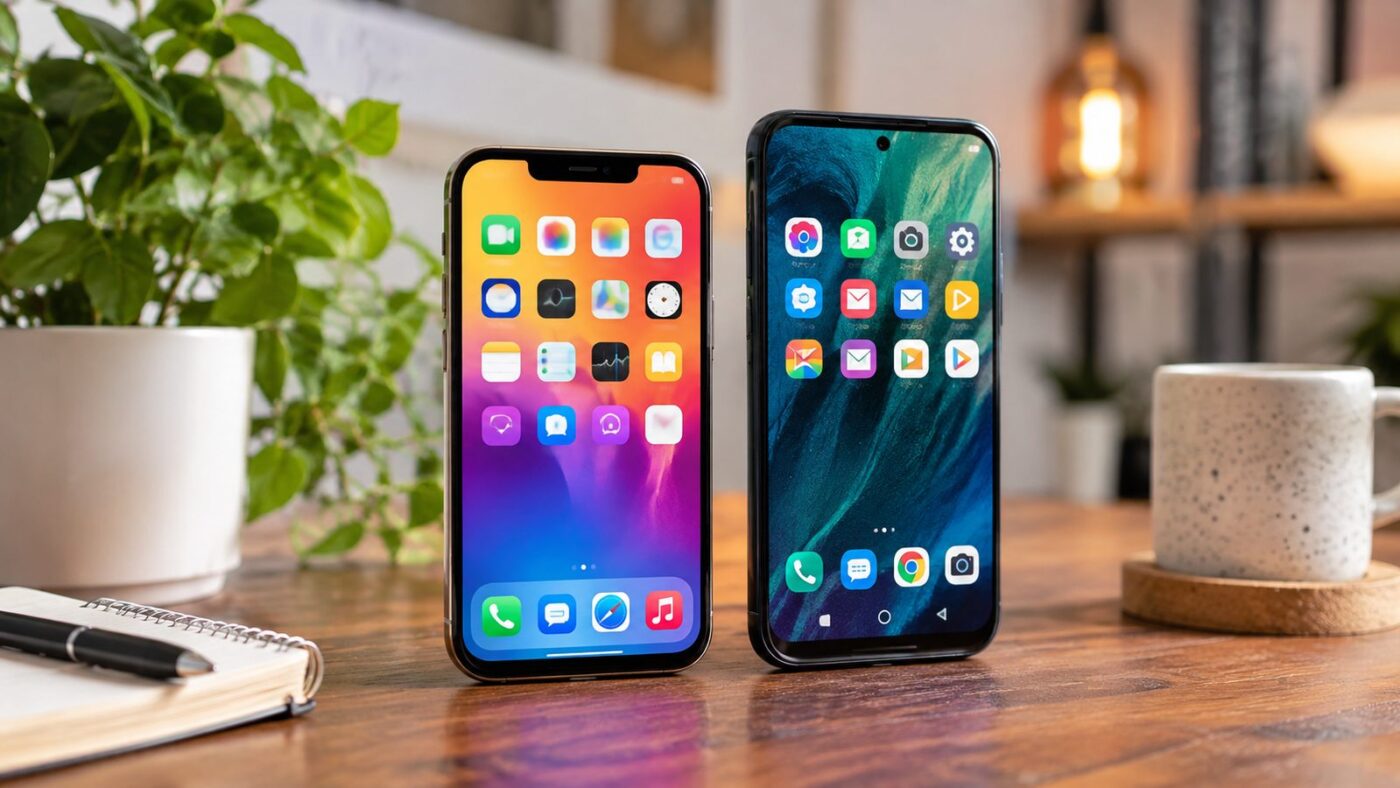
An app can disappear without being deleted from your phone. Learning how to unhide apps starts with finding where your device placed them. The correct method depends on whether you use an iPhone, Samsung Galaxy, Pixel, or another Android phone. Quick answer: On iPhone, open App Library and authenticate to open the Hidden folder. Hold the app, then choose Don’t Require Face ID. On Samsung, remove the app from the Hidden apps list. On Pixel, unlock Private Space to reveal apps stored there.
| Device or situation | Where to look | What restores visibility |
|---|---|---|
| iPhone hidden app | App Library > Hidden | Don’t Require Face ID |
| iPhone missing Home Screen icon | App Library | Add or drag to Home Screen |
| Hidden iPhone Home Screen page | Edit > Edit Pages | Re-enable the page |
| Samsung Galaxy | Home screen settings > Hide apps | Remove app from Hidden apps |
| Pixel with Private Space | Security & privacy > Private space | Unlock Private Space |
| Disabled Android app | Settings > Apps | Tap Enable |
| Third-party launcher | Launcher settings | Turn off its hide-app setting |
Key Takeaways
- A hidden app usually remains installed and keeps its data.
- iPhones have a protected Hidden folder for apps intentionally hidden with authentication.
- Samsung phones provide a dedicated Hide apps on Home and Apps screens setting.
- Pixel phones can store separate app installations inside Android Private Space.
- Removing an icon from a Home Screen is different from hiding or uninstalling the app.
- Reinstalling should usually be your last step, not your first.
What You’ll Need Before You Start
You usually need only your phone and its screen-lock credentials. Face ID, Touch ID, a passcode, or a PIN may protect hidden areas. Make sure you know that credential before changing visibility settings. Check whether the app is still installed before downloading another copy. Searching Settings or the app store can often confirm its status. This avoids unnecessary reinstalls and possible confusion between different app profiles.
How to Unhide Apps on iPhone
Apple lets recent iPhone software hide downloaded apps inside a protected Hidden folder. A hidden app disappears from the normal Home Screen, App Library listings, and search. Apple requires authentication before you can view or restore it. Follow these steps:
- Swipe left through every Home Screen page.
- Open the App Library.
- Scroll to the Hidden folder.
- Tap the folder and authenticate.
- Touch and hold the app you want restored.
- Tap Don’t Require Face ID, Touch ID, or Passcode.
- Authenticate again if your iPhone requests it.
The app leaves the Hidden folder after authentication. Apple says it then becomes available again through the normal App Library. You can place it on your Home Screen separately when needed.
Add the App Back to Your iPhone Home Screen
Sometimes an app is not hidden at all. You may have selected Remove from Home Screen, which leaves the application installed. In that case, finding it through App Library is enough. Find the app inside App Library and hold its icon. Then drag the icon toward the Home Screen and place it where you want. This restores the shortcut without reinstalling the application.
Restore a Hidden Home Screen Page
An entire iPhone page can also be hidden. Every app on that page may appear missing at the same time. The applications remain available through App Library while the page is hidden. To restore a page:
- Touch and hold an empty Home Screen area.
- Tap Edit.
- Choose Edit Pages.
- Find a page with an unchecked circle.
- Tap its circle to show that page again.
This method is especially useful when several icons vanish together. Restoring the page brings its layout back without moving each app manually. It also preserves folders that were already arranged there.
Unhide Apps on Samsung Galaxy Phones
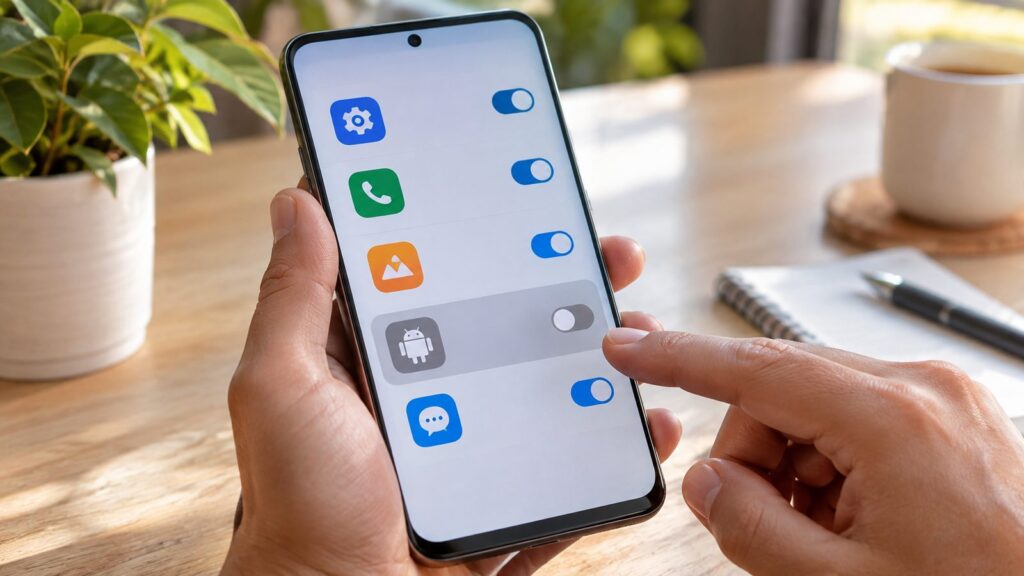
Samsung uses a different system from Apple. Galaxy devices can hide applications from both the Home Screen and Apps screen. Hiding them does not uninstall the software from the device. To make a hidden Samsung app visible again:
- Touch and hold an empty Home Screen area.
- Tap Settings.
- Choose Hide apps on Home and Apps screens.
- Look at the apps listed under Hidden apps.
- Tap the minus icon beside the app you want restored.
- Tap Done.
The application should return to the Apps screen. You can then hold its icon and place a shortcut on your Home Screen. Menu wording may vary slightly between Galaxy models and One UI versions. Samsung also lets you reach these controls from the Apps screen on supported models. Open Apps, select the menu, and enter its settings. The same hidden-app list can then be edited. For more Android controls, Techixia also covers useful Google Play Store settings. That guide explains several app-management and security controls. It can help when the missing application is connected to Play Store settings.
Find Hidden Apps on Google Pixel and Android Private Space
Modern Android versions can use Private Space for sensitive applications. On supported Pixel devices, apps inside that space are separated from your normal phone profile. Locking Private Space hides those applications from several regular Android surfaces. To reveal Private Space:
- Open your phone’s Settings.
- Tap Security & privacy.
- Select Private space.
- Authenticate with your Private Space lock.
- Return to All Apps after unlocking it.
- Scroll to the Private Space section.
You can also open All Apps and scroll toward Private Space directly. Unlocking it makes its applications available while the space remains open. Locking Private Space hides them again. There is one important difference from Samsung hiding. Apps installed in Private Space are separate installations rather than ordinary Home Screen shortcuts. Google says Private Space does not simply move an existing app and its data between profiles. If you need the same application in your normal profile, install it there separately. Do not assume unlocking Private Space permanently moves its copy outside. This distinction can save time when an icon keeps disappearing after Private Space locks.
What if an Android App Was Disabled?
A disabled Android application can resemble a hidden one. Its icon may disappear even though some app information remains on the phone. This commonly affects applications that Android allows users to disable. On Samsung, you can check Settings > Apps and select the application. Tap Enable when that option appears. Samsung documents this route for supported disabled applications. Other Android manufacturers may use different labels. Search the Apps section of Settings if you cannot find an identical menu. Avoid changing system applications unless you understand their purpose.
Hidden App, Missing Icon, or Uninstalled App?
These situations look similar but require different fixes. Knowing the difference prevents needless downloads and account sign-ins. Check the app’s status before making larger changes.
| Situation | Is the app installed? | Typical solution |
|---|---|---|
| Intentionally hidden | Yes | Remove it from the hidden area |
| Removed from Home Screen | Yes | Add its shortcut back |
| Hidden page | Yes | Restore the Home Screen page |
| Private Space app | Yes, inside that profile | Unlock Private Space |
| Disabled app | Usually yes | Enable it in Settings |
| Uninstalled app | No | Download it again |
Open the App Store or Google Play if you remain unsure. A button labeled Open usually means the application remains installed in that profile. An Install or download button generally means you need to reinstall it.
Why Can’t I Find a Hidden App?
A phone can hide software in several ways, so checking one menu may not solve everything. Start with the least disruptive explanations before resetting settings. Most missing icons do not require recovery tools or a factory reset. Check these possibilities in order:
- Search the phone for the app’s name.
- Look through App Library or All Apps.
- Check any hidden-app menu.
- Unlock Private Space on supported Android phones.
- Check whether the application was disabled.
- Review hidden Home Screen pages.
- Check the App Store or Play Store for installation status.
- Review your third-party launcher settings.
Third-party Android launchers can provide their own hide-app controls. Those options are separate from Samsung or Google settings. Open the launcher’s preferences if your phone uses something other than its standard launcher. A mysteriously installed or unfamiliar application is a different issue. Techixia’s guide on checking whether your phone is hacked explains safer checks for unknown software. Do not delete unfamiliar system components without identifying them first.
Don’t Use Recovery Mode to Restore a Hidden App
Recovery Mode does not normally solve a missing app icon. It is designed for larger startup, update, and repair problems. Entering recovery menus adds unnecessary risk when the application is simply hidden. Try the visibility and installation checks in this guide first. Use advanced repair options only when your phone has a broader operating-system problem. Techixia explains those cases in its Recovery Mode guide for iPhone and Android.
Frequently Asked Questions
How do I unhide an app on my iPhone?
Open App Library and tap the Hidden folder at the bottom. Authenticate, hold the app, and choose Don’t Require Face ID or the equivalent option. The application then leaves the protected Hidden folder.
How to unhide apps if they are not inside the Hidden folder?
Search App Library, All Apps, or your phone’s Settings first. The icon might only have been removed from the Home Screen. Android users should also check Private Space, disabled apps, and launcher settings.
Why did my app disappear from the iPhone Home Screen?
You may have removed only its Home Screen shortcut. The page containing the icon could also be hidden. App Library can help determine whether the application remains installed.
Where are hidden apps on Samsung phones?
Samsung lists intentionally hidden apps under Hide apps on Home and Apps screens. You can reach that option through Home Screen settings. Removing an app from the hidden list returns it to the Apps screen.
Does unhiding an app delete its data?
Normally, no. Changing visibility does not uninstall an ordinary hidden application. Private Space is different because it uses a separate Android profile and app installation.
Why does a Pixel app disappear again after I find it?
The app may be inside Private Space. Apps there become hidden again when that space locks. Unlocking Private Space makes them visible and usable again.
Is hiding an app the same as hiding an App Store purchase?
No. Apple treats hidden purchases and hidden installed applications as different features. Unhiding a purchase does not automatically restore a deleted app to your Home Screen.
Get Your Missing App Back
Start by confirming whether your app is hidden, disabled, or simply missing its shortcut. Use the matching method above instead of reinstalling immediately. Most visibility problems can be reversed without deleting app data. If the app still cannot be found, check its official store page next. Confirm whether the store says Open or offers a new installation. That result tells you whether to keep troubleshooting visibility or reinstall the software. —