

Most people use the Play Store as a search box and nothing else. Buried two taps deeper are controls that stop surprise charges, claw back money on a bad purchase, and prevent a child from spending $40 on gems. None of them are hard to find once you know where to look.
Learning how to geek Google Play Store settings starts in one place: tap your profile picture in the top right corner. Everything below lives in that menu or in Settings underneath it. The refund window is the most valuable thing here, because it expires in hours rather than days.
How to Geek Google Play Store settings: the map
| What you want | Where to find it |
| Instant refund | App page, Refund button, within 2 hours |
| Refund request | Order history, Report a problem, within 48 hours |
| Purchase password | Settings, Authentication, Require authentication |
| Parental controls | Settings, Family, Parental controls, set a PIN |
| Update over Wi-Fi only | Settings, Network preferences, Auto-update apps |
| Stop home screen icons | Settings, General, Add icon to Home screen |
| Full purchase history | Profile, Payments and subscriptions, Order history |
| Manage subscriptions | Profile, Payments and subscriptions, Subscriptions |
| Remote install | play.google.com on a computer, Install |
| Security scanning | Profile, Play Protect |
Key takeaways: uninstalling a paid app within two hours triggers an automatic refund with no form to complete. After 48 hours, the decision passes to the developer. Cancelling a subscription is not the same as requesting a refund.
1. The two-hour refund window
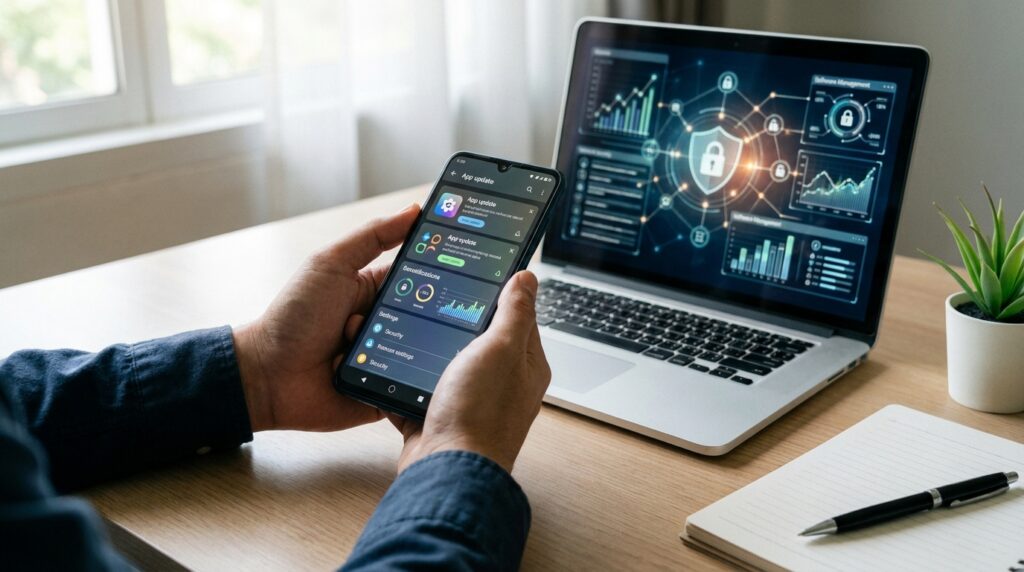
Buy an app, decide against it, and uninstall it within two hours. Google processes the refund automatically, without a form or an explanation. The Refund button also appears on the app’s own store page during that period.
Miss it, and you have 48 hours to ask through order history instead. Films, television and books get seven days, provided you have not started watching or reading. Past 48 hours, responsibility shifts to the developer and approval rates drop sharply.
2. Requesting a refund properly
- Open play.google.com on a computer and sign in
- Go to Payments and subscriptions, then Budget and order history
- Find the purchase and choose Report a problem
- Pick a reason from the list and add a short, factual explanation
- Submit, then allow one to four working days for a decision
Keep the explanation specific. “Crashes on launch on a Pixel 8″ gets further than “did not like it”, because the first describes a fault and the second describes a preference.
3. Require a password for every purchase
Under Settings and Authentication, set purchase verification to require your fingerprint or password for all buys rather than every 30 minutes. This is the single change that prevents accidental in-app spending, and it takes ten seconds.
4. Parental controls with a PIN
In Settings, open Family and then Parental controls. Switch them on, create a PIN that nobody else knows, and set content limits by age rating for apps, games, films and books. A child then needs that PIN to install anything above the limit.
Choose a PIN unrelated to the phone’s screen passcode. Children learn the screen passcode within a week, which quietly defeats the whole arrangement.
5. Control when apps update

- Settings, Network preferences, Auto-update apps, then choose over Wi-Fi only
- Set individual apps to update manually from their store page menu
- Turn off auto-update entirely if you are on a strict data cap
- Check the update list monthly, since manual mode leaves security fixes uninstalled
Wi-Fi only is the setting most people want. Full manual control sounds appealing until an unpatched app becomes the weak point on your phone.
6. Subscriptions, cancelled properly
Open your profile, then Payments and subscriptions, then Subscriptions. Cancelling stops the next charge but does not refund the current period, and access continues until the paid period ends. Those are two separate actions and people routinely confuse them.
If you want money back as well, cancel first, then file a refund request within 48 hours of the charge. Review this list every few months, because forgotten trials are where subscription spending quietly accumulates.
7. Five smaller tricks
- Stop shortcut clutter: Settings, General, and untick adding an icon to the home screen
- Install from your desk: use play.google.com on a computer and push apps to any signed-in device
- Check Play Protect: found under your profile, it scans installed apps and reports recent checks
- Read the data safety section: on every app page, it lists what the developer collects and shares
- Use the wishlist: the bookmark icon saves paid apps so you notice when they go on sale
Refund windows compared
| Purchase type | Automatic | By request | After that |
| Apps and games | 2 hours | 48 hours | Developer decides |
| In-app purchases | Not applicable | 48 hours | Rarely approved once used |
| Subscriptions | Not applicable | 48 hours from charge | Cancel only |
| Films and television | Not applicable | 7 days if unwatched | Declined |
| Books | Not applicable | 7 days if unopened | Declined |
Your next step
Spend five minutes on two settings today: turn purchase authentication to every transaction, and open your subscriptions list. Most people find at least one charge they had forgotten, which usually pays for itself immediately.
For related reading, see our tested antivirus picks and our guide to routers that handle large app downloads without stalling.
Frequently asked questions
No. Every control described here is built into the app and available on any standard Android phone. Nothing needs rooting or modifying.
Sometimes. The request goes to the developer rather than Google, so approval depends on their policy. Contact them directly and explain the fault clearly.
Content restrictions and purchase authentication are separate settings. Turn both on, and use a PIN that differs from the phone’s screen passcode.
On a phone with 60 apps, yes, easily several gigabytes a month. Switching to Wi-Fi only captures nearly all of that saving without leaving apps unpatched.
It catches known threats and is worth leaving on. Many people pair it with additional scanning, which we cover in our free antivirus guide.