

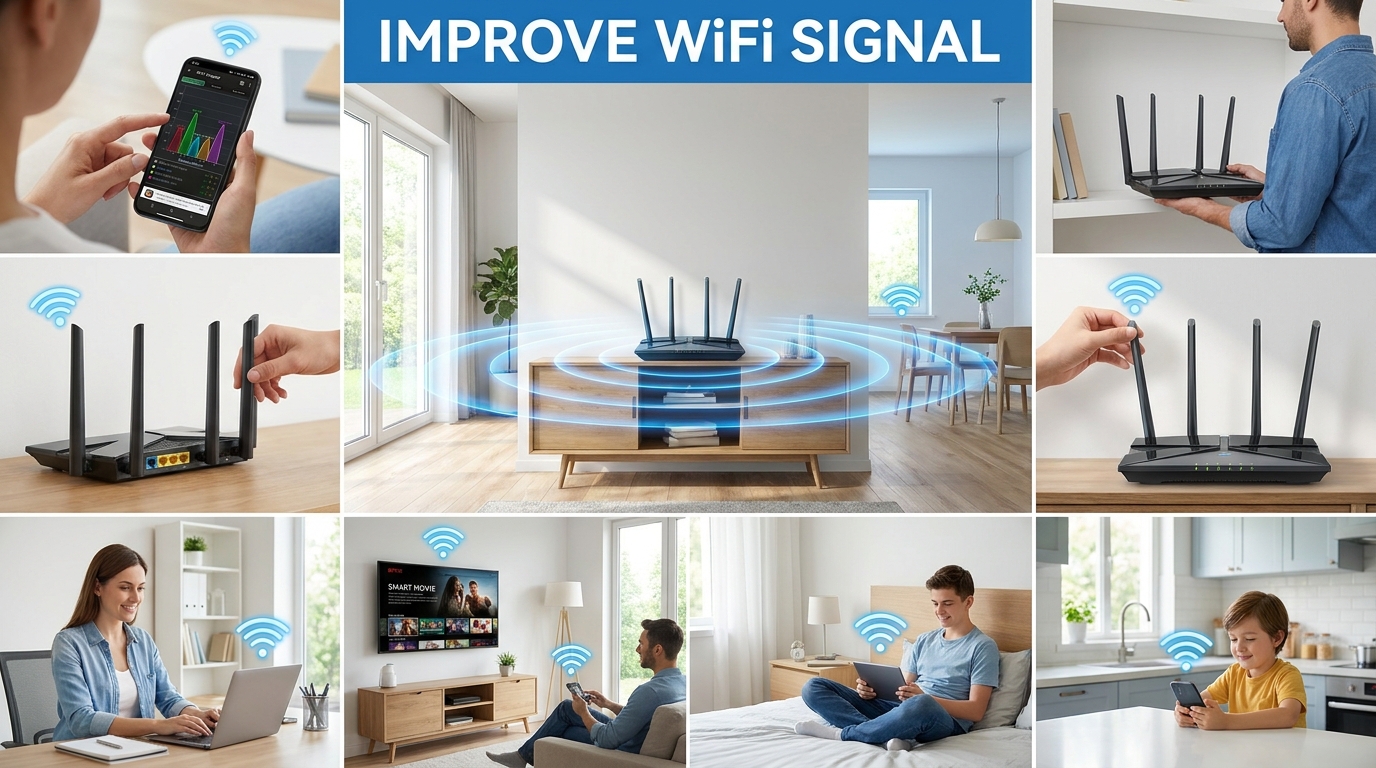
Weak Wi-Fi often results from poor router placement, distance, physical obstacles, interference, or network settings rather than a slow internet plan. If you’re trying to learn how to improve WiFi signal, start by checking placement and testing your connection before buying a new router. The steps below move from free fixes to hardware options, so you can stop as soon as the problem is solved. For a closer look at this, see Air Conditioner.
To strengthen your home Wi-Fi, first move the router to a central, open, elevated location and test the connection again. Then reduce interference, use the appropriate frequency band, update the router, and review congested network settings. If weak areas remain, add a wired access point, mesh node, powerline adapter, or extender that suits your home’s layout.
| What you’re seeing | Best first move | What the result can reveal |
| One room has weak reception | Test again after moving the router toward the center | A coverage or obstruction problem |
| Everything is slow, even near the router | Test your connection close to the router | An ISP, router, or broader network issue |
| The signal looks strong, but speeds vary | Check bands, congestion, and connected devices | A capacity problem rather than weak reception |
| Several floors or distant rooms are weak | Consider another access point or mesh node | One router may not cover the entire layout |
| Connections drop throughout the home | Restart the router, update it, and check the ISP connection | A software, hardware, or service problem |
Microsoft recommends establishing a speed-test baseline in different locations before changing your network. Google also notes that slow service from your ISP can look like a Wi-Fi problem, so separating the two issues can save time.
The Short Version: Fix Coverage Before Buying More Speed
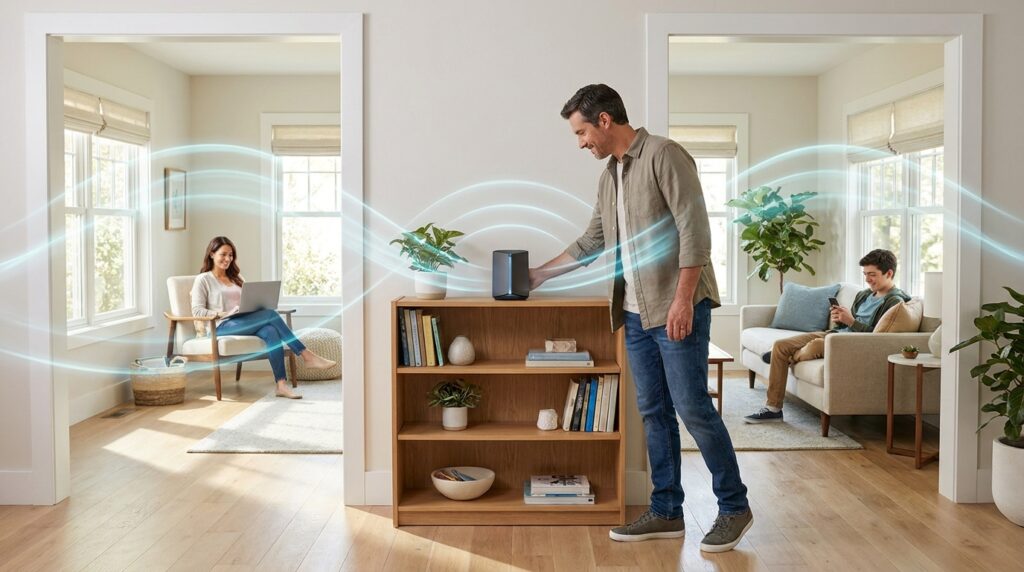
A faster broadband package doesn’t automatically extend wireless coverage. Walls, distance, router placement, neighboring networks, and household electronics can still weaken the connection between your device and router. Google specifically distinguishes internet-provider speed from conditions that affect the wireless connection inside your home.
Start with changes that cost nothing. If those changes leave clear dead zones, choose a coverage solution based on your home’s layout rather than buying the first device labeled a “Wi-Fi booster.”
What You’ll Need Before You Start
You can complete most of this troubleshooting with equipment you already own. Have your router’s administration details available, along with a phone or laptop that you can carry between rooms.
A speed test gives you a repeatable measurement. Access to the router’s app or settings page helps you check frequency bands, firmware, channels, and other wireless options.
| Tool | Why it’s useful |
| Phone or laptop | Tests the same network from several rooms |
| Speed-test tool | Provides a before-and-after comparison |
| Router app or admin page | Gives you access to firmware and wireless settings |
| Ethernet cable, if available | Helps separate an internet problem from a wireless problem |
How to Improve WiFi Signal in 9 Steps
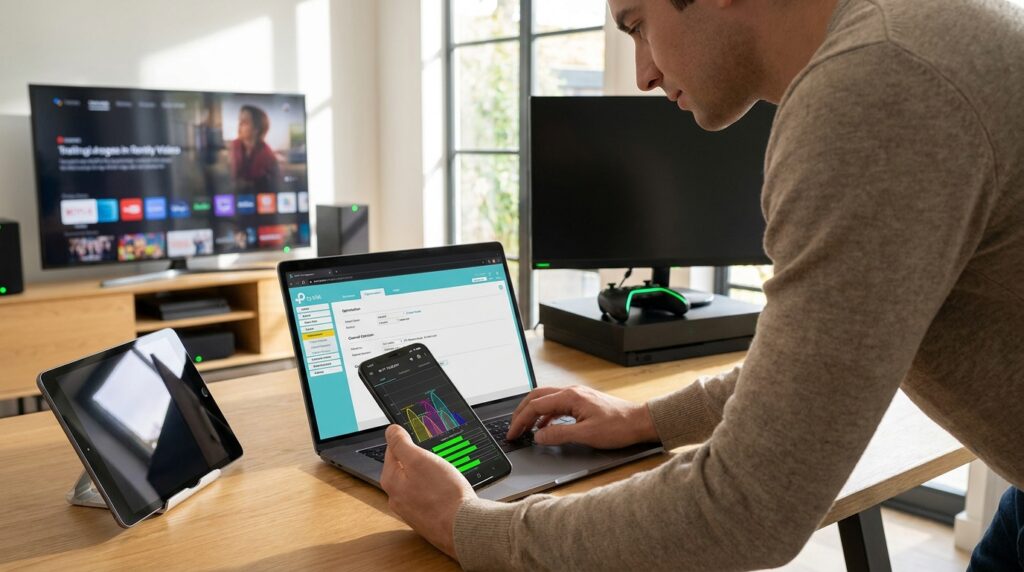
- Measure the connection before changing anything. Test near the router, then repeat the test in each problem area using the same device. Write down the results. If performance is poor even beside the router, investigate the internet service or router before trying to extend coverage. Microsoft recommends taking baseline measurements so you can tell whether later changes make a difference.
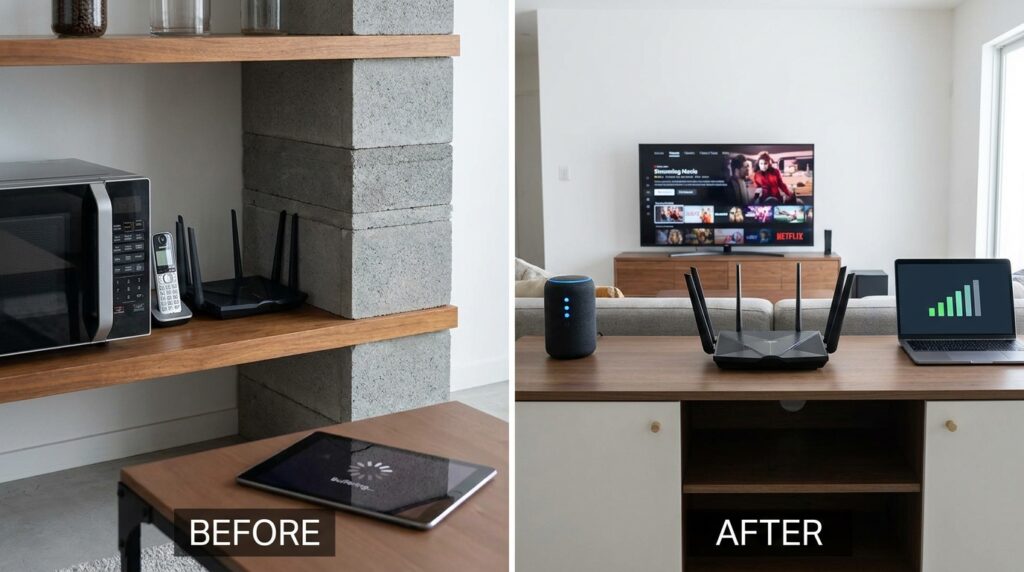
- Move the router to a more central, elevated location. Place it in the open rather than inside a cabinet, on the floor, or at one edge of the home. Ofcom explains that routers send wireless signals in multiple directions, so a central, elevated position reduces the amount of signal wasted outside the areas where you need coverage. Google provides similar advice for its Wi-Fi hardware.
- Remove obstacles and reduce interference around the router. Metal, water, thick construction materials, and certain electronics can weaken reception. Ofcom specifically advises keeping routers away from objects such as radiators and fish tanks, as well as equipment including microwaves, cordless phones, and baby monitors. Moving the router even a few feet may be worth testing before buying additional hardware.
- Use the frequency band that suits the location. A nearby laptop or television may perform better on 5 GHz, while a device farther away may maintain a more reliable connection on 2.4 GHz. Current TP-Link guidance notes that 5 GHz offers higher speeds but shorter range and greater sensitivity to obstacles than 2.4 GHz. Test both options rather than assuming the faster band will work better everywhere.
- Check your router’s software and security settings. Open the manufacturer’s app or administration page and check for firmware updates. ISP-supplied gateways may install these updates automatically. Microsoft recommends using modern security options such as WPA3 where supported and advises against older WEP security. For more home-network safety topics, see Techixia’s Cybersecurity section.
- Test a less congested wireless configuration. Nearby routers can compete for the same radio spectrum, especially in apartments and other densely populated areas. Many modern routers manage channels automatically, but manual testing can help if connections remain unstable. Microsoft also notes that switching a troublesome 2.4 GHz network to a 20 MHz channel width can improve compatibility and reliability in some situations.
- Compare multiple devices from the same location. If one laptop struggles while another device works normally from the same spot, your home network may not be the main problem. Wireless hardware, drivers, supported standards, and even device orientation can affect performance. Microsoft and Google both note that client hardware can influence the speeds and connection quality you experience.
- Add a coverage device only when testing confirms a dead zone. Several weak rooms may justify a mesh system or another access point. A single difficult room may need an extender or another targeted solution. Mesh systems use multiple connection points instead of relying on one router, which can improve coverage throughout a larger home. You can also explore related connected-home topics in Techixia’s Smart Home section.
- Repeat your original tests after every meaningful change. Measure from the same locations with the same device. Don’t judge a fix by the signal icon alone. Consistent before-and-after testing tells you whether moving equipment, changing settings, or adding hardware produced a meaningful improvement.
Which Coverage Upgrade Fits Your Home?
Buying more equipment makes sense when placement and configuration changes no longer solve the problem. The right option depends on how many areas are weak, whether cabling is available, and what physical barriers stand between the router and those rooms.
TP-Link’s guidance separates extenders, powerline adapters, and mesh systems by use case. Google describes mesh as a network of multiple connection points that provides coverage from several locations throughout the home.
| Option | Best suited for | Main tradeoff |
| Wired access point | Homes where Ethernet can reach the weak area | Requires cabling and setup |
| Mesh Wi-Fi | Homes where several rooms or floors need better coverage | Usually costs more than a simple extender |
| Wi-Fi extender | A single nearby dead zone that needs help | Performance depends on its connection to the main router |
| Powerline adapter | Homes where wireless barriers are difficult, and the electrical wiring is suitable | Results depend on the home’s electrical system |
| New router | Older hardware that lacks needed capabilities | Placement problems may remain after replacement |
Don’t place a wireless mesh node at the far end of a dead zone and expect it to create a strong connection to the main router. Google recommends positioning mesh points between the router and the area that needs coverage while keeping them in open locations and close enough to maintain a strong connection.
A Strong Wi-Fi Connection and a Fast Internet Plan Aren’t the Same Thing
One common mistake is upgrading the broadband plan because a bedroom has poor reception. More ISP bandwidth may help if your household is using all available internet capacity, but it won’t remove a concrete wall or move the router out of a cabinet.
The opposite problem can also happen. Your device may show a strong wireless connection while the internet itself is slow. Google recommends checking your provider’s performance when measured speeds fall below expectations.
This distinction gives you a useful rule: weak performance only in certain locations points to a coverage problem, while weak performance everywhere may indicate a broader network or service issue.
Fix the Free Problems First, Then Expand Coverage
Start by testing the connection near the router and in the room where performance is weakest. Move the router, clear nearby obstacles, and test the appropriate frequency band before spending money.
If the dead zone remains after those changes, choose hardware that matches the problem. A wired access point may suit a room where Ethernet is available. A mesh system makes more sense when several areas of the home need stronger wireless coverage.
Apart from that, if you want to read more articles like this Best Mesh Router 2026, then visit Techixia’s Smart Home category.
Frequently Asked Questions
Start with router placement. Move it toward the center of the home, raise it off the floor, and keep it in the open. Then test the available frequency bands, check for interference, update the router, and compare speeds from the same locations. These changes can solve many coverage problems without requiring new hardware.
A Wi-Fi extender primarily expands wireless coverage. It doesn’t increase the speed of the broadband connection entering your home. Its performance also depends on how well it communicates with the main router. TP-Link recommends choosing among an extender, powerline solution, or mesh system based on your home’s layout and coverage needs.
Neither band is better in every situation. TP-Link notes that 5 GHz can provide faster performance but has a shorter range and is more affected by obstacles. That makes 2.4 GHz worth testing in distant rooms, while 5 GHz often works better for devices closer to the router.
Replacing the router makes more sense after you’ve checked its placement, interference, settings, and the internet connection itself. Older devices may lack newer wireless standards or current security features. However, a new router still won’t solve every dead zone if your home’s size, walls, or layout are the real cause.