
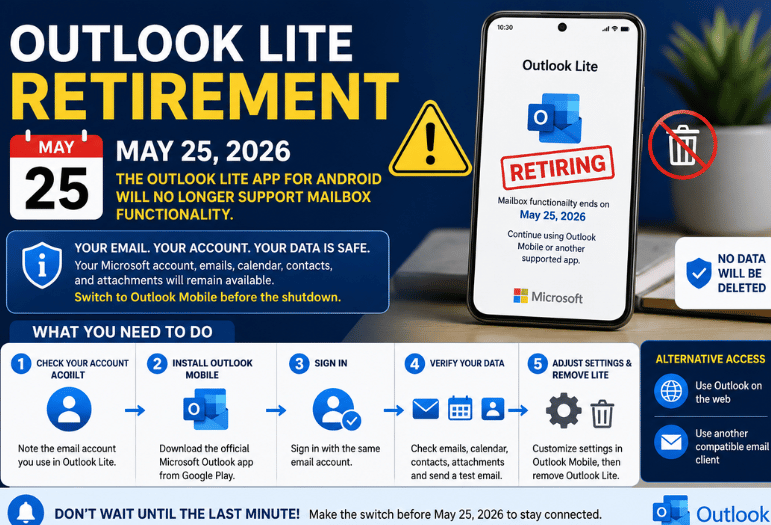
Microsoft has confirmed the Outlook Lite Retirement May 25 deadline for Android users. Starting May 25, 2026, the lightweight app will no longer provide mailbox functionality. Your Microsoft account and stored email won’t be deleted, but you’ll need another app or a web browser to access them.
The safest option is to install Microsoft Outlook Mobile, sign in with the same account, and confirm that your email, calendar, contacts, and attachments appear correctly before removing the Lite app.
| Topic | Details |
|---|---|
| Retirement Date | May 25, 2026 |
| Affected App | Outlook Lite for Android |
| What Changes? | Mailbox functionality will stop working. |
| Email Account Status | Your Microsoft account remains active |
| Will Emails Be Deleted? | No, emails stay stored in the cloud |
| Recommended Replacement | Microsoft Outlook Mobile |
| Who Is Affected? | Android users using Outlook Lite |
| Alternative Access | Outlook Mobile, web browser, or supported email clients |
| Action Required | Install a replacement app before May 25, 2026 |
| Risk of Waiting | Loss of email access through Outlook Li |
Key Takeaways
- Outlook Lite loses mailbox functionality on May 25, 2026.
- The retirement affects the Android app, not your Microsoft email account.
- Your cloud-based messages, calendar entries, and attachments should remain available.
- Microsoft recommends moving to the full Outlook Mobile app.
- Users with limited phone storage can consider browser access or another compatible email client.
- You should test the replacement before deleting Outlook Lite.
What Does the Outlook Lite Retirement May 25 Deadline Mean?
The deadline means Microsoft is ending the app’s working connection to mailbox features. Outlook Lite may still open after May 25, but users won’t be able to rely on it for reading messages, checking calendars, or opening attachments.
Microsoft’s official support page says the app will be fully retired and will no longer provide mailbox functionality from that date. The company directs users to Outlook Mobile for a secure, feature-rich replacement.
This change is limited to the Lite app. It doesn’t mean Outlook.com, Hotmail, Microsoft 365, or Exchange Online accounts are shutting down. Your messages are generally stored on the mail provider’s servers rather than only inside the Android app. Signing in through another supported app should restore access to synchronized content.
Why Is Microsoft Retiring Outlook Lite?
Outlook Lite Retirement May 25,Microsoft hasn’t provided a detailed public explanation on its consumer support page. Its guidance focuses on moving customers to the main Outlook app. The decision follows an earlier phase-out step. Outlook Lite stopped accepting new downloads through Google Play on October 6, 2025, while existing installations continued to work during the transition period.
The final cutoff ends that transition on May 25, 2026. Outlook Lite was designed for Android phones with limited storage, modest hardware, or slower connections. The standard Outlook app offers more features but can require more device resources.
Microsoft appears to be consolidating mobile development around one primary Outlook experience. That approach can simplify updates and security work, though it leaves some Lite users searching for a smaller replacement. You can follow Techixia’s broader coverage of mobile and desktop applications for future app updates and retirement notices.
How to Move From Outlook Lite in Five Steps
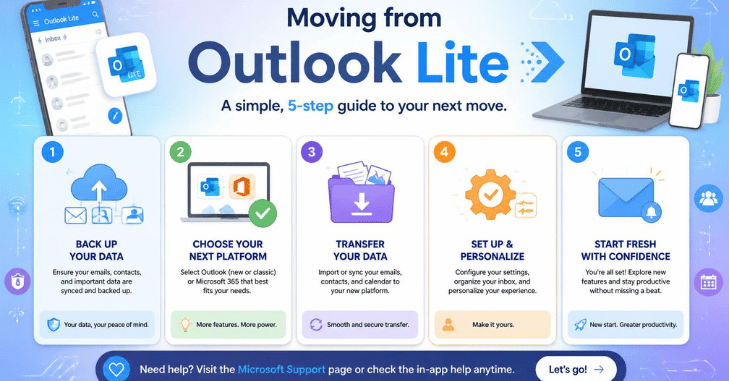
1. Check Which Account You Use
Open Outlook Lite before the deadline and identify the email address connected to it.
It may be an
- Outlook.com address
- Hotmail address
- Live or MSN account
- Microsoft 365 work or school account
- Exchange Online account
- Supported Google account
Make sure you know the password or can complete your account’s recovery process. Work and school users may also need an authentication app or a code from their organization.
2. Install Microsoft Outlook mobile.
Open Google Play and search for the official Microsoft Outlook app. Check that Microsoft Corporation is listed as the publisher before installing it. Microsoft identifies Outlook Mobile as the main replacement for Lite users. Avoid downloading unofficial APK files from unknown websites. Modified installation packages can expose login details, messages, and authentication tokens.
3. Sign In With The Same Email Account
Open Outlook Mobile and enter the email address used in Outlook Lite. Complete any password or multi-factor authentication prompts. Your synchronized messages and calendar items should begin appearing after the account connects. The process may take longer when you have a large mailbox or a slow connection. Don’t remove the Lite app yet. Keep both apps installed until you finish checking the replacement.
4. Confirm Your Important Data Appears
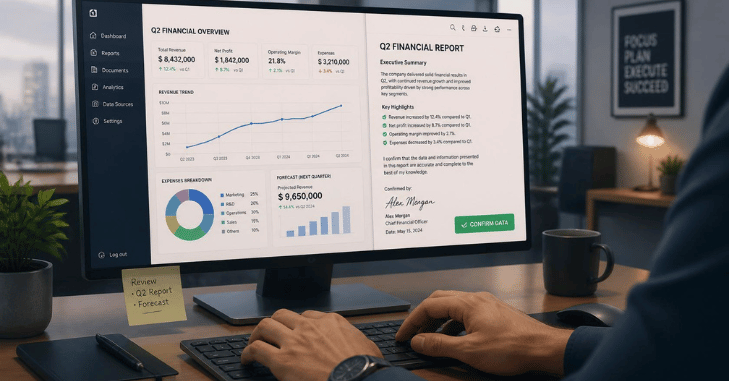
Check several parts of the new app rather than assuming the migration worked.
Confirm that you can access:
- Recent and older messages
- Sent items
- Drafts
- Custom folders
- Calendar events
- Email attachments
- Contacts or saved recipients
- Shared or secondary mailboxes, where applicable
Send a test message to another address and reply to it. This simple check confirms that outgoing and incoming email both work. Workplace users should also test company-specific functions, such as shared calendars or managed account policies.
5. Adjust Settings and Remove Outlook Lite
The full app may feel busier than the lightweight version. Review its settings before deciding whether it fits your needs.
You can change:
- Notification frequency
- Focused Inbox behavior
- Swipe actions
- Conversation grouping
- Calendar alerts
- Signature text
- Automatic image loading
- Data and battery permissions
Once you’re confident that everything works, you can remove Outlook Lite. You don’t need to delete your email account first.
Techixia’s technology updates section can help you track other software changes that may affect your devices.
Will Your Emails Be Deleted?
Outlook Lite Retirement May 25,No. The retirement applies to the Android application rather than the account itself.
Reports about Microsoft’s announcement consistently note that accounts and server-stored content remain intact. Users should still be able to reach their email, calendar, and attachments by signing into Outlook Mobile or another supported access method.
There are two practical exceptions to consider. First, an unsent draft stored only on the phone may not appear elsewhere. Open your drafts and send or copy anything important before removing the app.
Second, downloaded attachments saved locally may remain in your phone’s Downloads folder. Check that folder before clearing app data or resetting the device.
What Can You Use Instead of Outlook Mobile?
Outlook Mobile is Microsoft’s recommended replacement, but it isn’t the only possible way to read email. Use Outlook Mobile when your phone supports it and you need Microsoft calendar, contact, or workplace features. Browser access is the simplest fallback for devices with little free storage.
Before adding a work account to another client, ask your IT administrator whether the app meets company security policies.
What Should Microsoft 365 Administrators Do?
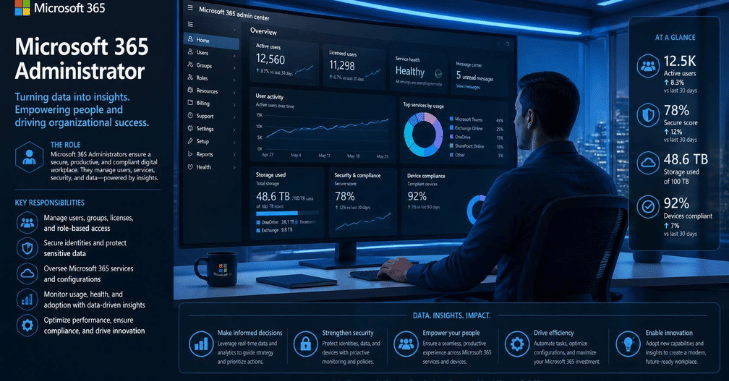
Microsoft says no technical administrator action is required for the retirement itself. Still, organizations should notify affected users and help them move before mailbox access ends.
A basic transition plan should include:
- Identifying Android users who still rely on Outlook Lite.
- Sending the May 25, 2026 deadline through more than one channel.
- Providing the approved Outlook Mobile installation link.
- Explaining multi-factor authentication requirements.
- Testing shared mailboxes and managed device policies.
- Offering help to users with older or low-storage phones.
Administrators should avoid waiting until the final day. Password resets, device storage problems, and authentication errors can turn a simple switch into a longer support request.
Switch Before the Deadline
The retirement won’t erase your account, but it will remove a familiar way to access it. Outlook Lite Retirement May 25 Waiting until the cutoff could leave you without working email when you need it. Install your replacement, sign in, verify your data, and send a test message before May 25, 2026. Once the new setup works, you can remove Outlook Lite with confidence.
Apart from that, if you want to know about the article GR86 Hakone Edition,then visit our Technology category.
Frequently Asked Questions
Microsoft says Outlook Lite will stop providing mailbox functionality on May 25, 2026. The app may still launch, but it won’t work as a usable email client.
No. Outlook Lite was an Android application. Microsoft directs mobile users toward its standard Outlook app, which is available for Android and iOS.
No. Sign in to the replacement app with your existing email address and password. Your account doesn’t need to be recreated.
You shouldn’t depend on it. Microsoft states that mailbox functionality will end on the retirement date, even if the app can still be opened.
Try Outlook through your mobile browser or configure the account in another supported email client. Work-account users should check with their administrator before choosing an alternative.
Install and test a replacement first. Remove Outlook Lite only after you’ve confirmed that messages, folders, calendar items, and attachments are accessible.