
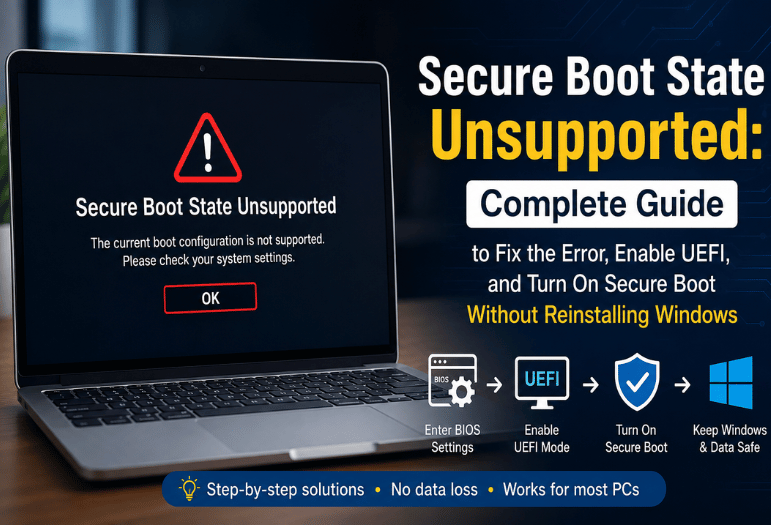
You opened System Information, found the Secure Boot State line, and it reads Unsupported. On most PCs built in the last ten years, that is not a hardware verdict. It usually means Windows boots the old way, in Legacy or CSM mode from an MBR disk, so the firmware check never runs.
Secure boot state unsupported means the feature is not available to Windows in the mode your PC runs right now. Off means the opposite: the board offers it, and someone turned it off. Unsupported points at your boot mode and your partition style, and you can change both of those without a reinstall.
On, Off and Unsupported: What Each Value Means
| Please check the BIOS Mode, convert the disk, and the Value in System Information. | What it means | Your next move |
| On | Firmware verification runs at every boot, and Windows can see it | Nothing. You are done. |
| Off | The board supports the feature, and it currently sits disabled | One toggle in firmware setup |
| Unsupported | Windows cannot reach the feature at all; almost always a Legacy or CSM install on an MBR disk. | Please check the BIOS Mode, convert the disk, and switch the firmware. |
| Unsupported on a pre-2012 board | The firmware predates the feature entirely | No setting will help. The board is the limit. |
Key Takeaways
- Unsupported and Off are not the same problem. Off is a toggle. Unsupported means Windows cannot reach the feature.
- The usual cause is a Legacy or CSM boot mode paired with an MBR system disk.
- Convert the disk to GPT with mbr2gpt, then switch the firmware to UEFI before Windows starts again. That order is not optional.
- Back up first. A failed conversion on a single-drive PC turns into a recovery job.
- Boards from roughly 2011 and earlier have no UEFI mode, and no amount of setting changes will help.
Unsupported and Off are Not The Same Problem

Most of page one treats these two words as interchangeable. They are not, and the difference decides whether you have twenty minutes of work ahead of you or a shopping decision.
Off is a report from a working feature. Your firmware supports signature checking; the option sits there in setup, and somebody turned it off, often to install a graphics driver or to dual-boot Linux. Turn it back on and the line changes.
Secure Boot state “Unsup is a report from Windows about itself. The feature might be sitting right there in your firmware, fully capable, but a Legacy or CSM installation cannot use it. Windows finds no UEFI variable to read, so it gives the honest answer: not available here.
Why The Check Exists in the First Place
Firmware runs before Windows does. Code that loads at that point sits below anything the operating system can inspect, which is why a bootkit is so hard to shift once it lands. NIST’s Platform Firmware Resiliency Guidelines, published in May 2018, require that firmware storage be modifiable only through an authenticated update mechanism. Secure Boot applies the same idea one layer up: your board checks the signature on each boot loader before handing over control.
That layer replaces nothing. A scanner still handles everything arriving after Windows loads, so keep both. If your protection has drifted since you last looked, our roundup of expert-tested antivirus picks is a reasonable place to start.
Read Two Lines Before You Change Anything.
Two facts decide your route, and both take a minute to find.
- BIOS Mode. Press Windows and R, type msinfo32, press Enter, then read the BIOS Mode line. Legacy is the tell.
- Partition style. Right-click Start, open Disk Management, then right-click the disk holding Windows and choose Properties. On the Volumes tab, Partition style reads either Master Boot Record (MBR) or GUID Partition Table (GPT).
Legacy plus MBR is the standard case, and the rest of this guide assumes it. UEFI plus GPT with the line still reading Unsupported is rarer. That combination usually means the firmware has no such option, not that you configured something wrong.
How To Fix Secure Boot State Unsupported In 5 Steps
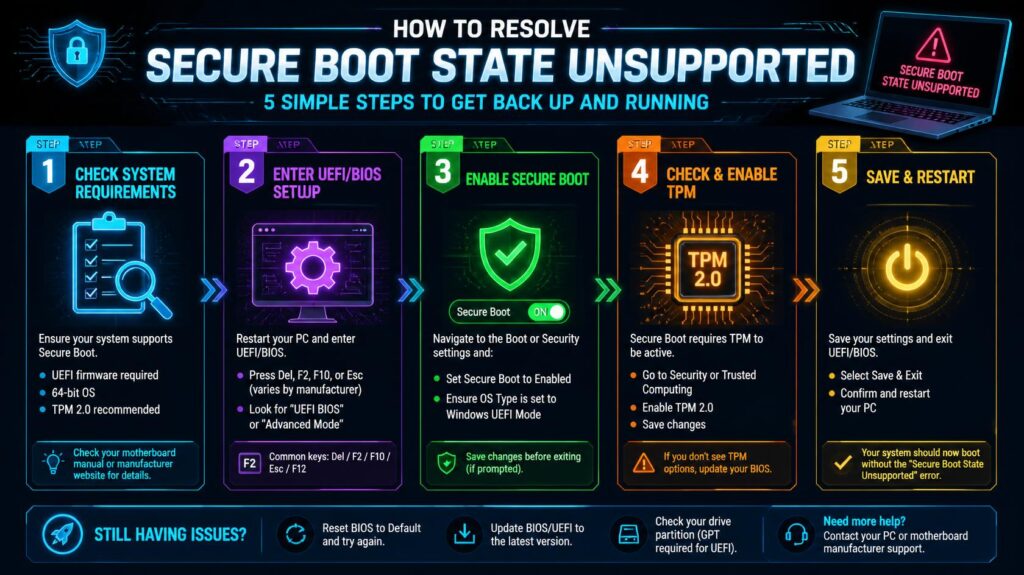
- Back up everything you cannot lose. An external drive or a cloud sync is fine. Conversion rewrites the partition table, and a partition table is the one thing you cannot rebuild by hand.
- Check the prerequisites. mbr2gpt refuses a disk with more than three primary partitions, any extended or logical partition, or a BCD store missing its default OS entry. Suspend BitLocker first if you use it. The tool ships with Windows 10 version 1703 and later, and Microsoft does not support running it against Windows 7, 8, or 8.1.
- Run the conversion. Open Command Prompt as administrator and run mbr2gpt /validate /allowFullOS. Once validation passes, run mbr2gpt /convert /allowFullOS. It finishes in seconds and leaves your files alone.
- Restart straight into firmware setup. Do not let Windows start. Tap your board’s setup key as the machine restarts, usually Del on desktops or F2 on laptops. Set CSM or Legacy Support to Disabled, then set Boot Mode to UEFI only.
- Turn the feature on and verify. In the same screens, find Secure Boot under Boot or Security, set it to Enabled, then save and exit. Back in Windows, run msinfo32 again. BIOS Mode should read UEFI and the state line should read On.
Microsoft publishes the full validation list in its mbr2gpt documentation, and the two minutes it takes to read the prerequisites will save you an evening. Losing a boot volume to a disk the tool was never going to accept is an avoidable mess.
The Boot Failure That Catches People Out
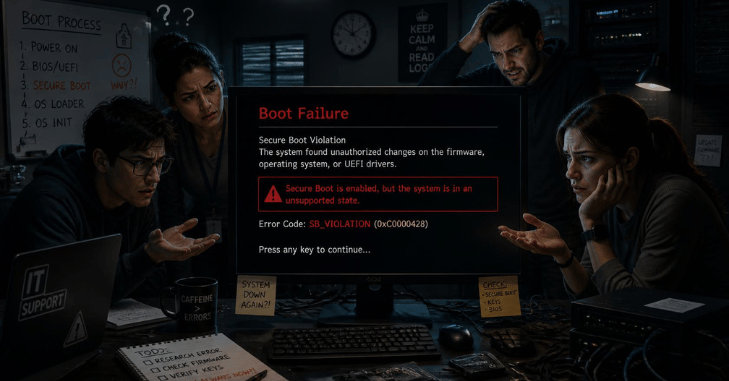
Here is the trap. A GPT disk will not boot in Legacy mode, and an MBR disk will not boot in UEFI mode. Converting the disk and then rebooting into Windows, before the firmware moves to UEFI, leaves the PC unbootable. You get a black screen, a blinking cursor, or a message about no bootable device.
Nothing is lost at that point. Go into firmware setup, switch to UEFI, and the machine starts. The same trap works in reverse: flip the firmware to UEFI while the disk is still MBR and Windows will not load until you flip it back. If the machine also shows no power and no display, the cause lies elsewhere, and the usual fixes for a computer that won’t turn on apply instead.
When the Board Genuinely Cannot Do it
Some PCs are out of road. Consumer boards began shipping UEFI firmware with signature checking around 2011, pushed along by the Windows 8 logo program. Older hardware often has no UEFI mode to switch to. Open firmware setup: if there is no Boot Mode option, no CSM entry, and no Secure Boot item under Security, you have nothing to enable.
That is a real answer rather than a failure on your part. Your choice is a newer board or a newer PC, and comparing current models across a couple of trusted tech review sites beats guessing from a spec sheet.
What This Means for Windows 11 Eligibility
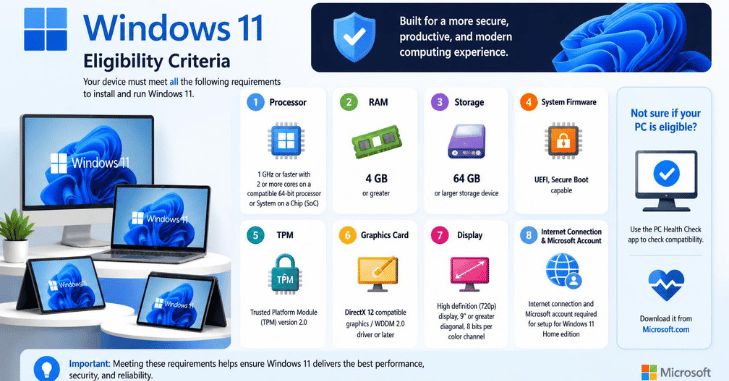
Microsoft states the firmware requirement plainly: UEFI, Secure Boot capable, plus TPM 2.0. A PC reporting Unsupported fails that check, so Windows Update keeps offering nothing. The PC Health Check app tends to say the PC must support Secure Boot without mentioning that the disk is the reason.
This matters more than it did a year ago. Free security updates for Windows 10 ended on October 14, 2025, and consumer extended updates run only to October 13, 2026. Where the conversion is off the table, a well-kept scanner becomes the fallback, and there are free antivirus software options that handle that job well.
Do This Next
Run msinfo32 now and note two important values: BIOS Mode and Secure Boot State. If they show Legacy and Unsupported, your system is most likely using an MBR disk with Legacy/CSM boot mode. Before making any changes, create a full backup of your important files or a system image to protect against unexpected issues.
Secure boot state unsupported. Then set aside about 30 minutes to convert the system disk from MBR to GPT using mbr2gpt, switch your firmware from Legacy/CSM to UEFI, and enable Secure Boot in your BIOS or UEFI settings. Once Windows starts again, open msinfo32 to confirm that BIOS Mode now reads UEFI and Secure Boot State reads On. Following these steps in the correct order lets most modern PCs enable Secure Boot without reinstalling Windows or losing personal data.
FAQ
No. mbr2gpt rewrites the partition table and adds an EFI system partition, and it does not touch your data. Back up anyway. A power cut during that write is the one thing that ruins a disk, and losing an entire volume to a five-second job stings.
Yes, in the standard case. The five steps above cover it, and the conversion runs from inside Windows. You only need a reinstall when the disk fails validation, usually because it carries too many primary partitions.
Check whether CSM is still active first, because many boards hide the option until CSM goes off. Still missing after that? Look for a firmware update from your manufacturer. When neither turns anything up, the board predates the feature.
For Windows 11, yes. It is a separate setting, called PTT on Intel boards and fTPM on AMD ones, and it lives in the same firmware menus. Turning it on does not affect the boot mode work above.
It works, and it will keep working. You’ll lose the firmware signature check, you won’t be able to move to Windows 11, and a boot disk caps out at 2 TB. None of that is urgent alone. Together they make a decent case for converting.