
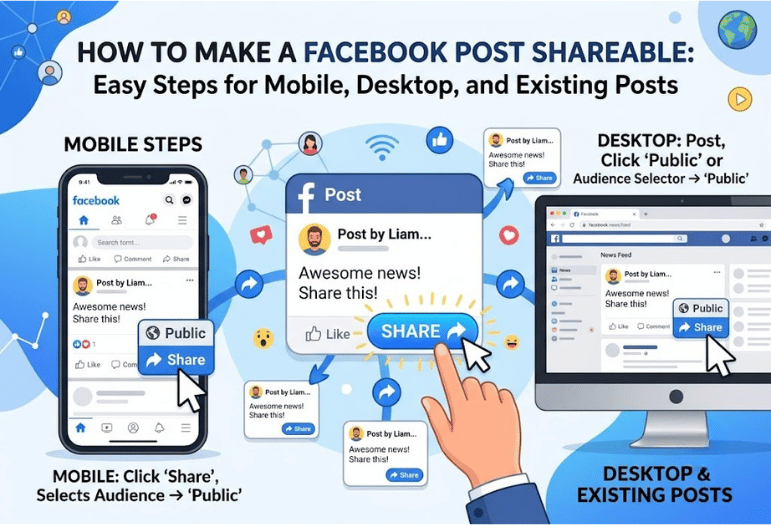
If friends say they can’t share something you posted, the problem is usually the audience setting. Learning how to make a Facebook post shareable usually comes down to choosing an audience that allows the reach you want.
For the widest sharing, set the audience to public. Facebook states that people can’t reshare a post with people who weren’t included in its original audience. A friends-only post, for example, can’t be reshared to a public audience.
| What you want to do | Setting or action |
| Let anyone reshare your post | Set the audience to public. |
| Change an old post | Open its audience selector and choose Public |
| Make future posts public by default | Change your default audience under Posts |
| Share a post from a private group | Sharing is normally restricted to group members |
| Fix a missing share option | Check the original post’s audience first |
Quick answer: Open the post you want others to share, select its audience setting, and change it to Public. You can do this before publishing or on an existing post. If the content comes from a private group or another person’s post with a restricted audience, you may not be able to make it publicly shareable yourself.
What Makes a Post Shareable on Facebook?
Facebook uses audience settings to control who can view your content and how widely it can be shared.
When you create content on your profile, the audience selector may offer choices such as Public, Friends, or Only Me. Facebook also lets you change the audience after publishing.
The key distinction is simple. Making a post visible to Friends doesn’t give those friends permission to distribute it to a Public audience. A shared post can’t reach people who weren’t part of the original audience.
If broad sharing is your goal, Public is the clearest choice.
How to Make a Facebook Post Shareable on Mobile
The exact labels may differ slightly between versions of the Facebook app, but the audience control remains the most important setting.
For a New Post
- Open Facebook and start creating a new post.
- Find the audience selector below or near your profile name.
- Tap the current audience, such as Friends.
- Choose Public.
- Return to the post composer and publish your post.
The audience selector is the control that determines who can see content you publish from your profile.
Before publishing something publicly, review the text, photos, tags, and personal details it contains. You’re changing its visibility, not simply enabling a sharing button.
If you use Android regularly, Techixia’s Google Play Store settings guide can also help you manage app updates and other mobile controls.
How to Make an Existing Post Shareable

You don’t need to delete an older post and publish it again.
Facebook lets you change the audience for content you’ve already shared. On your profile, locate the post and look for its audience icon near the date or time. Select it and choose a new audience, such as Public.
Depending on your app version, the same control may also appear in the post’s options menu as Edit Audience or Edit Privacy.
After changing the audience, check the post again. You should see the globe-shaped Public icon when that audience is active.
How to Make a Facebook Post Shareable on Desktop
The desktop process follows the same basic rule.
- Sign in to Facebook and open your profile.
- Find the post you want to change.
- Select the audience control beside its date or time.
- Choose Public from the available options.
- Confirm the change if Facebook asks you to save it.
If you’re publishing photos or videos for social platforms, Techixia also has a guide to free video-editing software that covers tools for desktop and mobile creators.
How to Make Future Posts Public by Default
Changing the audience of one post doesn’t necessarily change the audience for future posts.
A change made to a specific post applies only to that post, while future content may still use your saved default audience.
To change the default audience on desktop:
- Open your profile menu.
- Go to Settings & Privacy, then select Settings.
- Find Audience and Visibility.
- Select Posts.
- Find Who can see your future posts?
- Choose the audience you want.
Setting Public as your default can be useful for creators, public announcements, and content intended for broad distribution. For personal updates, checking the audience individually gives you more control.
You can find more app tutorials and software coverage in Techixia’s Apps section.
Why Is the Share Button Missing?
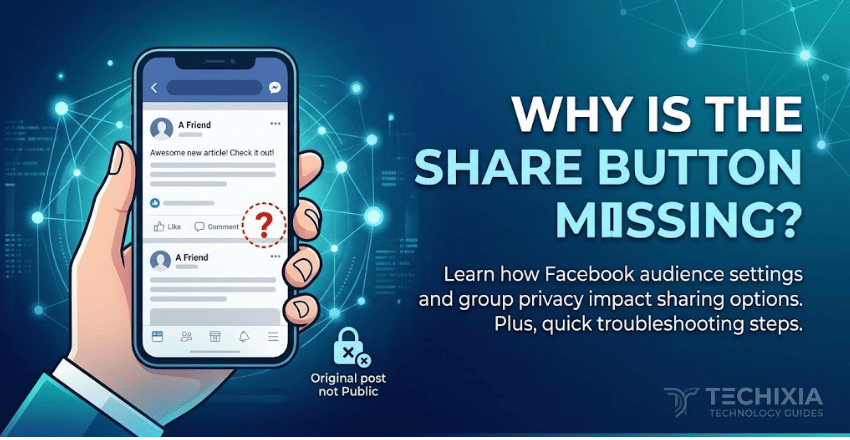
A missing Share option doesn’t always mean there’s a problem with Facebook.
The first thing to check is the original audience. The Share option may not appear when the author has selected a restricted audience, such as Friends.
Use this troubleshooting order:
- Check whether the original post is set to Public, Friends, or another audience.
- If it’s your post, change its audience to Public.
- If another person created the post, they control its original audience.
- If it came from a group, check whether the group is public or private.
- If the settings look correct, close and reopen the app, then check again.
Don’t assume that copying a link bypasses privacy settings. The original audience still controls who can access the content through Facebook.
For broader device and software troubleshooting, browse Techixia’s Technology guides.
Can You Share a Post From a Private Facebook Group?
Usually, you can’t share it outside the group.
Facebook distinguishes public and private groups based on who can see their content. Anyone can see content in a public group, while content in a private group is normally limited to current members. Standard group privacy rules generally prevent private-group content from being shared publicly. If you’re accessing Facebook on Samsung’s foldable devices, our guide to the Galaxy Z Fold5 to Buy in 2026 can help you choose the right model for your needs.
There may be limited exceptions for certain Facebook features, but these don’t make normal private-group content freely shareable.
If you need an announcement to reach people beyond a private community, create a separate public version instead of trying to change the group’s privacy rules.
Shareable Doesn’t Mean Everything Should Be Public

Public visibility is useful when you want maximum reach, but it isn’t the right choice for every update.
Before changing the audience, ask whether the content includes:
- Personal contact information
- A private family photo
- Someone else’s sensitive information
- Details intended for a small group
- A location you don’t want to make widely visible
Use Public for content you’re comfortable distributing widely. Keep restricted audiences for content intended for a specific group of people.
Check the Audience Before You Post
If you want people to share an announcement, guide, photo, or public update, check its audience before publishing. Choose Public when broad distribution is intentional. For an older post, edit the audience instead of recreating the content. If sharing is still unavailable, check whether the original content came from another person’s restricted post or from a private group.
That one privacy check solves the most common sharing problem while keeping you in control of who can see what you publish.
Conclusion
Making a Facebook post shareable is usually as simple as choosing the right audience. If you want anyone to be able to reshare your content, set the post to Public before publishing or update the audience on an existing post. If the Share option is missing, check whether the original post has a restricted audience or comes from a private group, as those privacy settings limit how far a post can be shared. By reviewing your audience settings before you post, you can maximise your content’s reach while keeping full control over who sees what you share.
If you want to know about eBay Alternative Sites then visit our Ecommerce category.
Frequently Asked Questions
Open the published post and select its audience setting. Change the audience to Public if you want people to reshare it widely. Facebook allows you to change the audience of something you’ve already shared.
The audience setting is often the reason. Facebook may hide sharing options when a post has a restricted audience. A person also can’t reshare it with people outside the original audience you selected.
Sharing can occur within the limits of the existing audience, but it can’t expand the post beyond that audience. If your goal is to let anyone redistribute it widely, Public is the appropriate setting.
Private-group content is intended for current members. Under standard privacy rules, content from a private group generally can’t be shared publicly.
No. Changing the audience of a specific post doesn’t automatically replace your saved default audience for future posts. You can change that default separately under Settings > Audience and Visibility> Posts.