

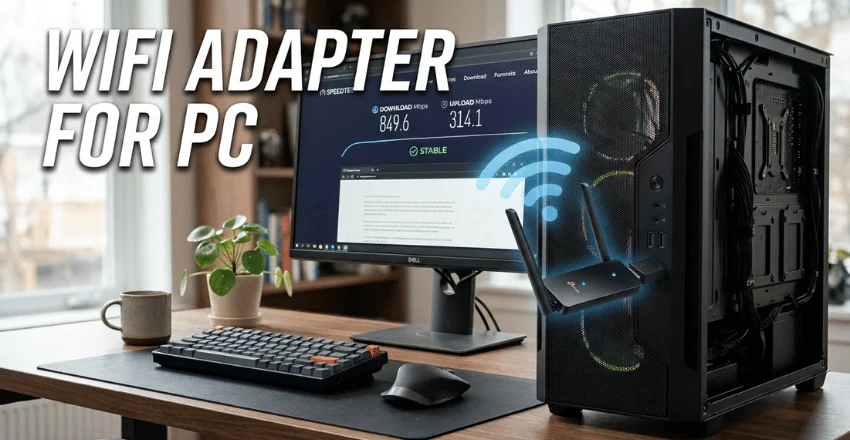
A WiFi adapter for PC can add wireless networking to a desktop that has no Wi-Fi or replace an older wireless connection. The right choice depends on your router, Windows version, available ports, signal conditions, and whether you prefer USB convenience or a permanent PCIe card. Elsewhere on the site: Portable WiFi Hotspot.
Quick answer: For most US desktop users, a dual-band Wi-Fi 6 USB model with USB 3.0 is the easiest upgrade. Choose PCIe if you want a permanent desktop setup with larger antennas or Bluetooth. Buy Wi-Fi 6E or Wi-Fi 7 only when your router, Windows version, drivers, and budget support the extra capabilities.
| What to check | Good choice for most users | When to upgrade |
|---|---|---|
| Connection type | USB for simple installation | PCIe for a fixed desktop setup |
| Wireless standard | Wi-Fi 6 | Wi-Fi 6E or 7 with compatible hardware |
| USB interface | USB 3.0 | Avoid limiting a fast adapter with USB 2.0 |
| Bands | 2.4 GHz and 5 GHz | Add 6 GHz when your system supports it |
| Antenna | Adjustable or external for desktops | Larger external antennas for weak reception |
| Operating system | Verified Windows 10/11 driver | Check Windows 11 requirements for newer features |
| Router | Match the adapter to your router | Upgrade both only when the added capability is useful |
USB vs PCIe: Which Type Should You Choose?
The first decision is the physical connection. USB models plug into an external port. PCIe cards install inside a desktop computer.
Neither format wins for every PC. Your available hardware, signal strength, and willingness to open the computer matter more.
| Feature | USB wireless adapter | PCIe wireless card |
|---|---|---|
| Installation | Easy; plugs into a USB port | Requires opening the PC |
| Port or slot needed | USB-A or USB-C, depending on model | Free PCIe slot |
| Portability | Easy to move between computers | Stays installed |
| Antenna options | Nano, built-in, or external | Often uses external antennas |
| Bluetooth | Model dependent | Common on many newer cards |
| Best fit | Quick upgrades and easy setup | Permanent desktop installations |
| Main drawback | Uses a USB port | More work to install |
USB adapter pros and cons
A USB unit makes sense when installation speed matters. It also works well if you don’t want to change anything inside the desktop.
Pros: quick setup, portable design, no need to open the case, and plenty of choices for older PCs.
Cons: it uses a USB port, tiny models may have limited antenna positioning options, and a high-performance model can be limited by an older USB interface.
USB 3.0 matters for faster wireless hardware. NETGEAR, for example, states that its A8000 works through USB 2.0 but recommends USB 3.0 for better performance.
PCIe card pros and cons
A PCIe card suits a desktop that stays in one place. These cards often provide external antennas that you can position away from the metal computer case.
Pros: permanent installation, flexible antenna placement, no external USB port occupied, and Bluetooth is available on many current models.
Cons: installation takes more effort, you need a free compatible slot, and Bluetooth on some cards may require an internal USB header.
If you’re building or upgrading an AMD desktop, check your motherboard layout before ordering a card. Techixia’s current guide to choosing an AMD motherboard can help you understand available expansion features.
How to Choose a WiFi Adapter for PC
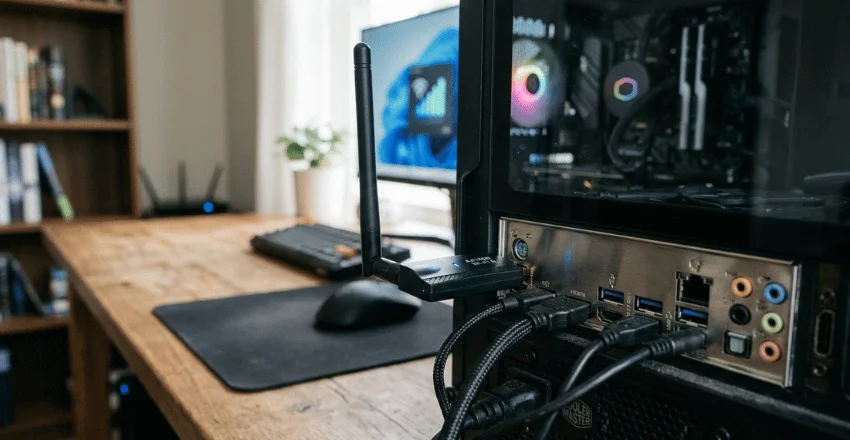
Start with compatibility rather than the highest speed number on the package. A fast adapter cannot give you capabilities that your router, operating system, or internet service cannot support.
1. Match the wireless generation to your router
Wi-Fi 6 is a sensible starting point for many current home networks. It supports modern security and handles busy networks more efficiently than older generations.
Wi-Fi 6E extends Wi-Fi 6 into the 6 GHz band. That extra band can reduce congestion when both the computer and router support it.
Wi-Fi 7 goes further, but buying a Wi-Fi 7 adapter alone doesn’t turn an older router into a Wi-Fi 7 network. Microsoft lists a compatible router, a wireless network adapter, and a supported Windows installation as requirements for using newer Wi-Fi features.
If your router is the bottleneck holding back your network, Techixia’s comparison of current home Wi-Fi routers is worth reading before you spend extra on the PC side.
2. Check Windows support before buying
Driver compatibility is easy to overlook. Microsoft says Wi-Fi 7 support starts with Windows 11 version 24H2. You also need a network adapter and router that support the standard.
The 6 GHz band can have separate operating system requirements, too. NETGEAR states that its A8000 Wi-Fi 6E USB adapter requires Windows 11 to connect to the 6 GHz band. Windows 10 can use that device on the older 2.4 GHz and 5 GHz bands.
Always visit the manufacturer’s support page and confirm a current driver exists for your exact Windows version and hardware revision. TP-Link, for example, published an updated Windows 10/11 driver for the US Archer TX20U Plus hardware in August 2026.
3. Don’t buy more wireless speed than you can use
Numbers such as AX1800, AXE3000, or BE6500 describe a wireless class. They don’t promise that one computer will reach that total speed.
Your real connection depends on the router, channel width, interference, distance, walls, antenna placement, and internet plan.
This gives you a simple buying rule. Match the adapter to the network you have first. Pay extra for a newer generation when you’re also upgrading the rest of the network or expect to do so soon.
4. Choose the right antenna design
A tiny nano adapter is convenient when the computer sits close to the router. It can also be useful when you want something that barely extends beyond the USB port.
A desktop in another room has different needs. A larger model with an adjustable antenna, cable, or desktop cradle lets you move the receiver away from the PC case and place it where reception is stronger.
Don’t assume a new adapter will cure every weak-signal problem. Router position, walls, interference, and distance can still be the cause.
If Wi-Fi is weak throughout part of your home, follow Techixia’s guide on how to improve WiFi signal before replacing more hardware.
5. Check your available USB ports or PCIe slots
For a USB model, inspect which ports your PC has. A fast USB wireless device connected through an older port may not perform as intended.
For a PCIe card, confirm that the correct expansion slot is free and not blocked by a graphics card or another component. Check the card’s Bluetooth connection requirements too.
These basic checks can save you from buying hardware that fits the specification sheet but not your computer.
Which Wireless Standard Makes Sense in 2026?
For a routine home office, browsing, streaming, or general-use PC, Wi-Fi 6 is still a strong value point when paired with a compatible router.
Wi-Fi 6E becomes more interesting when your router offers 6 GHz and your operating system supports it. The 6 GHz band can be useful in areas where 2.4 GHz and 5 GHz networks are crowded.
Consider Wi-Fi 7 when you already have compatible networking equipment, run Windows 11 24H2 or newer, transfer large files locally, or plan a broader network upgrade. Microsoft confirms that using its newer wireless capabilities depends on support across the router, adapter, and operating system.
For an older router and a modest broadband connection, an expensive Wi-Fi 7 device may add little practical value today.
Our Recommendation by Use Case
For the easiest desktop upgrade: choose a dual-band Wi-Fi 6 USB 3.0 model with confirmed Windows drivers.
For a fixed gaming or workstation desktop: consider a PCIe Wi-Fi 6 or newer card with external antennas. Ethernet remains preferable when consistent low latency is your top priority and a cable is practical.
For weak reception: favor adjustable external antennas or a USB model with a cradle. Diagnose router placement and home coverage too.
For a Wi-Fi 6E network: confirm 6 GHz support across Windows, the router, and the adapter before purchase.
For Wi-Fi 7: treat it as a system-level upgrade. Windows 11 24H2 or later is required for Microsoft’s Wi-Fi 7 support, and the router must support the same generation.
Verdict: Most PC owners don’t need the most expensive wireless hardware. A well-supported Wi-Fi 6 USB adapter is the practical choice for a fast, simple upgrade. PCIe is better for a permanent desktop installation with flexible antennas. Move to 6E or 7 when the rest of your network can use those features.
What to Check Before You Buy
Look at your router model, Windows version, available ports or PCIe slots, internet plan, and signal conditions before choosing an adapter. Then select the wireless generation that matches those limits.
For many US PC owners in 2026, Wi-Fi 6 over USB 3.0 offers the easiest balance of compatibility, speed, and setup effort. A PCIe card makes more sense for a permanent desktop build, while Wi-Fi 6E and Wi-Fi 7 should be purchased with the rest of the network in mind. Our related guide, USB Cable, goes further into this.
Frequently Asked Questions
Not usually for pure consistency. A wired Ethernet connection avoids many wireless issues such as interference and changing signal conditions. An adapter is more convenient when running a cable isn’t practical or when you need to add wireless networking to a computer.
It works only when the desktop has a compatible USB port, a supported operating system, and a suitable driver. Check the manufacturer’s support page before purchasing, especially with older Windows versions.
PCIe can be a strong wireless choice because many cards use movable external antennas. A good USB model can also work well. For competitive gaming, Ethernet is still worth using when you can connect the PC by cable.
It can improve the connection between your PC and router if the old wireless hardware is the bottleneck. It cannot make your internet service faster than the speed your provider delivers.
No. Wi-Fi 6 remains suitable for many households. Wi-Fi 7 makes more sense when you have a compatible router, a supported Windows version, newer devices, or demanding local-network needs.
Yes. A USB wireless device is usually the simplest method. A PCIe wireless card is another option when you have a free expansion slot and want an internal installation.