
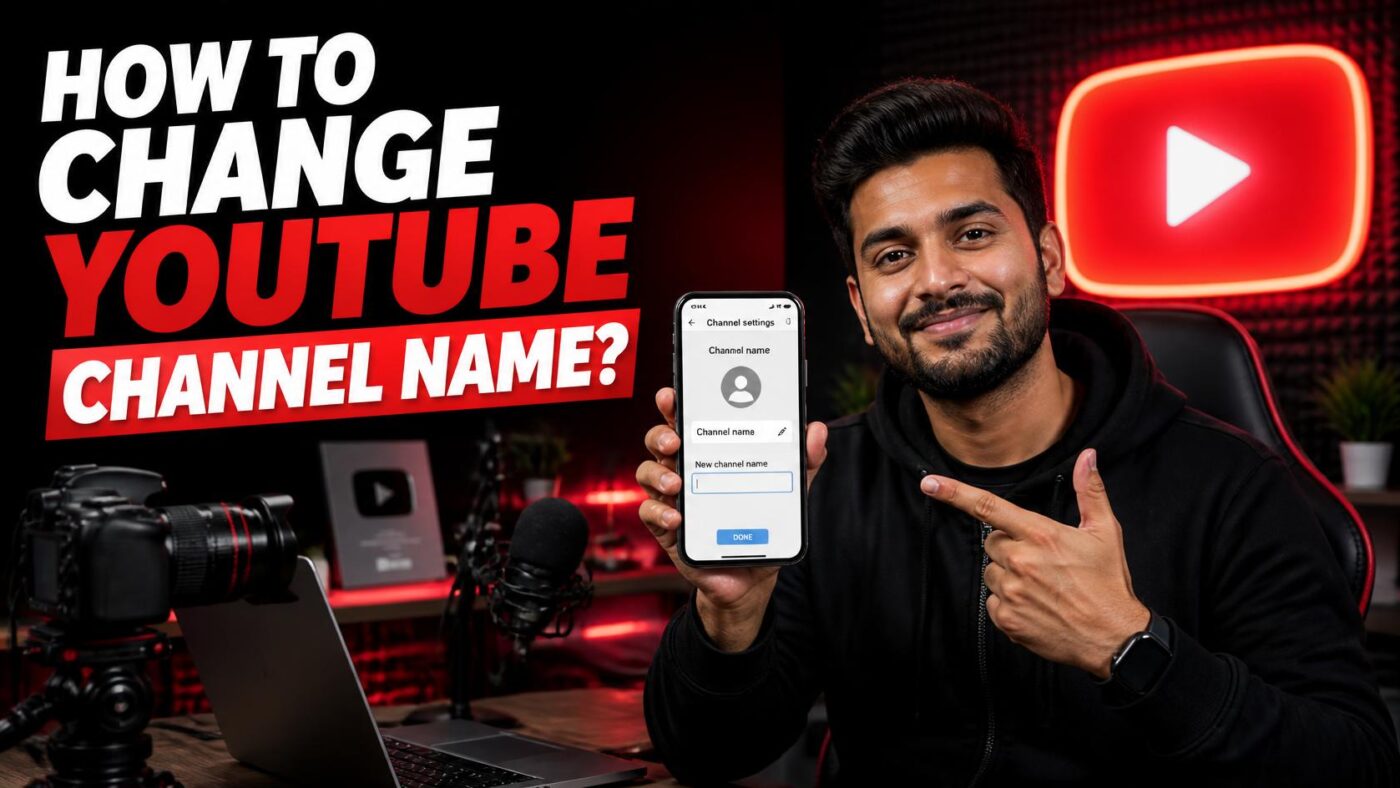
If you’re searching for how to change YouTube channel name, you can rename it through YouTube Studio on a computer or the YouTube app on a phone. The change affects your YouTube identity without changing your Google Account name. YouTube currently allows two channel name changes within 14 days.
Quick answer: On desktop, open YouTube Studio, choose Customization, select Profile, enter your new channel name, and click Publish. On Android or iPhone, open your channel in the YouTube app, choose Edit, update the name, and save it. The new name may take a few days to appear everywhere.
| What you need to know | Current YouTube rule or action |
| Desktop location | YouTube Studio → Customization → Profile |
| Android/iPhone location | Profile picture → View channel → Edit |
| Rename limit | Twice within 14 days |
| Google Account name | Not changed by the YouTube rename |
| Verification | Badge is removed after a channel name change |
| Update time | May take a few days across YouTube |
| Handle | Managed separately from the display name |
What You’ll Need Before Renaming Your Channel?
The technical change takes only a few minutes. Choosing the right new identity deserves more thought.
Before you start, make sure you have:
- Access to the YouTube channel you want to edit
- Your final new display name
- A plan for your @handle if you also want to change it
- Updated branding ready if the rename is part of a larger rebrand
- A way to tell regular viewers about a major identity change
If your content focus is changing too, consider updating your channel banner, profile image, description, and links at the same time.
Creators producing new videos after a rebrand can also browse Techixia’s Apps guides for software tutorials and editing resources.
How to Change YouTube Channel Name on Desktop?
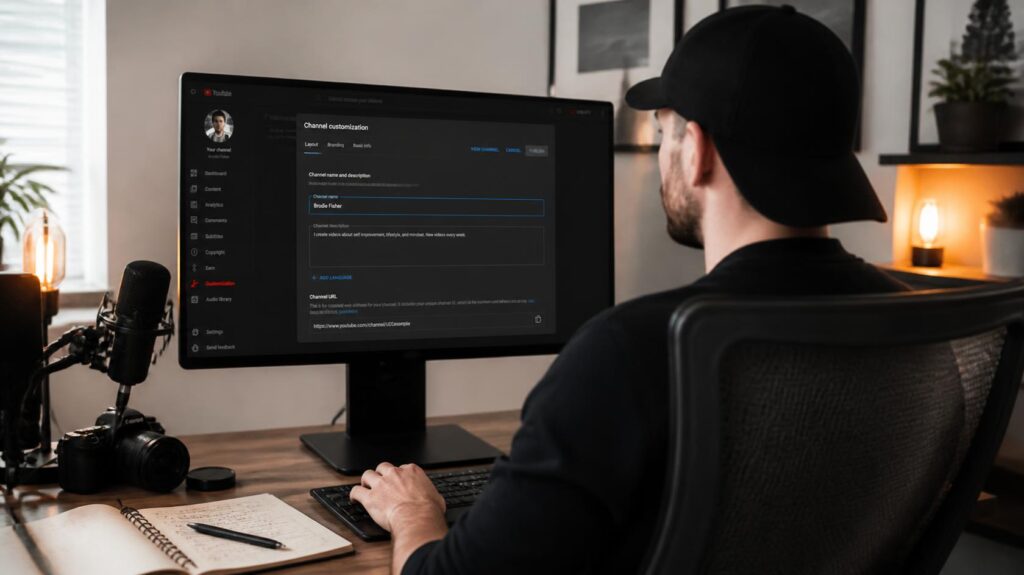
If you are looking for how to change YouTube channel name, YouTube’s current desktop instructions use the Profile section inside Channel Customization. Some older tutorials still refer to a “Basic info” tab, so don’t worry if those directions no longer match what you see on your screen. The updated YouTube Studio layout may place these options differently, but the channel name settings remain available under Customization.
Follow these steps:
- Sign in to YouTube Studio. Make sure you’re managing the correct channel if your account controls more than one.
- Open Customization. Select it from the menu on the left side of YouTube Studio.
- Select Profile. This area contains your public channel name, handle, description, and Profile links.
- Enter your new channel name. Review the spelling, capitalization, and branding before continuing.
- Click Publish. YouTube saves the new profile information and begins updating it across the platform.
Don’t repeatedly edit the name while waiting for it to appear. YouTube says an update may take a few days to display everywhere.
Change The Name On Android
You don’t need a computer for a simple rename.
In the YouTube app on Android:
- Tap your profile picture.
- Tap View channel.
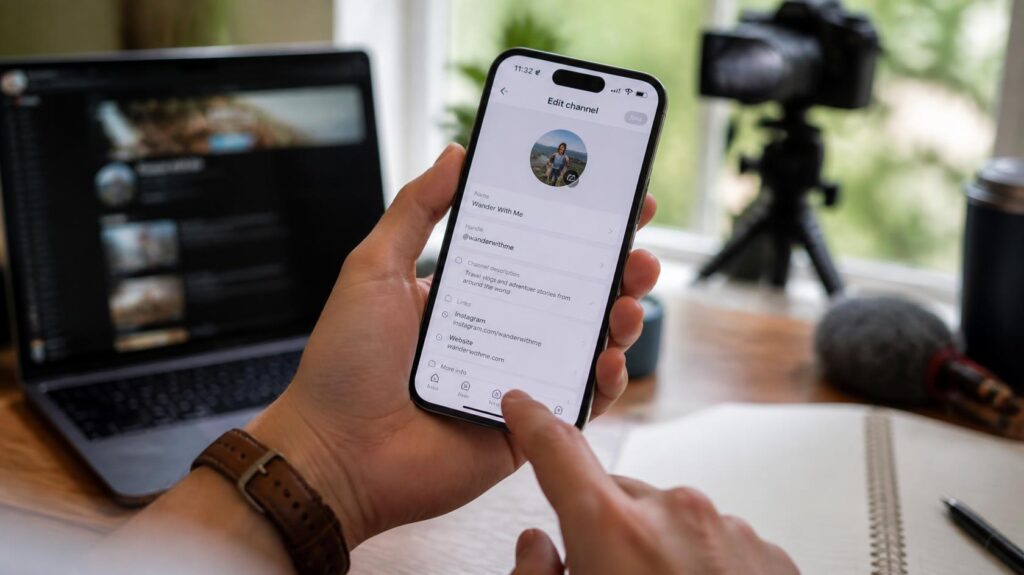
- Tap the Edit control beside your name.
- Enter the updated name.
- Tap Save.
You can also use the YouTube Studio app. Tap your profile picture, select Edit, update the name, and save your changes.
If you like finding useful controls hidden inside everyday mobile apps, Techixia’s Google Play Store hidden-settings guide covers more Android settings worth knowing.
Change The Name On Iphone Or Ipad
The iOS process is similar:
- Open YouTube and tap your profile picture.
- Choose View channel.
- Tap Edit under your channel information.
- Tap the edit control beside your name.
- Enter the new name and choose Save.
The YouTube Studio app also supports profile editing on iPhone and iPad.
Menu labels can change as YouTube updates its apps. If your screen looks slightly different, look for your channel profile and the edit icon rather than relying on an older screenshot.
Channel Name vs. Handle: Know the Difference

When learning how to change YouTube channel name, it’s important to understand that your display name and handle serve different purposes. The channel name is the public identity viewers associate with your content. At the same time, the handle is the unique identifier that begins with @ and is used for mentions and handle-based channel URLs. YouTube provides separate settings for updating the channel name and handle. If you want your @handle to match after changing your channel name, review the handle field separately. Handles can also be changed twice within 14 days.
For example:
| Before | After a display-name rebrand |
| Channel: Pixel Workshop | Channel: Pixel Lab |
| Handle: @pixelworkshop | Can remain @pixelworkshop |
| Handle after optional update | @pixellab, if available |
Keeping the two similar can make your brand easier to recognize, but they don’t need to use identical wording.
What Happens After You Change the Name?
The rename changes your public YouTube identity. It does not require you to rename your Google Account.
YouTube states that changes to your channel name and picture remain on YouTube. Your Google Account name can be managed separately.
Expect the new name to take some time to appear across the service. YouTube says this process can take a few days.
There is one major warning for verified creators: changing the channel name removes the verification badge. Consider that consequence before publishing a rebrand on a verified channel.
A Simple Rebranding Checklist Before You Click Publish
A rename is more successful when viewers understand what changed.
Before publishing, check the following:
- Confirm the final spelling on desktop and mobile.
- Review whether your @handle should change too.
- Update your banner and profile image if your old branding appears there.
- Rewrite your description if the channel’s topic has changed.
- Check social profiles and websites for the old identity.
- Tell regular viewers about a major rebrand through a video or community update.
- Keep visual branding familiar if you want existing viewers to recognize you quickly.
This matters most when the new name is dramatically different from the old one. A viewer who recognizes your profile image, colors, and content style is less likely to wonder whether they subscribed to the wrong account.
For broader software and platform coverage, Techixia’s Technology section covers tools, apps, devices, and platform updates.
Why Won’t YouTube Let Me Change My Channel Name?
First, check whether you have already changed it twice within the last 14 days.
Then, review the proposed name against YouTube’s Community Guidelines. YouTube requires channel names to follow those rules.
If you are searching for how to change YouTube channel name, there’s another less obvious fix to know. YouTube’s current help documentation says that if you can’t update the name, you should remove any existing channel name translations before trying again. If the interface itself looks different from the instructions you’re following, try YouTube Studio on desktop. It often makes profile fields easier to identify than older tutorials or screenshots do.
Make the Rename Easy for Viewers to Follow
Changing your display name is simple. A thoughtful rebrand takes one extra step: make sure viewers can connect the new identity with the content they already know.
Choose the final name before publishing, review your handle, update outdated branding, and communicate major changes clearly. Then, give YouTube a few days to finish updating the name across the platform.
Conclusion
Learning how to change YouTube channel name is a simple process when you understand the difference between your channel name, handle, and Google Account identity. Whether you use desktop or mobile, the update only takes a few steps, but planning your rebrand matters. Review your handle, update your visuals, inform viewers, and allow YouTube time to apply changes across the platform for a smooth transition.
Frequently Asked Questions
YouTube currently permits two channel name changes within 14 days. The same two-in-14-days limit also applies to handle changes.
Edit only the channel name field and leave the Handle field unchanged. YouTube manages these as separate profile settings. If you later want matching branding, you can edit the handle separately.
No. YouTube states that channel name and profile picture changes can remain limited to YouTube, while your Google Account identity is managed separately.
Saving the new name takes only a few moments, but YouTube says it can take a few days for the updated identity to appear across the platform.
Yes, if the channel is currently verified. YouTube says changing the channel name removes the verification badge. Verified creators should consider that before completing a rebrand.
Yes. Both the regular YouTube app and YouTube Studio support channel profile edits on Android, iPhone, and iPad.