
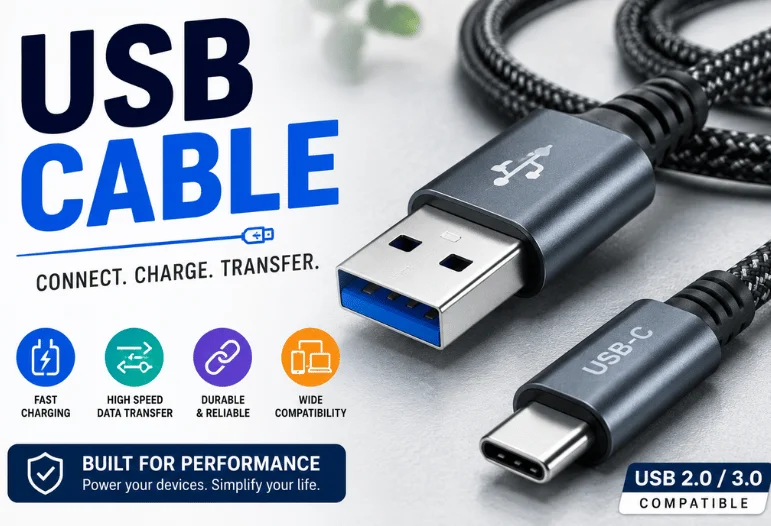
Choosing a USB cable looks simple until two cables with identical connectors perform completely differently. One might only charge a phone, while another can move large files, run a monitor, or supply enough power for a laptop.
The safest way to choose is to check four things: the connector at each end, required charging power, data speed, and any video support. USB-C describes a connector shape, not one fixed level of performance. USB-IF itself notes that cables can have different capabilities even when they fit the same ports.
Quick answer: Match the plug to both devices first. Then check how much charging power and data speed you need. For USB-C devices, don’t assume every cable supports fast charging, high-speed transfers, or video. A cable that fits can still lack the electrical capabilities required by your device.
| USB Cable | Why it matters | Common options |
| Connector | Determines whether the cable physically fits | USB-A, USB-B, Micro-USB, USB-C |
| Charging power | Controls whether a device can charge at its supported rate | Basic charging, USB Power Delivery, 60W, 240W |
| Data rate | Affects file-transfer time and peripherals | USB 2.0, USB 3.x, USB4 |
| Video support | Needed for compatible monitors and docks | Depends on ports, devices, and cable capability |
| Length | Longer cables can be less practical at higher performance levels. | Short desktop cables to longer charging leads |
| Certification/marking | Helps identify supported performance | USB-IF power and data markings on compliant cables |
What Does a USB Connection Do?
USB stands for Universal Serial Bus. It was designed to give computers and peripherals a common way to exchange data and power.
Today, the same family of connections appears on phones, laptops, printers, game controllers, storage drives, cameras, docks, chargers, and countless accessories.
This creates one common source of confusion: connector shape and USB performance standard are not the same thing.
A USB-C port, for example, may support basic USB 2.0 data. Another USB-C port may offer much faster transfers, charging, and display output. The oval connector alone doesn’t tell you which features are available. USB-IF describes USB Type-C as a reversible connector designed to support scalable power and performance.
The Main Connector Types
USB-A
USB-A is the familiar flat, rectangular connector found on many desktop computers, chargers, hubs, TVs, and older laptops.
It isn’t reversible, so the plug only inserts one way. You will often see it paired with USB-C, Micro-USB, or USB-B at the device end.
USB-A remains useful when connecting newer accessories to older computers or chargers.
USB-B
USB-B is most closely associated with printers, scanners, audio interfaces, and other larger peripherals.
The classic version has a roughly square shape with angled upper corners. Several variations have existed across different USB generations.
For home users, a USB-A-to-B lead is still a common way to connect a printer directly to a computer.
Micro-USB
Micro-USB became common on Android phones, e-readers, power banks, cameras, Bluetooth accessories, and other small electronics before USB-C took over much of the market.
It is smaller than USB-A but isn’t reversible. Forcing the plug in upside down can damage the connector.
You may still need Micro-USB for older accessories, so checking the port before ordering a replacement lead can save a return.
USB-C
USB-C is the small, rounded connector now used across many phones, tablets, laptops, chargers, docks, and accessories.
Its biggest physical advantage is reversibility. Either side of the plug can face upward.
The more important point is that USB-C supports a wide range of possible capabilities. USB-IF’s current certification rules distinguish cables by supported power and data performance rather than treating every Type-C lead as equivalent.
Techixia’s guide to USB OTG and phone accessories explains another benefit of modern Type-C ports: compatible phones and tablets can act as hosts for flash drives, keyboards, controllers, and other peripherals.
USB Cable Speed: Why the Connector Doesn’t Tell the Whole Story

A USB cable can physically fit and still transfer data much more slowly than expected. USB 2.0, for example, supports up to 480 Mbps. Faster generations raise that ceiling considerably. A 2026 TE Connectivity reference lists USB 3.2 at up to 20 Gbps and USB4 implementations at much higher rates than USB 2.0. Those are theoretical interface limits, not a promise that every connection will reach them.
Actual transfer performance depends on the slowest part of the chain:
- the computer or phone port;
- the cable’s supported data standard;
- the connected device;
- storage performance;
- hubs, docks, or adapters between the devices.
This matters when moving video projects, backing up large drives, or using high-bandwidth peripherals. Paying for a high-performance lead offers little benefit if both devices only support USB 2.0.
Charging Power Matters Too
Two Type-C leads may look identical yet support different charging levels.
USB-IF currently requires USB-C-to-USB-C cables submitted through its compliance program to display supported power capability as 60W or 240W. Most non-USB-2.0 certified Type-C leads must also display the supported data rate.
These markings can make shopping easier because they separate connector shape from electrical capability.
Your device will still charge only at a rate supported by the full setup. The phone or laptop, wall charger, and lead all have to support the necessary charging profile.
For a bedside setup, Techixia’s Scam Likely guide also explains why port specifications and charger safety information matter more than having many charging sockets.
Do You Need a Data Cable or a Charging-Only Cable?
Not every inexpensive charging lead is designed for useful data transfer.
A charge-focused cord may be fine for powering a small accessory. It can become frustrating when you connect a phone to a computer and expect files to appear.
If you need file transfer, device syncing, Android Auto, CarPlay, development work, storage access, or computer peripherals, confirm that the product explicitly supports data.
For large transfers, check the stated USB generation or data rate rather than relying on phrases such as “fast cable.”
Can USB-C Carry Video?
Sometimes.
USB-C can be used for display connections when the source device, destination, port configuration, and cable all support the required video mode. A matching connector isn’t enough.
That is especially relevant for laptops connected to USB-C monitors or docks. Techixia’s guide to setting up two monitors recommends checking USB-C, Thunderbolt, and docking-station requirements before building a multi-display setup.
If your main goal is charging a phone, video support probably doesn’t matter. If you’re connecting a laptop to a 4K monitor, it may be one of the first specifications to verify.
A Simple Five-Check Buying Method
Before buying a replacement lead, use this sequence.
- Look at both ports. Identify whether each end needs USB-A, Micro-USB, USB-B, or USB-C.
- Check your device’s charging requirement. Laptop charging usually demands more power than charging earbuds or a phone.
- Decide whether you need data. If yes, find the supported transfer rate for both devices.
- Check for display requirements. Monitor and docking setups may require capabilities beyond charging and basic data.
- Read the cable markings and specifications. Prefer clearly stated power and data ratings over vague marketing terms.
This device-first method prevents the most common mistake: buying by connector shape alone.
It can also save money. You don’t need top-tier data performance for a bedside charger, while a cheap charging lead may be a poor choice for an external SSD.
When Is USB-C the Better Choice?
For modern equipment, Type-C is usually the most flexible connector because it is reversible and can support charging, data, and other functions. Many current laptops, tablets, phones, accessories, and chargers already use it. Apple’s USB-C Pencil, for example, is one of the accessories covered in Techixia’s electronic notebook comparison. Still, there is no need to replace working USB-A or Micro-USB hardware only because a newer connector exists. Choose based on the ports and features you own today.
Choose by Capability, Not Appearance
The connector is only the first clue. A good purchase matches the ports and the job you need the connection to perform. For basic phone charging, a modest-rated lead may be enough. For laptops, docks, external storage, and displays, check wattage, data performance, and video requirements before buying. When specifications are unclear, look for explicit power and data ratings or recognized USB certification rather than assuming two similar-looking cords will behave the same way.
Frequently Asked Questions
USB-C has become common across current phones, laptops, tablets, chargers, and accessories. USB-A remains widespread on desktop computers, chargers, hubs, and older equipment.
Check the port at each end, then determine whether you need charging, data transfer, or video. For USB-C connections, also check the required wattage and data rate instead of choosing by plug shape alone.
No. They can support different charging power, data rates, and optional features. USB-IF explicitly certifies cables according to their capabilities and requires performance markings for qualifying Type-C products.
A Type-C connector can fit the laptop without supporting the power it needs. Check the computer’s charging requirement, charger output, and cable power rating before relying on it.
Not automatically. Faster charging requires compatible hardware across the device, charger, and lead. Once the cable meets the required specification, paying more doesn’t force the device to accept extra power.
Often, yes, with an appropriate USB-A-to-C lead. Charging speed may be lower than with a compatible USB-C Power Delivery charger.