
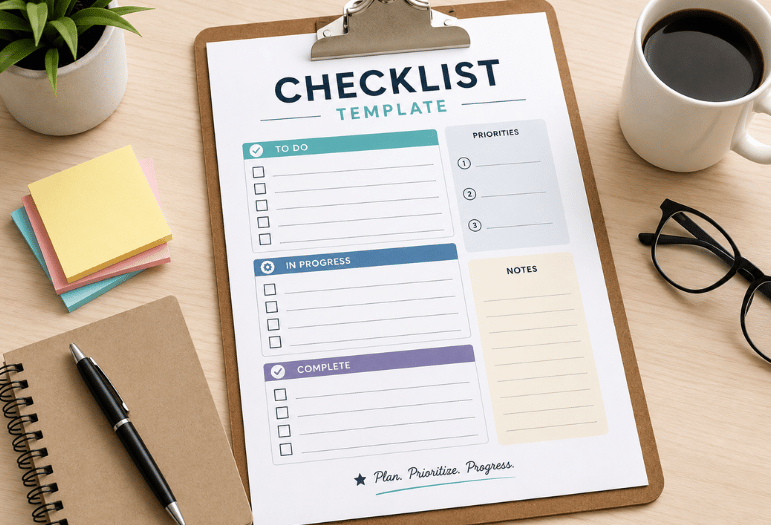
Search for a checklist template, and you get twelve gallery pages offering the same file. Almost none show how the boxes work once the file is open, or what to change when your list stops matching your job. So this guide does both: a finished list you can lift straight off this page, then the build steps in the apps already sitting on your machine. For the full picture, read Python Exponent.
The quickest route is a spreadsheet. Put your tasks in column B, select column A, and choose Insert, then Checkbox. Excel returns TRUE for a ticked box and FALSE for an empty one, so a single COUNTIF formula gives you a live progress count. Prefer paper? Word turns any bullet list into empty boxes in four clicks.
| Checklist Template | Cost | How you get boxes | Best fit |
| Excel | Microsoft 365 Personal, $9.99 a month or $99.99 a year | Insert > Checkbox | Lists you want to measure |
| Google Sheets | Free with a Google account | Insert > Checkbox | Shared and phone lists |
| Word | Included with Microsoft 365 | Developer > Check Box Content Control | Forms and printed sign-offs |
| Google Docs | Free | Format > Bullets & numbering > Checklist | Quick notes and handouts |
| Notion | Free personal plan: Plus is $10 per member per month. | Type /to-do. | Repeatable projects |
| Todoist or Reminders | Free tiers on both | Native tasks | Daily and recurring jobs |
Key takeaways
- A spreadsheet is the only common tool that counts your progress for you.
- Word and Google Docs win when the list gets printed and signed.
- Ten items is a working ceiling. Past that, people skim.
- Every “free” gallery has a catch somewhere. Check it before you download.
- Write each line as one action with one owner, or nobody knows who is stuck.
The list you can copy right now
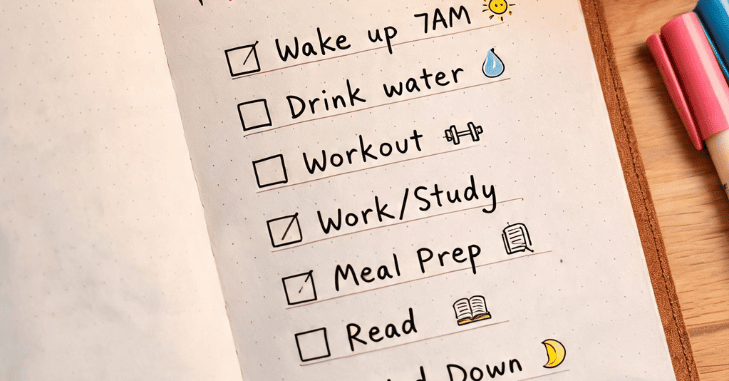
Here is a real one, not a screenshot of one. It covers setting up a new work laptop, a job people often botch by doing things out of order. Copy the rows, swap the wording, and you have a working file in two minutes.
| Done | Step | Owner | Due | Note |
| [ ] | Back up the old machine to an external drive. | You | Day 1 | Open a file from the backup before you wipe anything. |
| [ ] | Sign in to your password manager first. | You | Day 1 | Every later step needs it. |
| [ ] | Run all pending system and firmware updates. | You | Day 1 | Reboot twice; updates arrive in stages. |
| [ ] | Turn on full-disk encryption. | You | Day 1 | BitLocker on Windows, FileVault on a Mac |
| [ ] | Install only the five apps you use daily. | You | Day 2 | Add the rest when you miss them. |
| [ ] | Sync one test file and open it elsewhere. | You | Day 2 | Proves the cloud link works both ways |
| [ ] | Schedule automatic backups. | IT or you | Day 3 | Weekly is enough for most people. |
| [ ] | Wipe and recycle the old machine. | You | Day 7 | Only after a full week of clean running |
Those five columns carry almost any project. Swap the steps for permit, quote, demolition, and paint, and it becomes a renovation tracker to run beside a floor plan drawn in home design software for room layouts. Swap them for script, record, edit, and thumbnail, and it runs a video.
What you need before you build a checklist template
Not much, and you probably have it already.
- The finished list of steps, written out in plain words first.
- One app: Excel, Google Sheets, Word, Google Docs, or Notion.
- A decision about whether this gets printed, shared, or both.
- Ten minutes. Any longer means the list is too long.
Write the steps on paper before you open anything. Formatting is a distraction, and a list that reads badly in a notebook reads worse in a spreadsheet.
Building it in Excel, step by step
- Open a blank workbook. Put a heading in A1 called “Done” and one in B1 called “Step.”
- Type your steps down column B, one per row, starting at B2.
- Select A2 down to the last row that has a step beside it.
- Go to the Insert tab and click Checkbox. Microsoft ships this in Excel for Microsoft 365 on Windows and Mac.
- Click any box to tick it. Select several and tap the spacebar to flip them all at once.
- Drop this in D1 for a live count: =COUNTIF(A2:A50,TRUE)&” of “&COUNTA(B2:B50)&” done.”
- Select column B, open Conditional Formatting, choose a formula rule of =$A2=TRUE, and set the font to strikethrough gray.
- Save it as a template file (.xltx), so every new copy starts empty.
A ticked box is the value TRUE, which is why the COUNTIF works. That also means you can feed the column into anything else Excel does with logic. If you pull task owners or due dates from another sheet, the choice between XLOOKUP and VLOOKUP for lookups decides whether your file survives someone inserting a column.
No Checkbox button on your ribbon? Your version predates the feature. An older route still works: turn on the Developer tab, then use Insert, Form Controls, and Check Box, and link each one to a cell.
Google Sheets does the same thing for free..
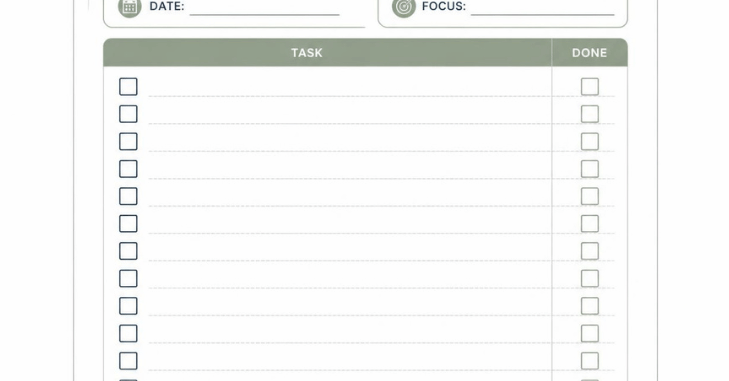
Sheets got there years earlier and charges nothing. Select the cells, choose Insert, then Checkbox, and the boxes appear. Google also lets you set custom values behind th so thatso a ticked box can store the word “yes” instead of “TRUE.”
Three things Sheets does better than Excel for shared lists:
- Anyone with the link can tick a box on a phone, with no license involved.
- Version history shows exactly who ticked what and when.
- A notification rule can email you the moment someone edits the sheet.
Progress counting works the same way. Point COUNTIF at the checkbox column, count the tasks with COUNTA, and you get a running score at the top of the page.
Word and Google Docs, for lists that get printed
Print beats a screen more often than people admit. A laminated opening routine on a wall gets followed. A spreadsheet nobody opens does not.
In Word, click the arrow beside the Bullets button, pick Define New Bullet, then Symbol, and switch the font to Wingdings. Pick the hollow square, click OK twice, and your bullets become empty boxes. Want a box people click instead of print? Show the Developer tab, then insert a Check Box Content Control at the start of the first line. Paste it down the remaining lines.
Google Docs is faster. CChecklistcklist from the list button in the toolbar, or go to Format, then Bullets and numbering,Checklistcklist. Tick lines can strike themselves through automatically.
Notion, Todoist, and the list in your pocket
Documents forget. Apps remind.
In Notion, typing /to-do gives you a checkbox line, and any page can be saved as a reusable starting point on the free plan. Todoist and Apple Reminders handle repetition: a task set to repeat every Monday reappears on its own.
Recurring work is where this pays off. Take a weekly publishing routine, the kind covered in our beginner YouTube channel roadmap. It holds together because the same eight steps come back every week, not because anyone remembers them.
Where to find free templates that stay free
“Free” does a lot of work on gallery sites. Some want an account, some arrive watermarked, and some open a paywall at the export button. Four sources that behave:
- Microsoft Create. Genuine Office files, opened straight in Word or Excel, with no signup for the download.
- The Google Docs and Sheets galleries. Built into the apps under the Template gallery. Nothing to download at all.
- Vertex42: Long-running spreadsheet library, clear personal-use terms, plain .xlsx files.
- Canva. Strong for anything printed and pretty, though the free tier locks some elements.
Apply the test you would use on any free download: what does the free tier hold back, and does it matter to you? That is the same question worth asking about free video editing software worth installing, where the export screen is where the catch usually shows up.
Why short lists beat thorough ones

The strongest evidence for checklists comes from an operating room, not an office. A 2009 study in the New England Journal of Medicine followed 3,733 operations across eight hospitals. It then tracked 3,955 more after staff adopted a 19-item surgical safety checklist. Deaths fell from 1.5% to 0.8%, and inpatient complications fell from 11.0% to 7.0%.
Nineteen items. Not ninety. The list worked because it was short enough to be read aloud every single time and because each line named one thing somebody had to confirm.
Four rules follow from that:
- One action per line, starting with a verb.
- Ten items or fewer, or split it into two lists.
- Name an owner, even when the owner is always you.
- Fix the wording of any step people keep getting wrong.
Think of it as a reference card rather than a document. The same discipline that makes a good SQL cheat sheet useful applies here: strip it to the few lines that get used, and leave the explanations somewhere else.
Conclusion
A checklist template is one of the simplest tools for improving productivity, reducing mistakes, and keeping projects organized. Whether you createChecklistcklist in Excel, Google Sheets, Word, Google Docs, Notion, or a task management app, a well-structured template helps you track progress, assign responsibilities, and complete tasks in the right order.
The best checklist template is one that matches your workflow, stays easy to update, and is simple enough to use every time. By starting with a reusable template and refining it as your needs change, you can save time, improve consistency, and get more done with less effort.
Your next step
Pick the job you repeated three times this month and got slightly wrong twice. Copy the eight-row table above, replace the steps with yours, and save it. Run it once, then delete any line you skipped.
Frequently asked questions
It is a reusable blank list with the structure already set: the columns, the boxes, and the formatting. You copy it, fill in the steps for one job, and the original stays empty for next time.
That control arrived in Excel for Microsoft 365 and is not in older perpetual releases. In Excel 2019 or 2021, use the Developer tab and a Form Control checkbox linked to a cell.
Ten items are a sensible ceiling for anything done under time pressure. That surgical list ran to 19 items across three separate pauses, so nobody read it all at once.
Yes, if it lives in Google Sheets, Notion, or a task app. Tick boxes work on mobile in all three. An .xlsx emailed to you opens fine, but editing it on a small screen is unpleasant.
Stick to sources that hand you a plain .docx or. xlsx. Treat any download that arrives as an .exe, or that wants a browser extension, as a hard no.
Printable for anything done away from a desk, in a workshop, or in a van. Clickable for anything you want to count or share.